
Merge duplicate client profiles

Tobias Gundry
Updated
If a client has ended up with two profiles in your studio, for example after signing up again with a different email address, you can merge them. Their bookings, memberships, credit packs, payments, notes and other history move into one profile, and the other profile is deleted. A merge cannot be undone.
Only the studio owner can merge profiles, and both profiles must belong to active clients. Merge does not appear on archived or staff profiles. If the profile you want to keep is archived, unarchive it first.
Decide which profile to keep
The profile you keep stays as it is. Its name, email address, password and notification preferences do not change, and nothing from the other profile replaces them. Only records move across.
Keep the profile with the email address the client signs in with. Once the merge is done, the other profile's email and password no longer work, and you cannot change a client's email from their profile afterwards. If you are not sure which address the client uses, check with them before you start.
You start the merge from the profile you are removing.
Choose the profile to keep
- Open Clients → Browse and open the profile you want to remove.
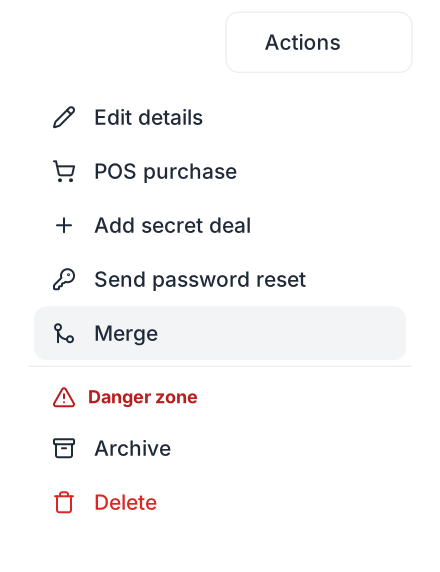
- Select Actions, then Merge.
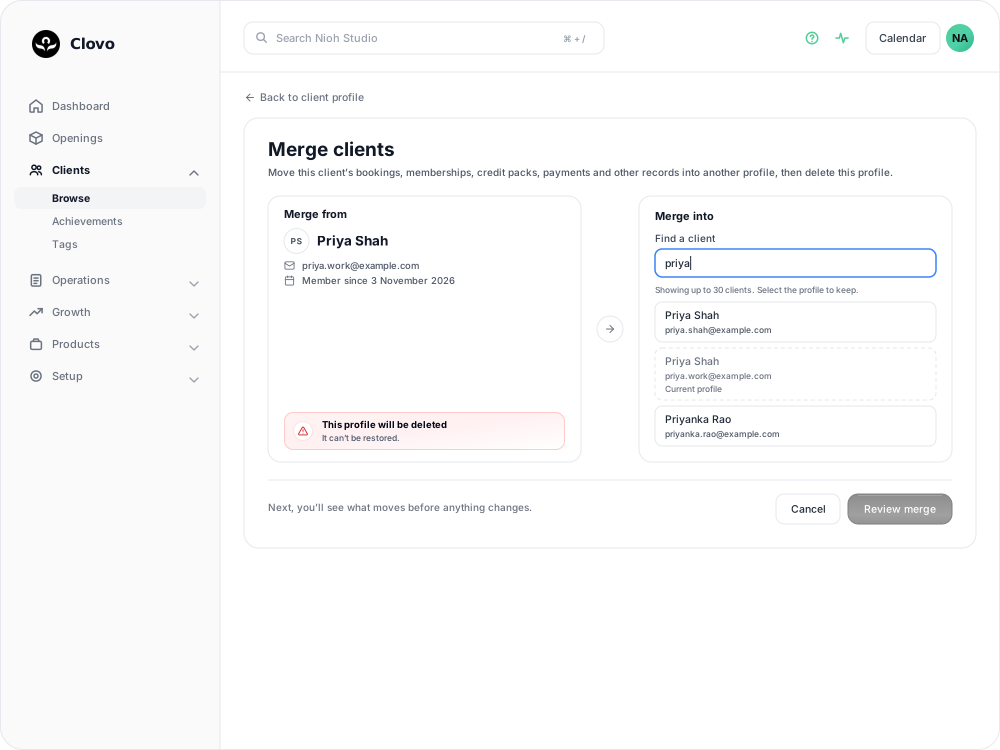
- Merge clients opens with this profile under Merge from, marked This profile will be deleted. Under Merge into, enter the client's name or email in Find a client.
- Select the profile to keep. The profile you started from is listed as Current profile and cannot be selected.
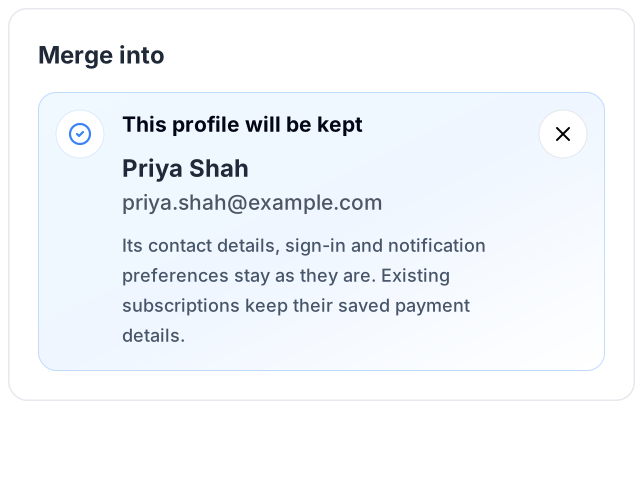
The results are replaced by This profile will be kept and the client's name and email. Check that this is the profile the client signs in with. To choose a different one, select the × beside it and search again.
- Select Review merge. Nothing has changed yet.
Review what moves
Review client merge shows both profiles side by side, followed by a What moves table with one row for each type of record:
- Moving is how many records come across from the profile being deleted.
- Already here is what the kept profile already has.
- After merge is the total once they are combined.
Counts include past records as well as active ones. Membership and credit pack names are listed under their row; names marked + are moving across. Record types with nothing to move are collapsed below the table.
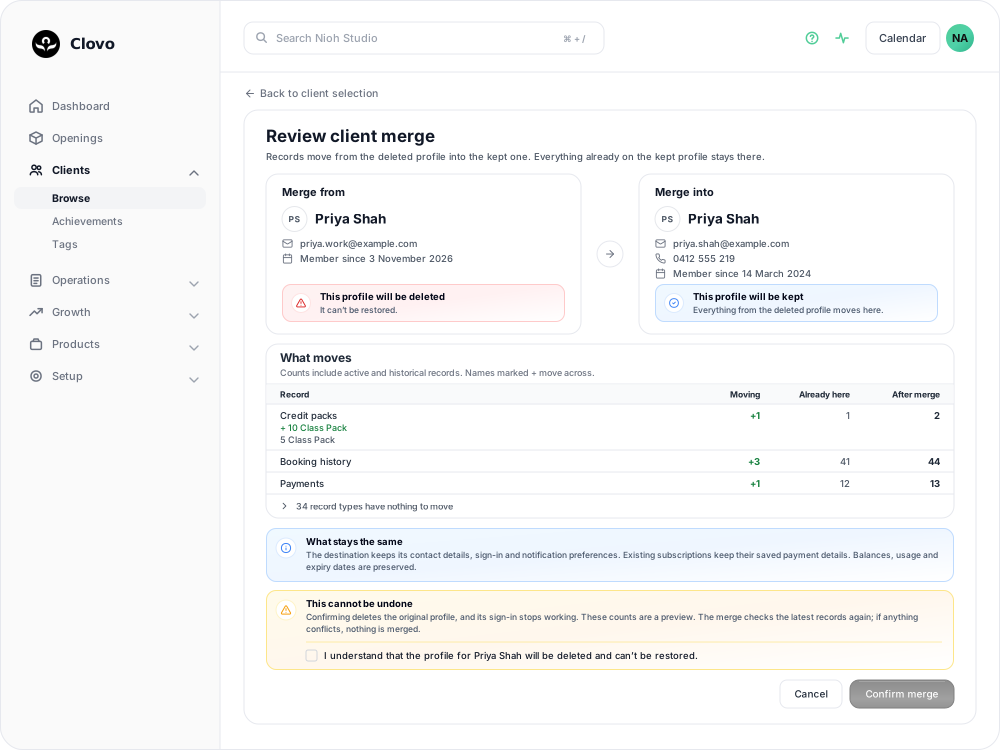
Memberships and credit packs keep their balances, usage and expiry dates. Recurring memberships that move across keep charging the payment details they already use, so the client does not need to add their card again.
If something does not look right, select Back to client selection to choose a different profile, or Cancel to leave both profiles as they are.
Confirm the merge
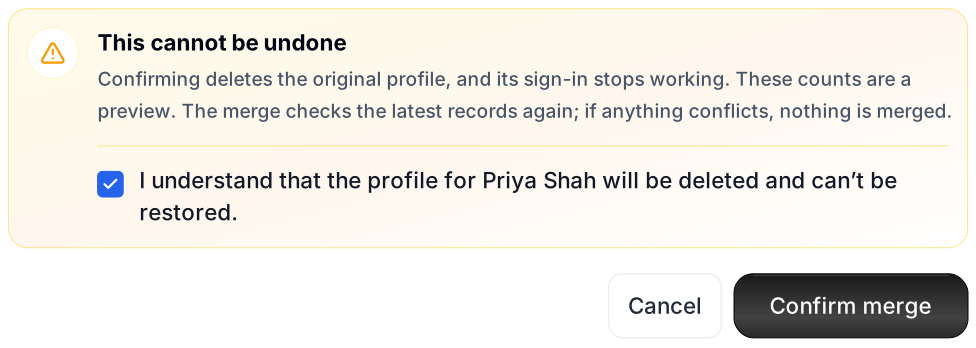
- In This cannot be undone, tick I understand that the profile for [client] will be deleted and can't be restored. Confirm merge becomes available once the box is ticked.
- Select Confirm merge.
Clovo opens the kept profile and shows Client profiles merged. The original profile was deleted. The records from the other profile now appear here, and that profile no longer appears in your client list.
Let the client know which email address to sign in with from now on. The deleted profile's email and password no longer work in the Clovo app or on your landing page.
The merge is recorded in the Studio feed under Clients, with who merged the profiles and the name and email of each.
If the merge does not go ahead
Clovo checks both profiles again when you select Confirm merge. If they hold records that cannot be combined, Clovo shows a message explaining why and leaves both profiles unchanged. Resolve the conflict, then start the merge again.
| Message | What to do |
|---|---|
| Both clients have a booking for the same class. | Cancel one of the bookings. |
| Both clients are waiting for the same class. | Remove one of them from the class waitlist. |
| One client is booked into a class that the other is waiting for. | Remove the waitlist place, or cancel the booking. |
| The clients have overlapping appointments. | Reschedule or cancel one of the appointments. |
| Both clients have an active membership or credit pack for the same plan. | Decide which one the client should keep and cancel the other. A cancelled recurring membership stays active until the end of its paid period, so use Cancel Immediately if you want to merge straight away. |
| These profiles have conflicting records, such as matching tags, regular bookings or achievements. | Remove the matching tag or regular booking from one profile. If you cannot remove the conflicting record yourself, contact Clovo support. |
Related articles
Track attendance by checking-in clients on your phone or desktop
Check clients in to record who attended a class in addition to who booked.
Add a client to your studio manually
Create a client profile from the dashboard, record the required consent dates, confirm the email address, and understand which emails the client receives straight away.
Export your client data
Download your client list from Clovo Dashboard as a CSV, choosing which client groups to include and knowing which columns the file carries before you take it anywhere else.
Update a client's details
Correct a client's name, phone number or recorded consent dates from their profile, and understand why their email is read-only.