
Review, collect or waive a penalty

Tobias Gundry
Updated
Use Operations → Penalties to review penalties waiting for collection and fees that could not be collected. You can retry an eligible failed fee, forgive an unpaid penalty or close a fee you no longer intend to collect.
These tools are available to owners and staff with Setup access. Finance alone does not grant access. To change cancellation windows, no-show grace periods or fees, use Setup → Penalties.
Find a penalty in the dashboard
- Open Operations → Penalties. The default Needs attention view shows pending penalties and failed collections.
- Select View beside the client and class to open the penalty.
- Check Outcome, Status, any Failure reason and the Payment, when present.
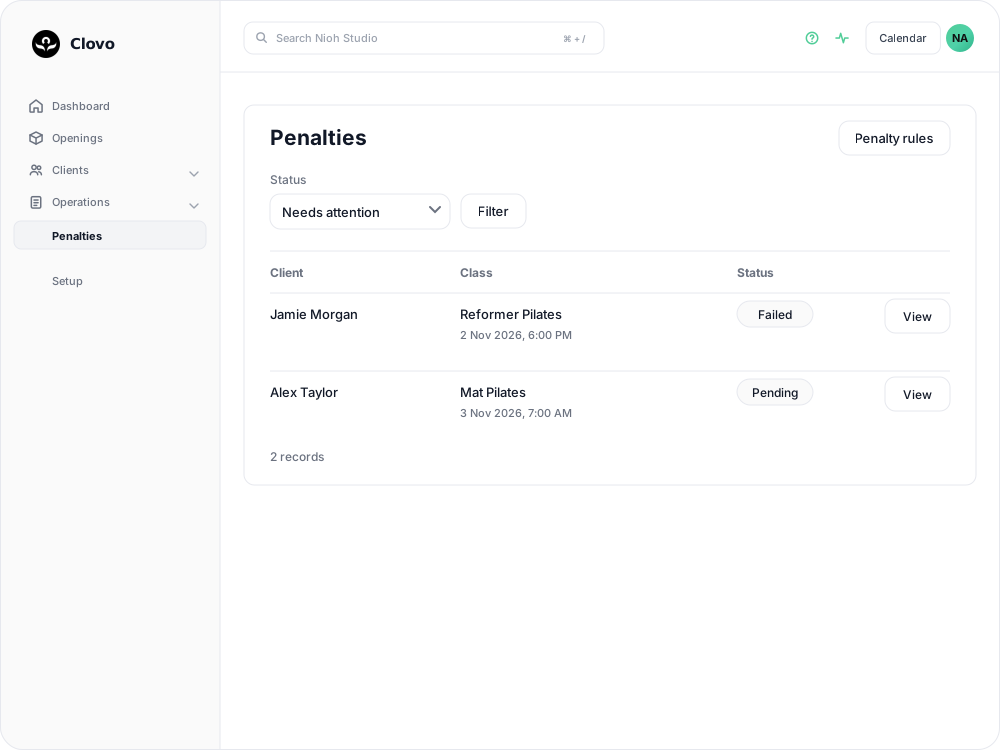
The dashboard home also shows Penalties needing attention when there are pending penalties or failed collections. Select Resolve on a row to open its details.
To find a completed penalty, choose All records or a particular status in the Status filter, then select Filter. View recorded penalties in Setup → Penalties opens the full history too.
Understand the status
| Dashboard status | What it means and what to do |
|---|---|
| Pending | A no-show penalty is waiting for its collection time. Check Eligible for collection. You can waive it before collection. |
| Collecting | Collection is in progress or the payment is awaiting confirmation. Wait for the result before trying another collection or resolution. |
| Collected | The fee was paid or the credit forfeiture was completed. If you need to return a paid fee, use a refund. |
| Failed | Collection did not succeed. Read the failure reason, then retry an eligible fee, waive the penalty or mark the fee uncollectible. |
| Waived | Your team forgave the penalty. It will not be collected. |
| Uncollectible | Your team stopped collection without forgiving the fee. It will not be collected. |
| Not applied | The record did not result in a penalty being applied. No collection action is needed. |
For a no-show, the grace buffer gives your team time to record attendance before collection. Checking in a client who attended before collection prevents that no-show penalty from being collected. A displayed collection time is an eligibility time; collection may happen shortly afterwards.
Retry a failed fee
Failed penalty fees are not retried automatically. Read the failure reason and address the payment issue before trying again. Credit-forfeiture penalties have no fee to retry.
- Open the failed penalty and select Retry collection, if available.
- Review the client, class and Amount to collect. Opening this screen does not charge the client.
- Select Confirm and collect to attempt the charge immediately.

Clovo uses the saved payment method for the membership, or the client’s default payment method if the membership has none. This action does not send the client a payment link.
Check the result after confirming:
- Collected: payment succeeded. The usual client and staff penalty notifications are sent.
- Collecting: payment is still awaiting confirmation. Do not start another collection. Direct debit can take a few business days to clear.
- Failed: read the new failure reason before deciding whether to retry later, waive or mark uncollectible.
The dashboard penalty details include Recent collection attempts so your team can review previous attempts. If a payment result remains uncertain, contact Clovo support before attempting another charge.
Waive a penalty or stop collection
For a pending or unpaid penalty, open its details and enter a Reason under Resolve penalty. The reason is required and stays internal to your team.
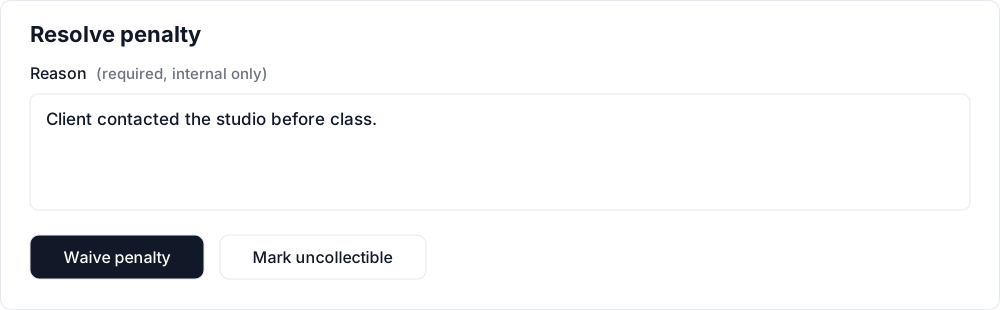
Choose the action that matches your decision:
- Waive penalty: forgive the penalty and stop collection. The client receives an email telling them it has been waived; your internal reason is not included.
- Mark uncollectible: keep the fee recorded as owed but stop collection. The client is not emailed. This option applies to eligible unpaid fees, not credit-only penalties.
Both decisions are final. If you waive an uncollected credit-forfeiture penalty, the held booking credit is returned. Waiving a fee does not restore the original booking credit or refund a payment.
A paid penalty fee needs a separate payment refund. Payments in progress must settle before they can be resolved. If the controls are missing, check the status and your Setup access.
Manage penalties on iPhone or iPad
- Open Admin, or Manage from Our Studio, then Penalties. If the tab is not visible, look under More.
- Open a client’s penalty under Penalty queue or Collection failed. The queue shows an approximate collection countdown; failed collections show the failure reason.
- Choose Retry collection, Waive penalty or Mark uncollectible, when available.
To retry, review the client, class and amount, tap Charge with the displayed amount, then confirm the charge in the alert. Collection is attempted immediately. To waive or mark uncollectible, enter the required internal reason, then tap the matching action.
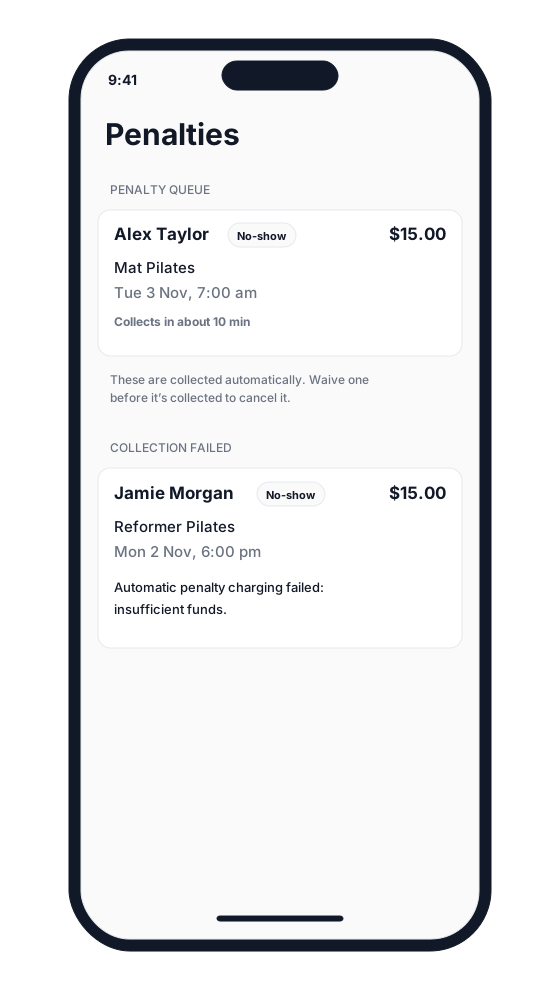
The iOS screen shows penalties needing attention. Use Operations → Penalties in the dashboard for the full history. After retrying on iOS, read the returned result: Payment in progress means you must wait for confirmation, rather than charge again.
Related articles
Set up late cancellation and no-show penalties
Set late cancellation and no-show rules, choose credit forfeiture or membership-only fees, and check the penalties applied to bookings.
Book classes with multiple memberships and credit packs
Clients can hold multiple memberships, credit packs, or both. See how they choose which pass to use for each class in the Clovo iPhone app.
Close bookings before a class starts with a booking cutoff
Choose how long before a class starts clients can no longer book, so your team has time to prepare for the people attending.
Exempt a schedule from the booking cutoff
Keep bookings open until class starts for selected schedules while the rest of your timetable follows your studio booking cutoff.