
Set up late cancellation and no-show penalties

Tobias Gundry
Updated
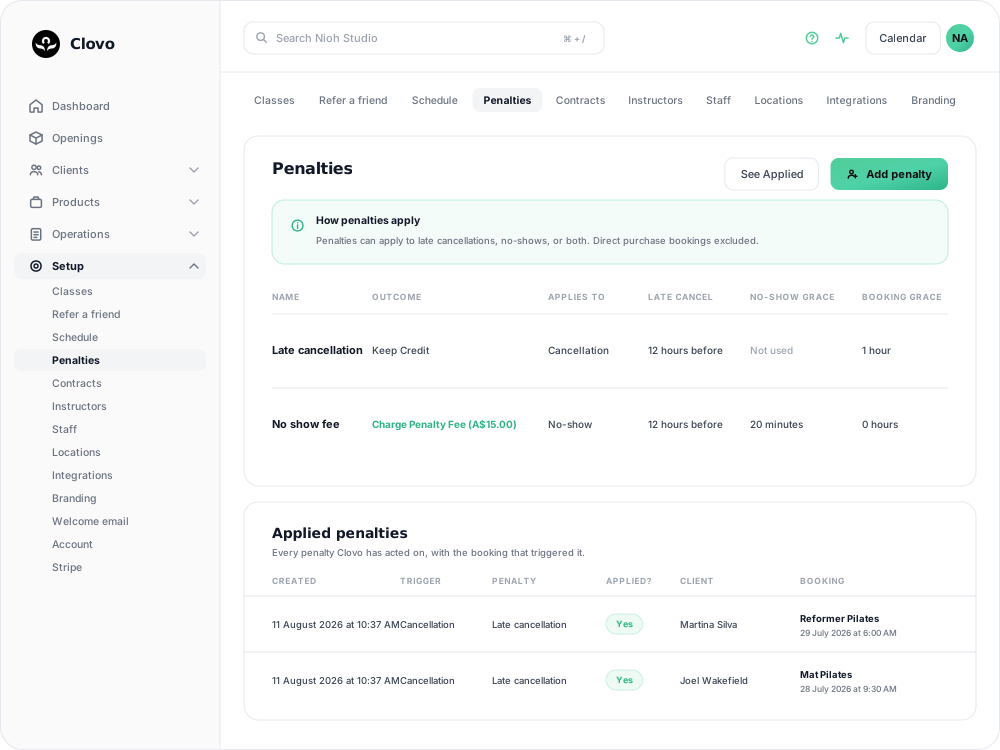
Use Setup → Penalties to choose what happens when a client cancels late or misses a class. Your rules can keep the booking credit or charge a financial penalty. Financial penalties only apply to bookings made with an auto-renewing membership billed through Stripe. For class packs, trials and other credit bookings, a fee rule keeps the credit instead.
What Are Penalties?
Penalties are rules that apply when a client:
- Cancels a booking too close to the class start time
- Does not attend a class and has no check-in recorded
Depending on how you configure the rule, Clovo can:
- Have the client forfeit the class credit
- Charge a penalty fee for a booking made with an auto-renewing membership billed through Stripe
- Record the penalty outcome in the client’s history
Penalties do not apply to direct purchase bookings. If a client paid directly for that individual booking, Clovo will not apply cancellation or no-show penalties to that booking.
Penalties also do not apply to complimentary bookings. If your team gave the client a free place, Clovo will not forfeit a credit or charge a fee if they cancel late or do not attend.
Setting Up Penalties
In Clovo Dashboard, go to Setup → Penalties and click Add penalty. To change an existing rule’s cancellation window, grace periods or action, click its name or Edit.
When creating or editing a penalty, you can configure:
- When the penalty applies: Choose whether the rule applies to cancellations, no-shows, or both.
- Cancellation window: Set how many hours before class a client can cancel without penalty.
- Booking-age grace period: Choose whether very new bookings should be protected from penalties for a set number of hours.
- No-show grace buffer: Set how long after class ends Clovo should wait before treating an unchecked booking as a no-show.
- Penalty action: Choose whether the client forfeits the credit or is charged a penalty fee.
- Penalty fee amount: If charging a fee, enter the fixed amount to charge.
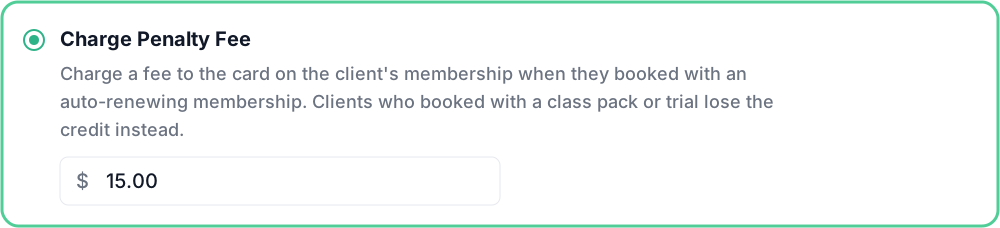
Choosing Charge Penalty Fee does not charge every client. Fees only apply when the booking uses an auto-renewing membership billed through Stripe; clients using a class pack or trial forfeit the credit instead.
How Cancellation Penalties Work
Cancellation penalties only apply when the penalty is configured to apply to cancellations.
- Outside the cancellation window: If a client cancels with enough notice, their credit is returned and no penalty applies.
- Inside the cancellation window: If a client cancels too late, Clovo checks your penalty rules.
- Direct purchase bookings: No penalty applies, even if the cancellation is late.
- Complimentary bookings: No penalty applies, even if the cancellation is late.
Example: If your cancellation window is 12 hours, a client who cancels 14 hours before class avoids the penalty. A client who cancels 2 hours before class may receive the configured penalty.
How No-Show Penalties Work
No-show penalties only apply when the penalty is configured to apply to no-shows. A new no-show rule does not penalise missed classes that started before you created it.
A booking may be treated as a no-show when:
- The class has ended
- The no-show grace buffer has passed
- The client has not been checked in
- The booking was not cancelled
- The class occurrence itself was not cancelled
- The class is not exempt from penalties
- The booking is not a direct purchase booking
- The booking is not a complimentary booking
The no-show grace buffer gives your team time to check clients in after class. For example, if the grace buffer is 15 minutes, Clovo will wait until 15 minutes after class ends before applying no-show penalties. If the client is checked in before then, the no-show penalty is avoided.
Penalty Actions
Client forfeits credit
This means the credit used for the booking is not returned to the client.
For late cancellations, this works as a forfeited credit. For no-shows, the booking has usually already consumed the credit, so Clovo records the penalty and sends the usual penalty notifications, but there may not be an additional credit action to take.
Charge Penalty Fee
This charges a fixed fee to the payment method used to bill the auto-renewing membership the client booked with. Stripe must be connected for the studio. Having a membership is not enough: a class booked using a pack or trial still forfeits the credit instead.
The original booking remains consumed. The penalty fee is an additional charge.
For class packs, trials, super credits and memberships paid outside Clovo, Clovo keeps the booking credit instead of charging a fee. The penalty details and notifications show credit forfeiture as the outcome. For a no-show, this does not deduct another credit.
If the membership is paid by direct debit, the fee is debited from the same bank account and can take a few business days to clear.
If the fee cannot be charged because no payment method is available, Stripe is not connected, or the payment is declined, Clovo records the failed penalty attempt. Clovo does not automatically retry failed penalty fee charges.
Check a penalty’s outcome
Open See Applied from Setup → Penalties, then select View beside the booking. Check Applied, Outcome and, for a fee, Payment. The list includes unsuccessful attempts, so an entry alone does not mean the penalty was applied.
For a pack or trial booking under a fee rule, Outcome shows Client Forfeits Credit and explains why the fee was not charged. An unsuccessful attempt shows a Failure reason. A direct debit payment may still be processing even when the penalty shows as applied.
Exempting Classes From Penalties
Some classes may need more flexibility than others. In Clovo, you can mark specific classes as exempt from penalties, meaning cancellation and no-show penalties will not apply to bookings for those classes.
Open Setup → Classes, select the class, and turn on Exempt From Penalties.

This is useful for community sessions, trial classes, events, workshops, or any class where you do not want clients to be penalised for cancelling late or missing the session. If a class is exempt, Clovo will skip penalty processing for that class, even if the client cancels inside the cancellation window or does not have a check-in recorded.
How Penalties Work In Practice
- A client cancels early: Their credit is returned and no penalty applies.
- A client books with an auto-renewing membership billed through Stripe and cancels too late: The matching cancellation penalty may forfeit their credit or charge a fee.
- A client on a class pack or trial cancels too late under a fee rule: They lose the credit instead of paying the fee.
- A client does not attend: After the class ends and the no-show grace buffer passes, Clovo may apply a no-show penalty if no check-in exists.
- A client paid by direct purchase: No penalty applies for either cancellation or no-show.
- A client was given a complimentary booking: No penalty applies for either cancellation or no-show.
- A class is exempt from penalties: No penalty applies for that class.
Tips For Penalty Policies
- Be clear with your clients by including your policy in your waiver, welcome message, booking terms, and studio signage.
- Keep the policy clear so clients know exactly what happens if they cancel late or do not attend.
- Choose cancellation windows that match the class type. A large group class may suit a shorter window, while a small reformer class may need more notice.
- Use the no-show grace buffer to give staff enough time to check clients in after class.
- If you use fees, explain that they apply to eligible membership bookings, while pack and trial bookings forfeit the credit instead.
- Pair penalties with waitlists so cancelled spots can be filled whenever possible.
Related articles
Book a client into a class from the studio dashboard
Book a client into a class from Clovo Dashboard when they call, walk in, or ask your team to make the booking for them.
Use a waitlist to fill a cancelled place
Turn a waitlist on for a class, choose how it processes, give members priority, and read the queue when a place comes free.
What does the customer journey look like?
See the customer journey in the Clovo app: finding your studio, exploring, signing up, purchasing a pack, booking a class, and receiving confirmation and reminders.
Close bookings before a class starts with a booking cutoff
Choose how long before a class starts clients can no longer book, so your team has time to prepare for the people attending.