
Find out why a booking failed and what to do next

Tobias Gundry
Updated
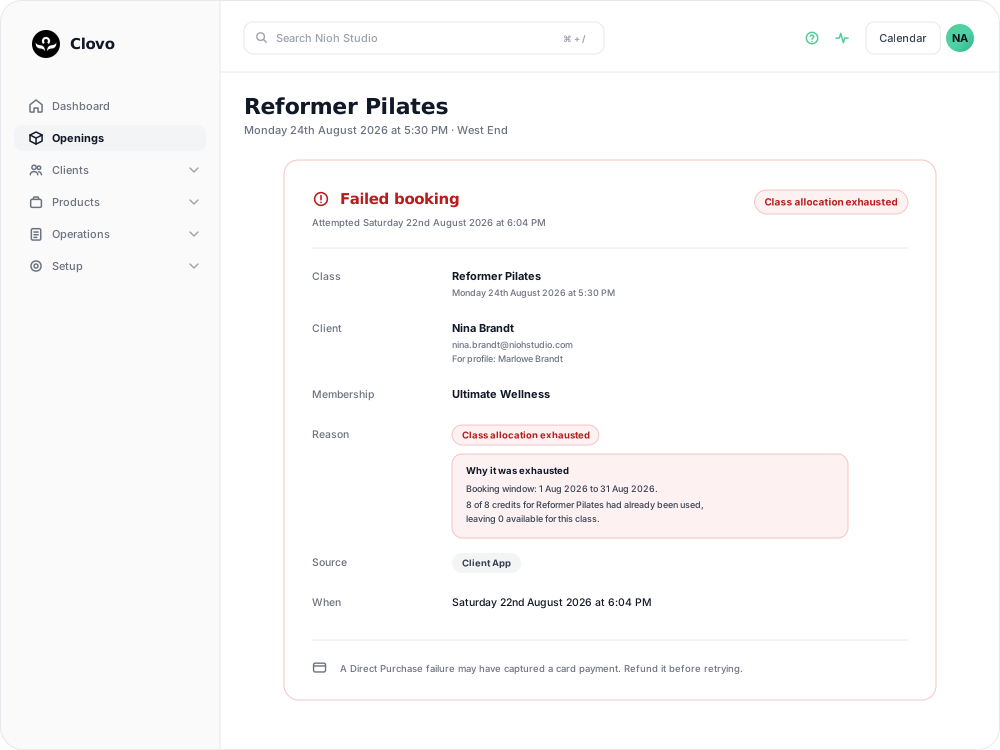
Use the failed booking details to find the reason a booking did not complete, then decide whether you need to free allocation, contact the client, or refund a payment.
Open the failed booking
- Open the affected class occurrence or the client’s membership details.
- In Failed bookings, open the attempt.
- Read the reason and review the client, class, and allocation details.
Read the reason before you read anything else
The reason tells you what stopped the booking:
- Class full — every place was taken, including any blocked or reserved ones.
- No active membership or credits — the client did not have an eligible active product or available credit for the booking.
- Class type not allowed — their plan doesn’t cover this kind of class.
- Class allocation exhausted — they had a plan that covers it, but the credits for that class in the current window were already spent. The breakdown underneath spells out the window and the count.
- Pack expired — the class sat outside the pack’s window.
- Already booked, Class cancelled, Membership paused, Membership inactive, Membership on hold for a failed payment, Membership ends before class — these outcomes identify the booking or membership status that prevented the booking.
- Waitlist locked — the place was held for the waitlist and this client wasn’t on it. See Use a waitlist to fill a cancelled place.
- Priority booking window — booking hadn’t opened to this client yet.
- Bookings closed before class — the client tried to book after your booking cutoff had passed. Staff can still book them in with Force booking?.
Common next steps
- Allocation or capacity: review the allocation breakdown and check whether another booking used the available place or credits. Where a credit was consumed by an earlier booking, the table underneath names it.
- Membership or credit issue: check the client’s membership status, expiry, and remaining credits.
- Class or client details: confirm the class occurrence and the profile the client selected. A For profile line means the client was booking for a linked family member or dependent, not for themselves.
- Direct Purchase: in rare cases, a card payment may be captured before the booking fails. Open the client’s payments in Clovo and refund the captured payment before trying again. See Refund a payment when a direct booking failed.
After you investigate
Tell the client whether the booking was made, whether a refund is due, and what they should do next. Do not charge the client a second time until you have confirmed what happened to the first payment.
Related articles
Book a client into a class from the studio dashboard
Book a client into a class from Clovo Dashboard when they call, walk in, or ask your team to make the booking for them.
Set up late cancellation and no-show penalties
Set late cancellation and no-show rules, choose credit forfeiture or membership-only fees, and check the penalties applied to bookings.
Use a waitlist to fill a cancelled place
Turn a waitlist on for a class, choose how it processes, give members priority, and read the queue when a place comes free.
What does the customer journey look like?
See the customer journey in the Clovo app: finding your studio, exploring, signing up, purchasing a pack, booking a class, and receiving confirmation and reminders.