
Automatically pause a membership after a set number of billing periods

Tobias Gundry
Updated
You can set a membership plan to pause each membership after a set number of billing periods — for a set number of weeks, or until someone resumes it.
This suits a plan that is meant to run for a fixed stretch rather than indefinitely: a twelve-week foundations course billed monthly, a seasonal program with a built-in off-season, or an intake block you want members to finish before they decide whether to continue.
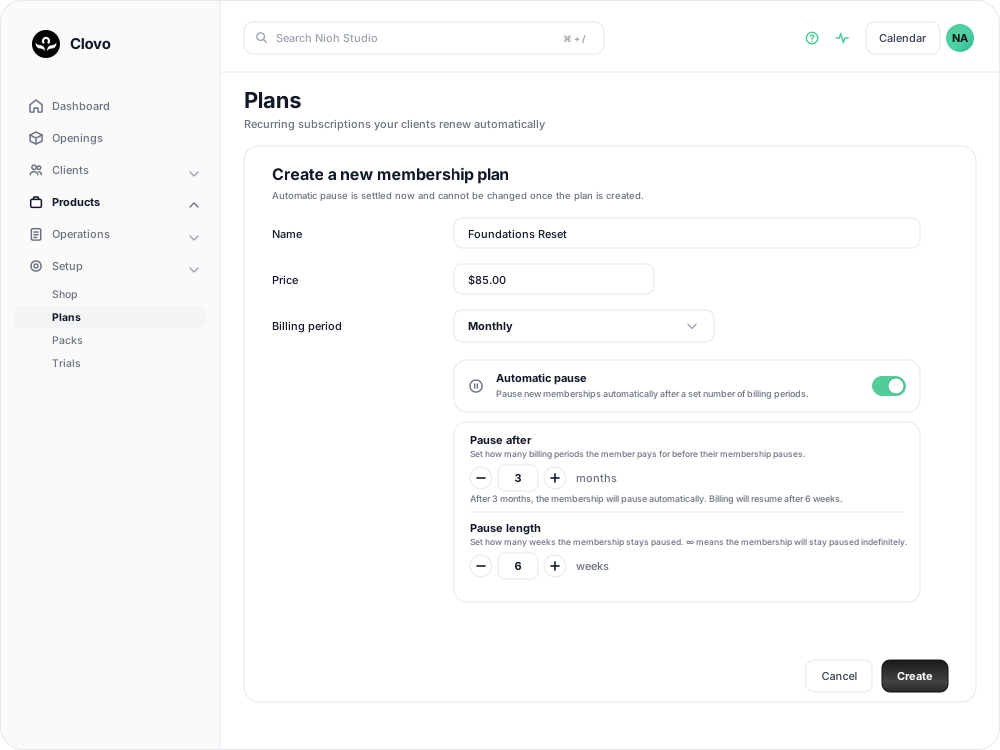
Decide the pause before you create the plan
Automatic pause is settled at the moment the plan is created. Once the plan is saved, the switch and both numbers are read-only, even if nobody has bought it yet.

Everything else about the plan — its name, price, description and class inclusions — can still be edited later. To offer a different pause, create a second membership plan. Members already on the first plan keep the terms they bought.
Automatic pause is available on membership plans only, because it is counted in billing periods. Credit packs and trials do not renew, so the setting does not appear on their forms.
Automatic pause cannot be combined with introductory pricing. Choose which approach the plan needs before creating it.
Set the pause on a new plan
Go to Products → Plans and select Add Plan.
1. Choose the billing period first
The pause is counted in billing periods, so choose Billing period before you open the automatic pause settings. Until you do, Clovo cannot tell you how long the paid stretch actually works out to.
2. Turn on Automatic pause

3. Set how many periods the member pays for
Pause after is the number of billing periods a member pays for before their membership pauses. The minimum is one.
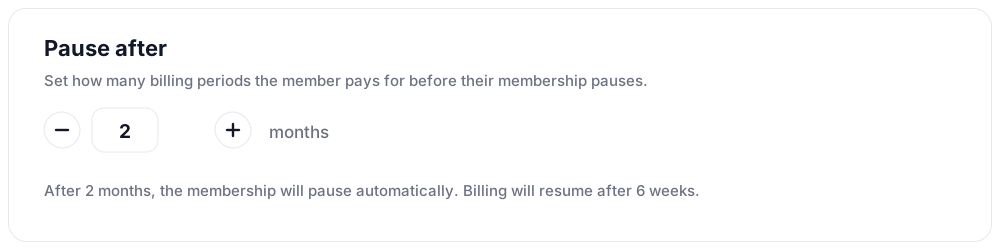
Read the line underneath as you set the number. It restates the timing in the plan's own billing period — a fortnightly plan set to pause after three periods reads "After 3 fortnights (6 weeks)". Check that sentence says what you intend before you create the plan.
4. Set how long the pause lasts
Pause length is measured in weeks. Step it below one week to leave it blank, which means the pause has no end date and continues until someone resumes the membership.
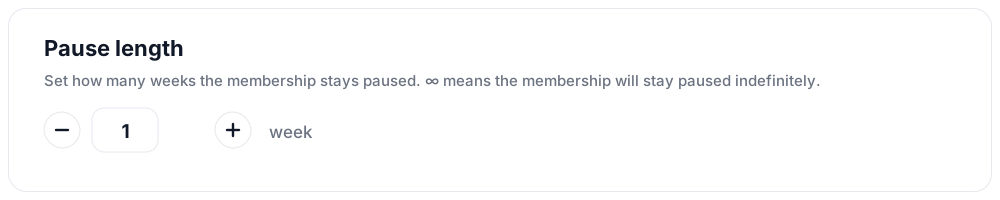
With a length set, billing restarts on its own at the end of the pause. Left indefinite, nothing restarts until your team resumes the membership from the client's profile.
5. Create the plan
Fill in the rest of the form as usual and select Create. See Offer recurring memberships by creating a membership plan for the other fields.
What a member experiences
Every membership bought on the plan gets its own pause, counted from that member's own join date. The pause always begins on a renewal date — the date the next payment would otherwise have been taken.
Take a monthly plan set to pause after 3 periods for 6 weeks, bought on 5 March:
- 5 March — the member joins and pays for their first month
- 5 April and 5 May — their second and third payments
- 5 June — no payment is taken; the membership pauses instead of renewing
- 17 July — the membership resumes and the member is billed for a new month
They pay for three months, take a six-week break, and pick up again. Had the pause been left indefinite, the membership would remain paused from 5 June until your team resumed it.
Members are not sent a separate notice when the pause begins. Say what the plan does in its description, so members know what they are buying before they pay.
Managing the pause on an individual membership
Each member's pause is scheduled from the day they join, so your team can see it on the membership straight away and adjust it like any other scheduled pause. Open the client's profile, open the membership, and select Edit Pause to change the resume date, cancel the pause, or resume the membership early.
A membership can only hold one pause at a time. If you try to pause a membership that already has its automatic pause scheduled, Clovo takes you to the pause management screen instead and asks you to cancel or change that pause first.
Cancelling the pause for a member is final. The plan will not schedule another one for that membership, so if they later want a break, arrange it as an ordinary pause.
See Pausing a membership for the full set of pause controls.
Bookings during the pause
The pause behaves like any other: members cannot book classes that fall inside the paused period.
If the pause has a resume date, they can still book classes that take place after it, and they keep booking as normal right up until the pause begins. If the pause is indefinite, they cannot book at all once it starts, until the membership is resumed.
The scheduled pause is visible on the membership before it begins, so your team can discuss the affected dates with the member before they book into them.
Automatic pause alongside a minimum term
A plan can carry both a contract minimum term and an automatic pause, but they interact, so check the combination before you sell it.
A paused membership is not billing, and a minimum term is counted in billing periods. Time spent paused therefore pushes the earliest cancellation date out by the same amount — a 12-period minimum on a plan that pauses for six weeks takes six weeks longer to complete. See Set a minimum membership term and cancellation notice period.
Common questions
Can I add an automatic pause to a plan I already created? No. Create a new plan with the pause you want. You can keep selling the original alongside it, or deactivate it so only the new plan is available.
Can I turn the pause off for one member? Yes. Open their membership, select Edit Pause and cancel the pause. That membership then bills normally, and no new automatic pause is scheduled for it.
Can a member ask for a different break instead? Yes. Change their resume date, or resume the membership early, from Edit Pause on their membership.
What happens when the pause ends? The membership resumes on the date shown, the next payment is charged, and booking access returns.
Can I use this on a credit pack or a trial? No. Packs and trials do not renew, so there are no billing periods to count.
Related articles
Change a client’s membership plan
Move a client to another recurring plan at their next renewal, and know when the new price and allowance begin.
Change a membership start date
Move a membership start date back so classes a client took before their purchase went through count against the period they attended.
Charge a setup or joining fee with introductory pricing
Include a one-off setup or joining fee in the first membership payment, then charge the normal price from the next renewal.
Offer recurring memberships by creating a membership plan
Fill in the membership plan form — inclusions, price, billing period and contract — and know what changes for current members when you edit a plan later.