
Create and manage membership contracts

Tobias Gundry
Updated
Contracts are reusable agreements for membership plans. Members read the contract and accept it before a membership starts. You can use the same wording on more than one plan, while each plan sets its own minimum term and cancellation notice period.
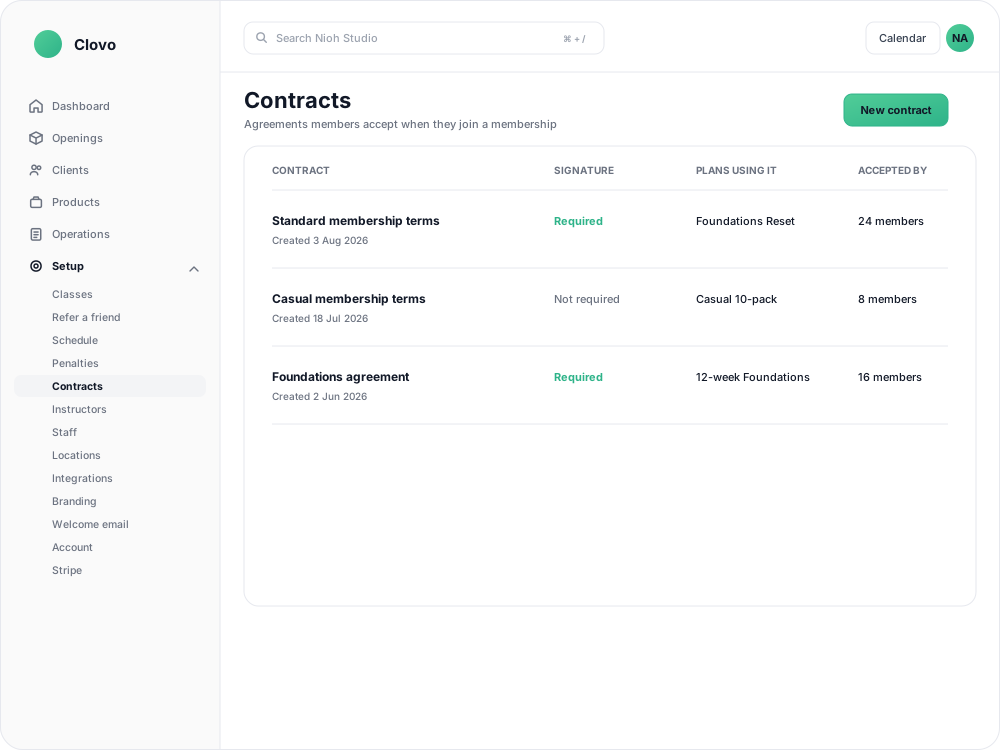
Create a contract
- Go to Setup → Contracts, open the Membership Contracts tab, and select New contract.
- Enter a Title so your team can recognise the agreement in the plan editor. Members do not see this title as the contract wording.
- Write the Contract text members should read before they join. Include the minimum term and cancellation notice in the wording if those terms apply to the plan.
- Turn on Require a hand-drawn signature if members should draw a signature as well as selecting the agreement checkbox.
- Select Create.

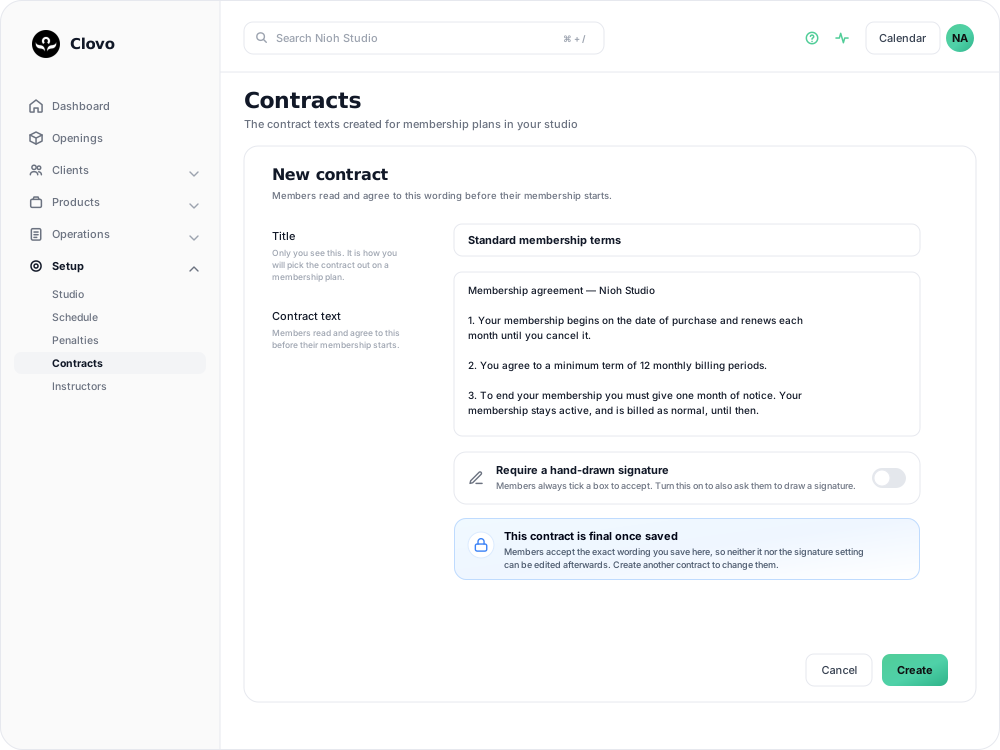
The contract is final once you create it. You cannot edit its wording or change whether it requires a signature, because members need a record of the exact agreement they accepted. Create another contract when the wording or signature requirement needs to change.
If you need help deciding what your contract should say, use wording approved for your studio and location by an appropriately qualified adviser.
Use a contract on a membership plan
Contracts are selected while creating a membership plan:
- Go to Products → Plans and select Add Plan.
- Choose the Billing period, then turn on Contracts.
- Choose the saved contract in Contract agreement.
- Set the plan's Minimum contract periods and Cancellation notice period.
- Read the Contract preview, then select Create.
The contract wording is shared, but the minimum term and notice period belong to the plan. If you need the same wording with different cancellation terms, you can use one contract on both plans and set the numbers separately. See Set a minimum membership term and cancellation notice period for how those settings affect cancellation.
The contract fields on a saved plan are read-only, even when the plan has no members. Create a new plan when you need different contract settings.
Find contracts and see where they are used
Open a contract from the Membership Contracts tab under Setup → Contracts to read its wording and see the membership plans using it. The contract page also lists the members who have accepted it, with the date and any signature.
A contract can be deleted only while no plan uses it and no member has accepted it. Once it is in use, it stays in your list as the record of the wording those members accepted.
To see the full acceptance record for one member — including how they accepted the contract and the exact text they saw — open the member's Agreements tab. See See what a member agreed to when they joined.
Common questions
Can I use one contract on more than one plan? Yes. Select the same saved contract on each plan. Set and review the minimum term and cancellation notice on each plan separately.
Can I change a contract after a member accepts it? No. Create a new contract for new wording. Members keep the contract they accepted, and new wording applies only when a new plan uses the new contract.
Can I delete a contract that a plan no longer uses? Only if no member has accepted it either. If it has an acceptance record, it remains in the list so the agreement can still be checked later.
Related articles
Automatically pause a membership after a set number of billing periods
Set a membership plan to pause its memberships on their own after a set number of paid billing periods, for a fixed number of weeks or indefinitely.
Change a client’s membership plan
Move a client to another recurring plan at their next renewal, and know when the new price and allowance begin.
Change a membership start date
Move a membership start date back so classes a client took before their purchase went through count against the period they attended.
Charge a setup or joining fee with introductory pricing
Include a one-off setup or joining fee in the first membership payment, then charge the normal price from the next renewal.