
Add private health billing details to your invoices

Tobias Gundry
Updated
Clovo provides basic support for adding your private health billing details to your invoices with a studio-level provider number and plan/pack-level private health codes.
Clovo does not currently support individual provider numbers per instructor profile.
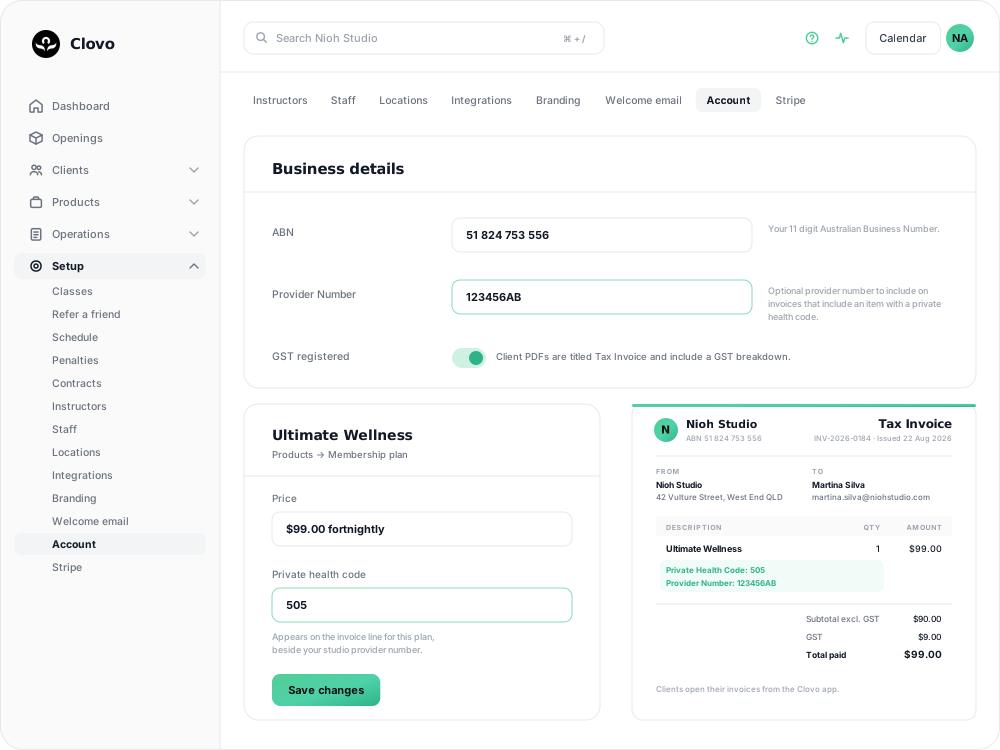
It takes two settings, not one
Nothing appears on an invoice until both halves are in place:
- A provider number on your studio. One number, used everywhere.
- A private health code on the item that was bought. Set per plan, per pack, or per class.
Set only the provider number and nothing shows. Set only the code and nothing shows. That is the single most common reason a studio thinks this feature is broken.
How to add your private health details
Add your provider number to your studio
Your provider number is a studio-wide setting that appears on all invoices that include private health codes.
- In Clovo Dashboard, open your avatar in the top right and select Account.
- Scroll to Business details.
- Enter your Provider Number in the designated field.
- Save changes.
Only the account owner can change this field. Staff with Finance access can view the current provider number under Setup → Payments → Invoices.
Provider numbers are optional and will only appear on invoices for plans or packs that have a private health code assigned.
Add private health codes to your plans and packs
Each membership plan or credit pack can have its own private health item code, which appears on the invoice alongside your provider number.
- Navigate to Products and open the plan or pack you want to update.
- Enter the relevant private health code for that product.
- Save your changes.
Add private health codes to classes
Each class can have its own private health item code, which appears on the invoice alongside your provider number for direct purchases only.
- Navigate to Setup → Classes and open the class you want to update.
- Enter the relevant private health code for that class.
- Save your changes.
Adding private health codes to your classes is required for private health codes to show on the invoices of direct purchases.
What appears on invoices
When both a provider number and a private health code are configured, they are printed under the item description on the client's invoice:
Ultimate Wellness Private Health Code: 505 Provider Number: 123456AB
That gives the client everything their fund asks for on one document, so they are not emailing you for a receipt "with the numbers on it".
Clients open their own invoices from the Clovo app, so there is nothing for you to send.
To choose the studio address printed under From, see Change the address shown on invoices.
If the codes are not showing
- Check the item, not the studio. The code lives on the plan, pack or class the client actually bought. A membership invoice takes the plan's code; a direct class purchase takes the class's code.
- Old invoices do not change. Each invoice records the details it was generated with, so adding a code today does not add it to invoices already issued. Only new invoices pick it up.
- A pack and a plan can differ. If a client has both and only one shows a code, no code has been entered for the other.
Related articles
Change the address shown on invoices
Choose your business address or a studio location as the From address on new client invoices and receipts.
Wait for BECS Direct Debit payments to clear before issuing plans
BECS Direct Debit payments do not clear immediately. They usually take a few business days to reach your studio and can still fail after the client has checked out.
Record an external payment for a client
Use Offline Purchase to record a membership or credit pack paid for outside Clovo, and set when that access expires.
Let clients book a class without a membership or pack
Turn on Direct Purchase when you want a client to book one class without first buying a membership or credit pack.