
Let clients book a class without a membership or pack

Tobias Gundry
Updated
Turn on Direct Purchase when you want a client to book one class without first buying a membership or credit pack.
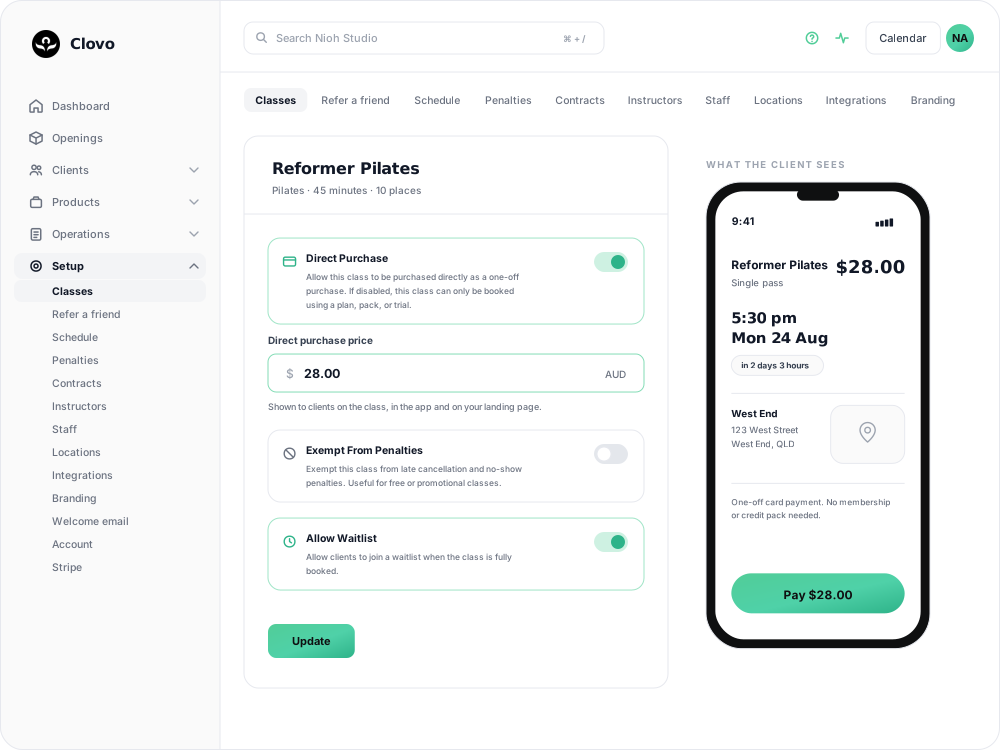
Enable Direct Purchase for a class
- Open Setup → Classes and select the class.
- Turn on Direct Purchase.
- A Direct purchase price field appears underneath. Enter the one-off card price, in AUD.
- Click Update, then check the price shown to clients on the class.

What the client does
The client opens the class in the app or on your landing page and buys a single pass for it by card. They do not need an existing membership or credit pack, and if they have no account with you yet, Clovo takes their details as part of the same flow.
Important payment details
- Direct Purchase supports card payments. It does not support bank-account direct debit for the one-off booking.
- If the card payment is captured but the booking cannot be created, Clovo records a failed booking. Refund the captured payment before trying again, and read the attempt itself under Find out why a booking failed.
- A full class with an open waitlist cannot be bought into directly. The place is being held for the queue — see Use a waitlist to fill a cancelled place.
- Penalties never apply to a direct purchase booking. Neither late cancellation nor no-show rules touch it, because there is no credit to forfeit. Worth factoring into the price.
- Check capacity and the class price before enabling the option.
Turn it off
Return to the class settings, switch off Direct Purchase, and click Update. Existing successful purchases remain in the client’s history.
Related articles
Refund a payment when a direct booking failed
In the rare case that a Direct Purchase payment succeeds but the booking does not, refund the payment from the client's record in Clovo.
Book a client into a class from the studio dashboard
Book a client into a class from Clovo Dashboard when they call, walk in, or ask your team to make the booking for them.
Set up late cancellation and no-show penalties
Set late cancellation and no-show rules, choose credit forfeiture or membership-only fees, and check the penalties applied to bookings.
Use a waitlist to fill a cancelled place
Turn a waitlist on for a class, choose how it processes, give members priority, and read the queue when a place comes free.