
Reopen a cancelled class

Tobias Gundry
Updated
If a cancelled class will run after all, reopen the existing opening from Clovo Dashboard. It returns to the timetable at the same date and time, ready for new bookings.
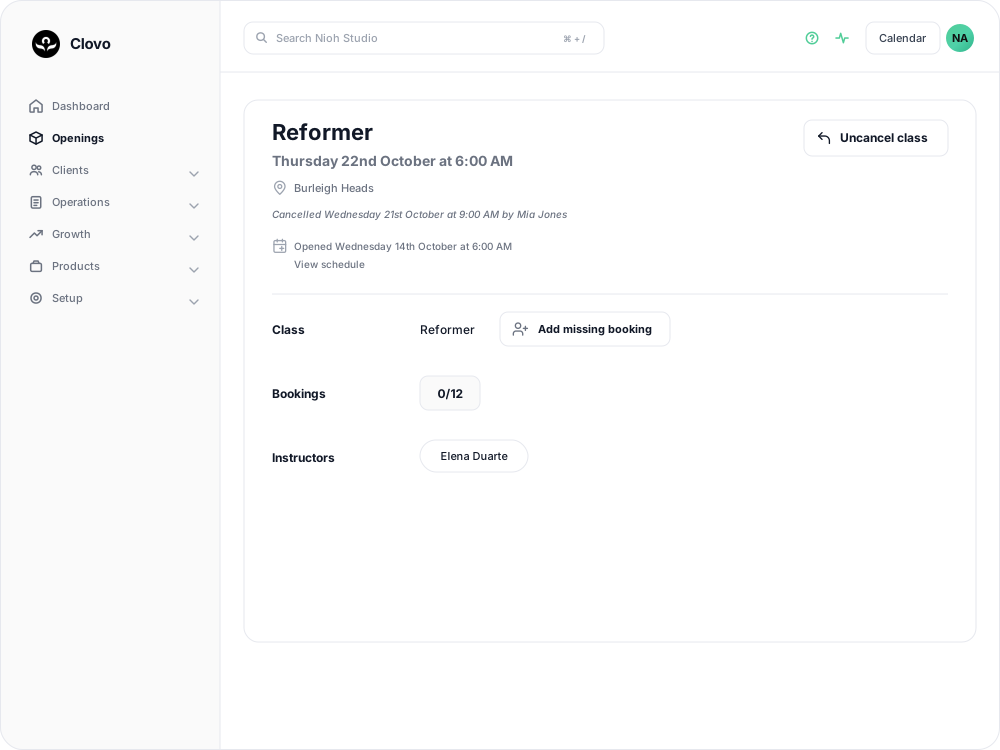
Reopen the class
- Go to Openings and find the cancelled class. It is greyed out and shows when it was cancelled and who cancelled it.
- Select Manage to open the class.
- Select Uncancel class in the header. The class reopens immediately.

Clovo confirms: Class has been reopened. Previous bookings remain cancelled. No notifications were sent.
Let clients know and book them in again
Reopening the class does not restore any previous bookings or send a reopening notification. Contact the clients who were booked in to let them know the class is running and ask them to book again, or make new bookings on their behalf.
If the class needs a different date or time, use Change time after reopening it and before arranging the new bookings. See change the date and time of an opening.
If Uncancel class is missing
The button appears only on a cancelled class that has not started. It is unavailable on openings marked Closed because of a studio closure, even if that closure has since been deleted.
Related articles
Cancel upcoming classes that have already been scheduled
Cancelling an opening cancels every booking on it and returns credits automatically, but direct purchases are not refunded for you.
Change the date and time of existing openings
Move a single class opening to a new date or time. Clovo keeps the bookings, tells the clients who hold them, and leaves the schedule the class came from unchanged.
Close the studio for a date range
Record a closure so Clovo stops opening classes at that location, then cancel the openings already on the timetable and extend or pause the memberships the closed days run through.
Changing class schedules with existing openings
Edit or delete a class schedule and decide what happens to the classes Clovo has already opened for booking.