
Book a client into a class from the studio dashboard

Tobias Gundry
Updated
While most clients book through the Clovo app, you can make a booking on their behalf when they call, walk in, or ask your team for help.
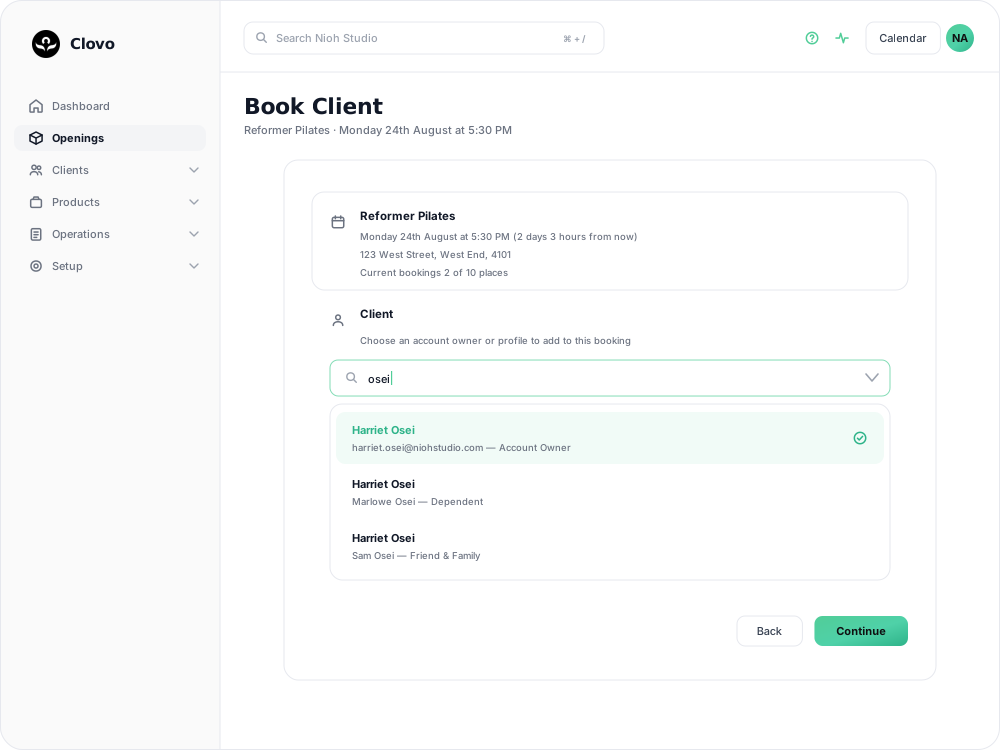
How to book a client from the dashboard
- In Clovo Dashboard, go to the Openings page.
- Find the class you want to book the client into and click Manage.
- Click Add Booking. This opens the Book Client screen.
- Start typing a name in the client picker and choose the client.
- Click Continue. Under Payment, select the membership or pack to use, then click Book. Its credits or allowance will be used as normal.
Choosing the client
The picker lists more than one entry per client. Each account owner appears as Account Owner, and any linked profiles they have added appear underneath as Dependent or Friend & Family, labelled with the account they belong to.
That distinction matters: booking the account owner spends their allowance and records the attendance against them, while booking a profile records it against the profile. If a parent rings to book their child in, pick the child’s profile, not the parent.
Complimentary bookings and staff overrides
Turn on Complimentary? in the Payment card to give the client a free place without using a membership or credit. Late cancellation and no-show penalties never apply to a complimentary booking, so the client will not lose a credit or be charged a fee if they cancel late or do not attend.
Use Force booking? when you deliberately need to override a booking restriction, such as class capacity, a booking cutoff or a required form. Review the client and class before using it; it can take the class over capacity.

Things to know
- For a standard paid booking, the client needs an active product (membership, credit pack, or trial) that allows this class
- The class needs available capacity for a standard booking; Force booking? allows staff to override this
- The client will receive a booking confirmation just as if they’d booked through the app
- You can also book clients from the Clovo iOS or Android app if you’re at the front desk on an iPad or phone
- If the booking is refused, the reason is recorded — see Find out why a booking failed and what to do next
If the client doesn’t have an active product, you can process a Point of Sale purchase first, then book them in.
Related articles
Set up late cancellation and no-show penalties
Set late cancellation and no-show rules, choose credit forfeiture or membership-only fees, and check the penalties applied to bookings.
Use a waitlist to fill a cancelled place
Turn a waitlist on for a class, choose how it processes, give members priority, and read the queue when a place comes free.
What does the customer journey look like?
See the customer journey in the Clovo app: finding your studio, exploring, signing up, purchasing a pack, booking a class, and receiving confirmation and reminders.
Close bookings before a class starts with a booking cutoff
Choose how long before a class starts clients can no longer book, so your team has time to prepare for the people attending.