
Limit a promo code to certain memberships and packs

Tobias Gundry
Updated
A discount code can cover every membership and pack, or only the ones you pick. Limiting it suits an offer on one product — 15% off your reformer plans, for example — without discounting everything else you sell.
This applies to percentage-off and dollar-amount-off codes. A secret-deal code always unlocks the one plan or pack you choose for it.
Choose the memberships and packs
- Go to Growth → Promo codes and select Add promo code, or open a code that no client has used yet and select Edit.
- Set up the code and discount as usual.
- Leave All memberships and packs switched off.
- Under Choose the plans to apply this code to, select each membership and pack the code should discount.
- Check the Promo code summary lists the plans you chose, then save.
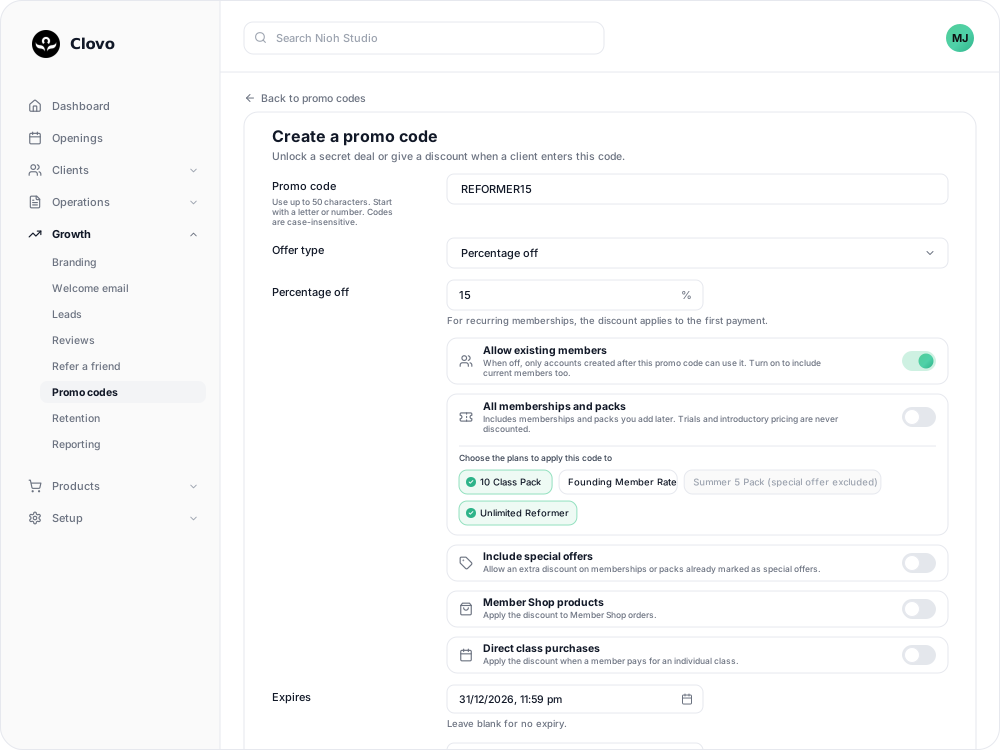
Selected plans are ticked. Select one again to remove it.
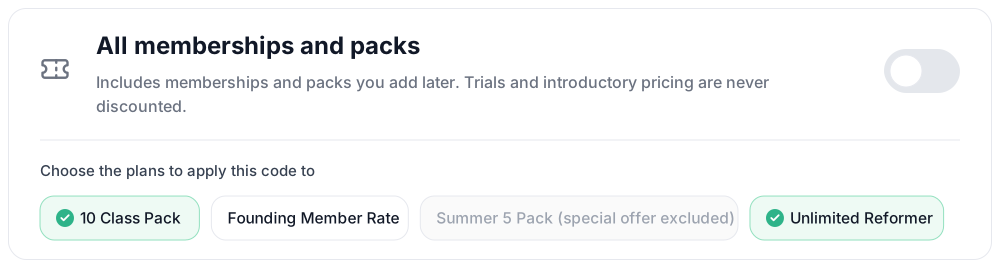
To cover everything instead, switch on All memberships and packs. The list disappears, and the code also covers memberships and packs you add later. Plans you pick from the list are fixed: a plan you create afterwards is not included.
Plans you will not see in the list
Trials and plans with introductory pricing are never discounted, so they do not appear. A plan that is not in the list cannot be added to a code.
Special offers
Memberships and packs marked as a Special offer are left out unless you turn on Include special offers. While it is off, they appear in the list labelled (special offer excluded) and cannot be chosen. This also applies when All memberships and packs is on.

Turn it on only if you are happy for the code's discount to come off a price that is already reduced. You can change this setting later, even after clients have used the code.
Adding other purchase types
The same form can also discount Member Shop orders and single classes. A code needs at least one purchase type, chosen plans included, before it will save. See Discount Member Shop orders and class purchases with a promo code.
Changing the plans later
You can change which plans a code covers until a client uses it or starts paying with it. After that, the plans are fixed. To cover different plans, create a new code and archive the old one.
Related
Related articles
Archive or delete a promo code
Stop a promo code from working, what happens to clients who saved it, and why most codes are archived rather than deleted.
Create a dollar-amount-off promo code
Take a fixed amount, such as $10.00, off memberships, packs, Member Shop orders or single classes for each client who enters your code.
Create a percentage-off promo code
Take a percentage, such as 20%, off memberships, packs, Member Shop orders or single classes for each client who enters your code.
Create a promo code that unlocks a secret deal
Let clients unlock a private membership or pack themselves by entering a code, instead of granting access one profile at a time.