
Offer a promo code to new clients or existing members

Tobias Gundry
Updated
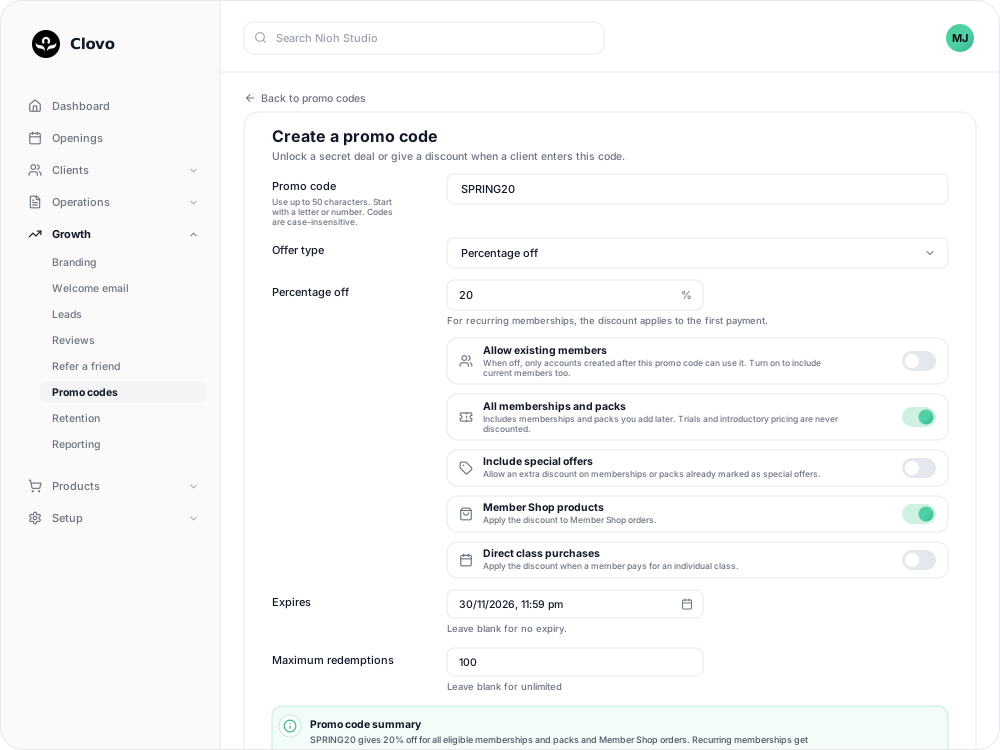
Every promo code has an Allow existing members setting. It decides whether the code is for new clients only, or for everyone. It applies to discount codes and secret-deal codes alike.
New clients only
Allow existing members is off by default. While it is off, only accounts created after you create the code can use it. This suits a welcome offer or a flyer aimed at people who have not joined yet.
A client whose account is older than the code sees "This promo code is only available to members who joined after it was created."
Include existing members
Turn on Allow existing members when your current clients should be able to use the code as well — a loyalty offer or a sale for everyone, for example.

- Go to Growth → Promo codes. Select Add promo code for a new code, or select View beside an existing one and then Edit.
- Switch on Allow existing members.
- Save the code.
Changing it later
You can turn Allow existing members on or off at any time, even after clients have used the code. Purchases clients have already made are not affected.
To check the setting on an existing code, select View beside it and look at Eligible members: New and existing members or Accounts created after this promo code.
In the code's Clients table, a client who saved the code but cannot use it because their account is too old shows as Unavailable.
Codes created before this setting was introduced already have it turned on, so they keep working for everyone.
Related
Related articles
Archive or delete a promo code
Stop a promo code from working, what happens to clients who saved it, and why most codes are archived rather than deleted.
Create a dollar-amount-off promo code
Take a fixed amount, such as $10.00, off memberships, packs, Member Shop orders or single classes for each client who enters your code.
Create a percentage-off promo code
Take a percentage, such as 20%, off memberships, packs, Member Shop orders or single classes for each client who enters your code.
Create a promo code that unlocks a secret deal
Let clients unlock a private membership or pack themselves by entering a code, instead of granting access one profile at a time.