
Linking public instructor profiles to staff accounts

Tobias Gundry
Updated
In Clovo, instructor profiles and staff accounts are separate concepts. This allows the people running your classes and the people managing your studio to have the access that fits their role.
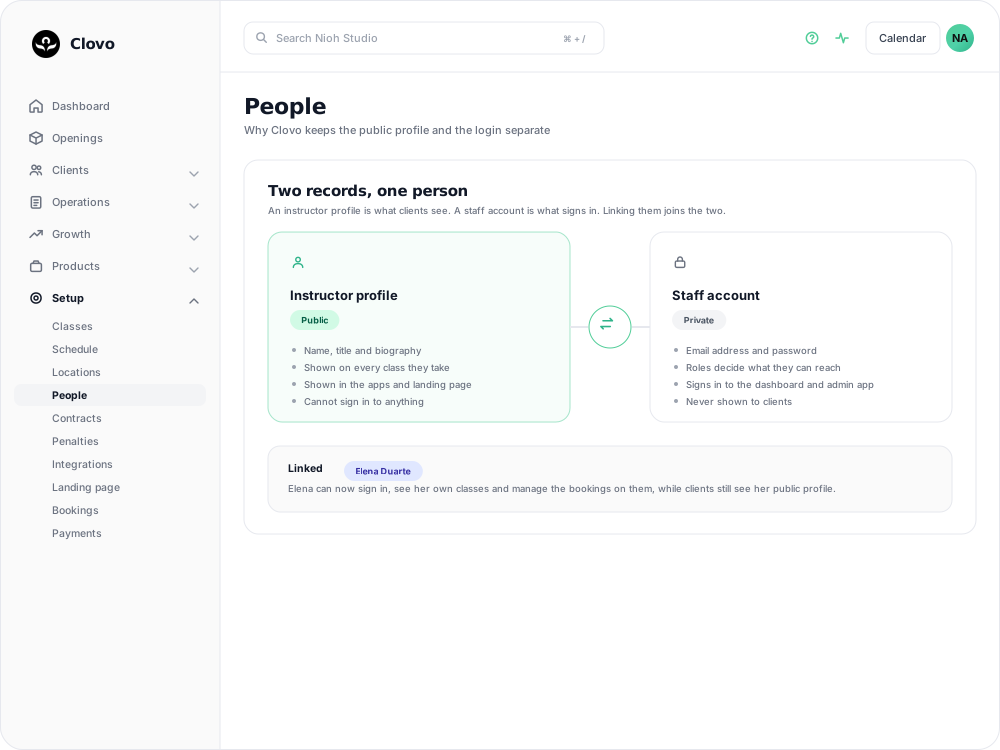
This separation lets you manage public instructor profiles and private staff access independently. Instructor profiles are what your clients see in the booking apps and your landing pages when booking classes or browsing your studio. Staff accounts are used for back-of-house administration.
Both live under Setup → People, on the Instructor Profiles and Staff Accounts tabs.
Instructor Profile
- Public
- Contains a name, title and biography
- Displayed on classes
- Displayed on your other public surfaces
- Does not give access to your Clovo admin apps or dashboard
Staff Account
- Private
- Used to give access to the admin features of the Clovo app and the dashboard
Linking a staff account to a public instructor profile
To accept appointments by staff member in Clovo, each instructor needs a public profile and a staff account with access to manage appointments.
Link the public instructor profile to the relevant staff account. That account can then see and manage the instructor calendar's appointments in the iPhone app. Owners see all calendars; other staff need to be the calendar's manager, linked instructor or an additional manager. Linking a profile does not grant Web Dashboard Access.
To link a profile and account:
- Create a public instructor profile if not already done
- Create a new staff account or edit an existing one
- From the linked profile field on the create and edit staff screen, choose the profile you want to link
- Save
Related articles
Add a staff member and choose their roles
Add staff under Setup → People, give them dashboard access, and choose the Setup, Finance or Client Records roles they need.
Staff roles and permissions
A detailed reference for Staff, Setup, Finance, Client Records and Owner access, including role combinations for forms, payments and staff management.
Add and manage your instructors
Create a public instructor profile on the Instructor Profiles tab of Setup → People, fill in the photo, title and bio clients see, link it to a staff account, and keep the list tidy as your team changes.
Assign a substitute instructor for a class
Put a different instructor in front of a single class opening, and know what your clients will and won’t be told about the change.