
Assign a substitute instructor for a class

Tobias Gundry
Updated
A substitute puts a different instructor in front of one class opening. The schedule behind it is untouched, so the rostered instructor stays on every other opening.
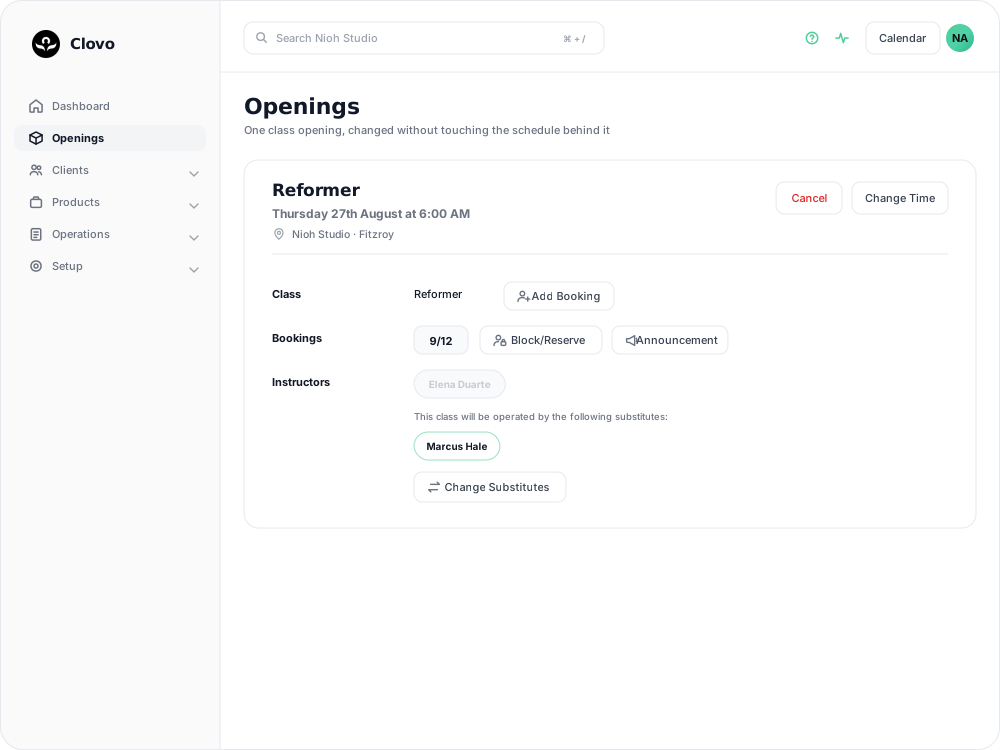
Assign the substitute
- Open Openings and select the class.
- In the Instructors row, select Substitute.
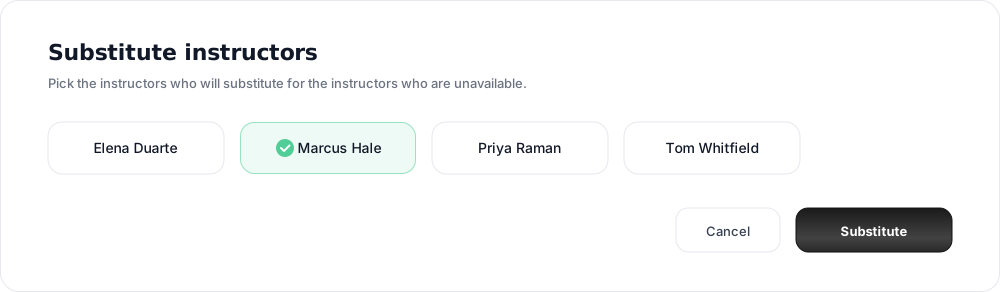
- On the Substitute instructors page, tick each instructor who will take the class. You can tick more than one.
- Select Substitute.
The opening now shows the rostered instructor struck through, followed by the line “This class will be operated by the following substitutes:” and the names you chose.
In the Clovo app, the same control sits beside Teachers on the opening.
Booked clients are not notified
Clovo does not message booked clients when you set a substitute. If you want them told, select Announcement on the same opening — it is addressed to the clients booked into that class. The button becomes available once the opening has at least one booking. See send an announcement to clients for how announcements are written and delivered.
The change is still visible wherever clients look up the class. The substitute’s name replaces the rostered instructor on the opening in the app and on your public timetable. The booking reminder Clovo sends the evening before names whoever is assigned to the class when it goes out, so a substitution made earlier that day is reflected in it and a later one is not.
Change or clear a substitute
Once a substitute is set, the button on the opening reads Change Substitutes. Open it to tick a different instructor, or untick everyone and select Substitute to hand the class back to the rostered instructor.
Spotting substitutions in your list
In the Openings list, a substituted class carries a Substitute label, and the substitute’s name appears where the rostered instructor’s would be.

When substituting is not available
The Substitute button is not offered on a class that has already run, or on one that has been cancelled, including by a studio closure. If the class needs to be called off rather than covered, see cancel upcoming classes.
Related articles
Show your timetable on your studio’s website
Copy an embed code from Clovo Dashboard to place your live class timetable on your own website, with weekly and monthly views your visitors can switch between.
Share your timetable with clients, wherever they are
Your landing page is a public, always-current timetable anyone can open without the app. Share the whole thing, a single class, a social image, or embed it in your own website.
Hide class numbers from clients
Show clients whether a class has space, without showing how many people have booked or how many places it has.
Close the studio for a date range
Record a closure so Clovo stops opening classes at that location, then cancel the openings already on the timetable and extend or pause the memberships the closed days run through.