
Update a client's details

Tobias Gundry
Updated
Use Edit details on an existing client's profile to correct their name, update their phone number or correct a recorded consent date.
Edit and save
- Open Clients and select the client.
- Open Actions at the top of their profile and choose Edit details.
- Update the first or last name under Full name, or change Phone. The phone number is optional.
- If a consent date needs correcting, enter the date the client actually agreed in TOS agreed on or Waiver agreed on.
- Select Update. Clovo returns you to the profile and confirms Client details updated.
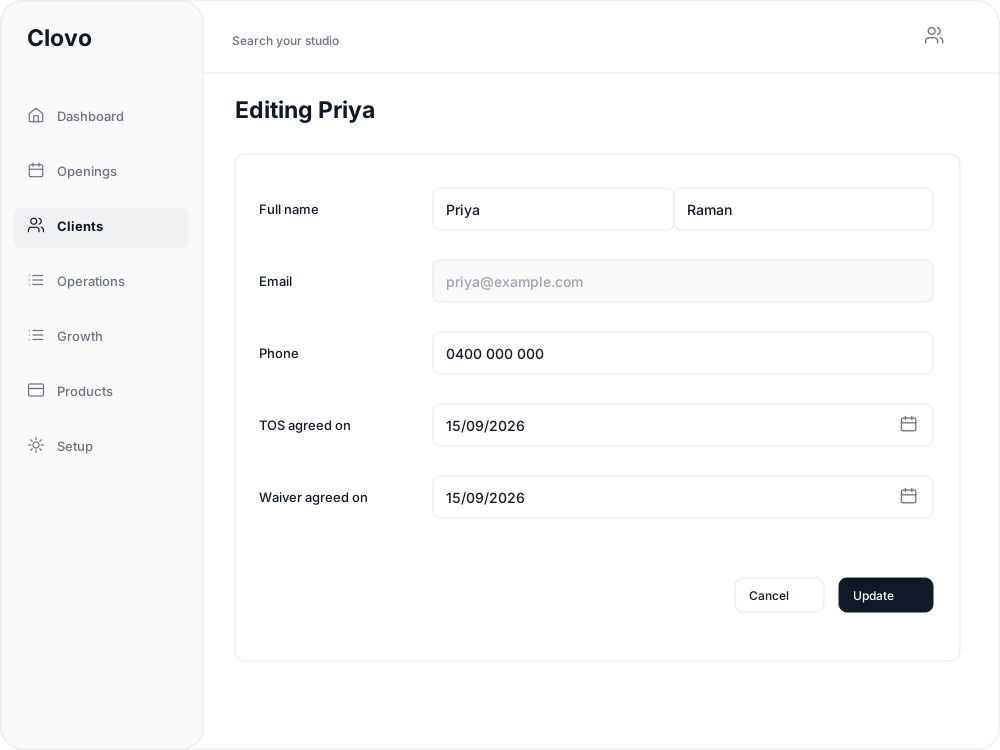
Both agreement dates are required. Recording a date does not ask the client to accept the terms or waiver again. For waiver setup, see Studio gym waiver agreements.
Select Cancel if you want to return to the profile without saving your edits.
Why can't I change the email?
Email is read-only when editing an existing client. You can see the address on the form, but cannot replace it there.

If an address needs correcting, contact Clovo support about the existing account. Avoid creating a second profile to work around it, because the client's bookings and purchases belong to the existing account.
If the email is correct and the client needs help signing in, send a password reset.
Related articles
Add a client to your studio manually
Create a client profile from the dashboard, record the required consent dates, confirm the email address, and understand which emails the client receives straight away.
Export your client data
Download your client list from Clovo Dashboard as a CSV, choosing which client groups to include and knowing which columns the file carries before you take it anywhere else.
Archive a client without deleting their history
Archive a client to hide them from day-to-day lists and stop them signing in, while keeping their record so you can bring them back later.
Deleting a client from your studio
Schedule a client for permanent deletion, cancel it while the grace period is still running, and understand when immediate deletion is available.