
Block or reserve spots in a class

Tobias Gundry
Updated
Sometimes you need to hold a spot in a class for a specific reason — perhaps a client is coming but hasn’t booked yet, or you want to reserve capacity for a corporate group. Clovo’s Block/Reserve feature lets you hold spots without assigning them to a specific client.
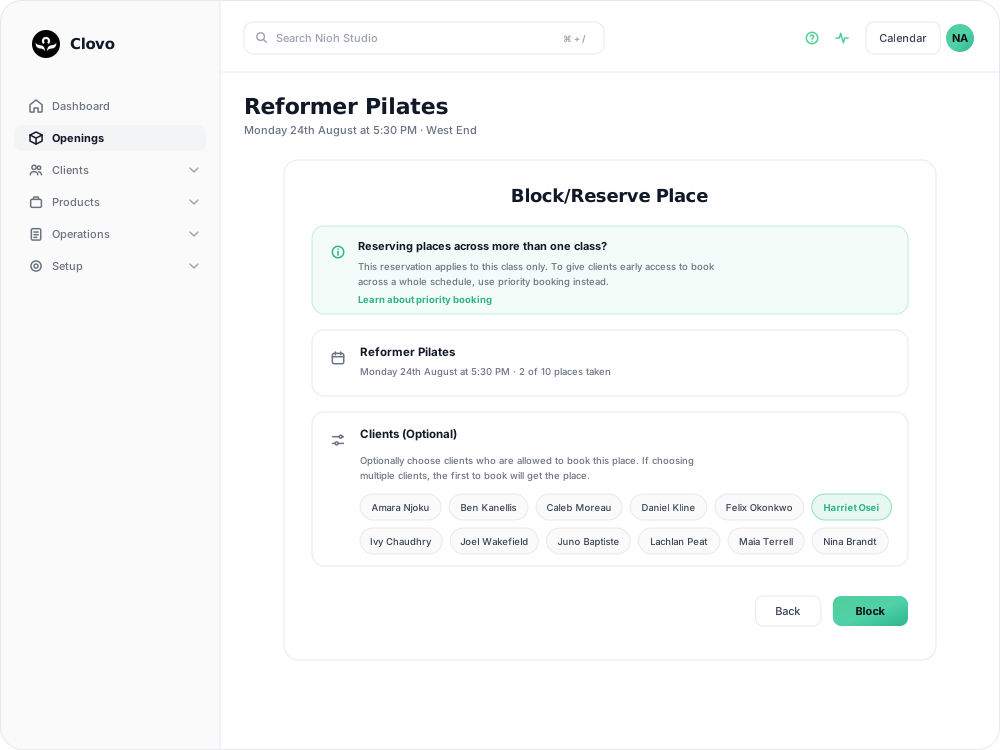
How to block or reserve a spot
- In Clovo Dashboard, go to the Openings page.
- Click Manage on the class you want to hold a spot in.
- Click the Block/Reserve button in the Bookings row.
- Optionally choose the clients who are allowed to take the place — see below.
- Click Block. The spot is held, reducing the available capacity shown to clients.
Hold it for someone in particular
Clients (Optional) turns a plain block into a held place. Leave it empty and the spot is out of circulation. Choose one or more clients and only they can book it — and if you choose several, the first to book gets it and the hold is released.
This is useful when a regular client needs a held place but will complete the booking themselves in the app. The hold is released when they book.
It applies to this class only. To give a client early access across a whole schedule rather than one opening, use priority booking instead.
When to use this feature
- Walk-in clients — hold a spot for a regular client who plans to book or attend
- Equipment maintenance — if a reformer or piece of equipment is out of service, block that spot to reduce capacity
- Corporate or group holds — reserve multiple spots for a group that’s confirmed but hasn’t individually booked
- Instructor space — if the instructor needs to use a spot (e.g. for demonstration)
Blocked spots reduce the total available capacity for the class. If you want to book a specific client into a class instead, use the Book Client feature.
Related articles
Book a client into a class from the studio dashboard
Book a client into a class from Clovo Dashboard when they call, walk in, or ask your team to make the booking for them.
Set up late cancellation and no-show penalties
Set late cancellation and no-show rules, choose credit forfeiture or membership-only fees, and check the penalties applied to bookings.
Use a waitlist to fill a cancelled place
Turn a waitlist on for a class, choose how it processes, give members priority, and read the queue when a place comes free.
What does the customer journey look like?
See the customer journey in the Clovo app: finding your studio, exploring, signing up, purchasing a pack, booking a class, and receiving confirmation and reminders.