
Take a payment from a client at the front desk

Tobias Gundry
Updated
Use POS Purchase when a client is in the studio and you need to take a card payment for a membership, credit pack, or shop product.
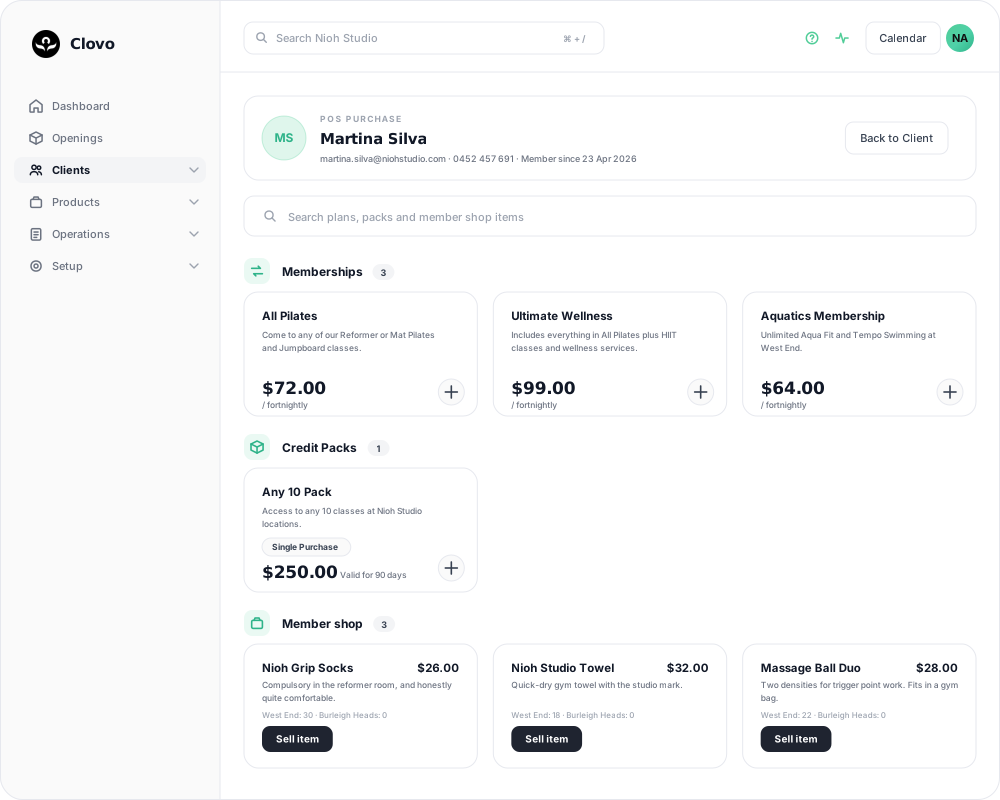
Take the payment
- Open the client’s profile and select POS Purchase under Purchases.
- Use the search box if you already know the product name — it searches plans, packs and shop items at once.
- Select the card for the membership, credit pack, or item the client wants.
- Review the price and purchase details, then complete the card payment.
- Return to the client profile to confirm the purchase is recorded.
The screen stays tied to the client whose name appears at the top. There is no basket or client picker part-way through the sale.
What is included in POS Purchase?
- Memberships show recurring plans and their billing frequency.
- Credit Packs show single-purchase packs and expiry.
- Member shop shows retail products, stock indicators, and Sell item.
Stock is listed per location, so a product showing Rose Bay: 18 · Burleigh Heads: 0 is only sellable at one of them. Review the stock level before completing the sale.
For the detailed shop-product steps, see Sell a shop product to a client at the front desk.
Things worth knowing
- POS Purchase is for card payments. It runs through your Stripe connection like every other payment — see Connect Stripe and check your payment settings.
- If the renewal day matters to the client, sell the membership now and then move the renewal date — that screen previews the exact adjustment before you commit to it.
- The client gets an invoice automatically, with your provider number and private health code if you have set them up.
- Check the client’s purchase history if you need to review the payment or refund it.
Related articles
Change the address shown on invoices
Choose your business address or a studio location as the From address on new client invoices and receipts.
Wait for BECS Direct Debit payments to clear before issuing plans
BECS Direct Debit payments do not clear immediately. They usually take a few business days to reach your studio and can still fail after the client has checked out.
Record an external payment for a client
Use Offline Purchase to record a membership or credit pack paid for outside Clovo, and set when that access expires.
Let clients book a class without a membership or pack
Turn on Direct Purchase when you want a client to book one class without first buying a membership or credit pack.