
How booking reminders reach your clients

Tobias Gundry
Updated
Clovo sends every booked client a reminder the evening before class. Reminders are automatic, with a few reasons a reminder may not arrive and one setting each client controls themselves.
There is no reminder to set up
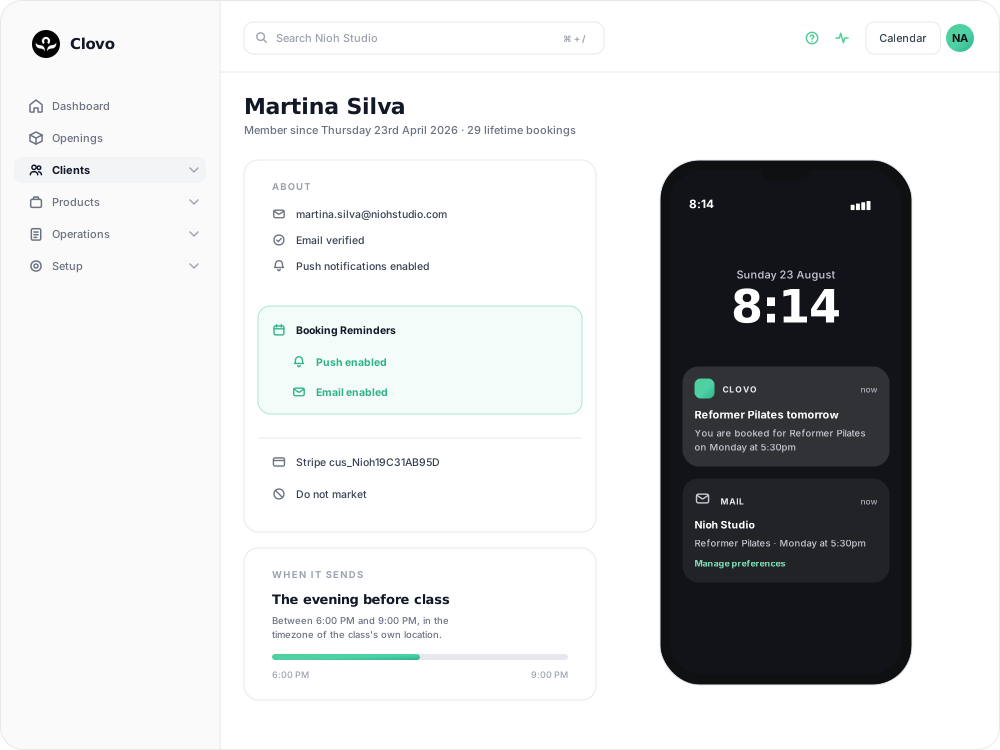
Unlike systems that require a reminder to be created and scheduled, Clovo enables reminders for every studio and booking by default. There is no template or send time to configure.
Reminders go out between 6:00 PM and 9:00 PM the evening before class, using the class location’s time zone.
What the client gets
As a push notification, headed "Reformer Pilates tomorrow", reading "You are booked for Reformer Pilates on Monday at 5:30pm".
As an email, listing:
- Class Name
- Class Time
- Instructed By
- Location (address)
- A Manage preferences link
The two channels, and who controls them
Each client chooses whether they want reminders by push, by email, both, or neither. You can see where a client currently stands on their record in Clovo Studio, under Booking Reminders.

Clients change this in two places:
- In the Clovo app, under their notification settings.
- From the Manage preferences link in their reminder email. Each client needs to use their own link.
Reminder preferences are controlled by each client. There is no studio-level switch that turns reminders on or off for everyone.
Why a reminder did not arrive
Use this list to identify why a reminder may not have arrived:
- The client has both channels switched off. If push and email reminders are both off, Clovo sends nothing at all. Their record will show Push disabled and Email disabled.
- Push is on, but device permission is off. The client’s record also shows whether the device accepts push notifications. Push notifications disabled means the permission is off in iOS or Android, so the client needs to enable it in their phone settings.
- The class is not tomorrow. Reminders only cover the next day. A class booked for Friday gets its reminder on Thursday evening, not when the booking is made.
- The booking or the class was cancelled. A cancelled booking, or a cancelled occurrence, is skipped.
- The booking was made after the window closed. Someone who books at 10:00 PM for a 6:00 AM class the next morning has booked after that evening's send. They get their booking confirmation, not a reminder.
- Your studio is not verified yet. Reminders only run for verified studios. If you are still finishing setup, this is the first thing to check.
What this means day to day
Reminders are one part of a no-show strategy. You can also use late cancellation and no-show penalties to encourage earlier cancellations and a waitlist to offer released places to other clients.
If a client is not receiving reminders, open the Booking Reminders block on their record. It shows their channel preferences and device permission, helping you determine whether the setting needs to change in the app, on their phone, or elsewhere.
Related articles
Book a client into a class from the studio dashboard
Book a client into a class from Clovo Dashboard when they call, walk in, or ask your team to make the booking for them.
Set up late cancellation and no-show penalties
Set late cancellation and no-show rules, choose credit forfeiture or membership-only fees, and check the penalties applied to bookings.
Use a waitlist to fill a cancelled place
Turn a waitlist on for a class, choose how it processes, give members priority, and read the queue when a place comes free.
What does the customer journey look like?
See the customer journey in the Clovo app: finding your studio, exploring, signing up, purchasing a pack, booking a class, and receiving confirmation and reminders.