
Add a missing booking after class

Tobias Gundry
Updated
A client attended a class without a booking being recorded. You can add the booking afterwards so your attendance, credits, and reporting remain accurate.
A booking can be missed when someone walks in, the front desk is busy, or a recurring place has not been recorded. Clovo lets you book a client into a class that has already finished in the same way you would book them into an upcoming one.
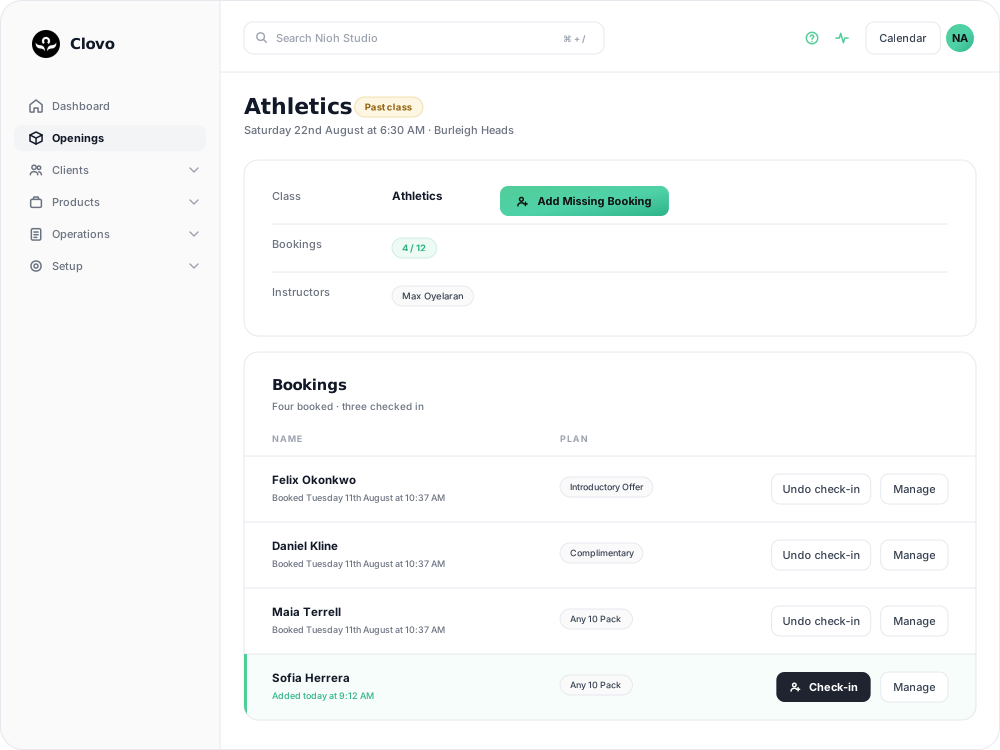
Add the booking
- Log in to Clovo Dashboard and go to the Openings page.
- Find the class the client attended and click Manage. Past classes live behind Past Openings, so you may need to look back a day or two.
- Click Add Missing Booking. On a class that has already run, this is what the Add Booking button becomes.
- Search for and select the client, then choose Continue.
- Select the plan in Payment, then choose Book. If the studio is giving the visit for free, use Complimentary? instead.
The booking now appears in the opening’s booking list alongside everyone else who attended.
Check the client in
After adding the booking, check the client in to record that they attended. The booking records their place, while the check-in records their attendance.
Once you’ve added the booking, find the client in the opening’s booking list and click Check-in.

Check-ins record attendance and feed the checked-in figures in your reports. Booked visits and booked fill rate are counted separately, so adding a booking alone does not mark the client as attended.
See Track attendance by checking-in clients on your phone or desktop for the full check-in flow, and Set up late cancellation and no-show penalties for how the no-show rules are evaluated.
If the booking won’t go through
A past class still has booking checks. Review the reason before changing the client’s plan or using a staff override.
- The class is full. The class ran at capacity and the missing client made one more. Use Force booking? if you need to record the extra attendance without changing the class capacity.
- The client has no active product. Their pack, membership or trial has to allow this class type. If they have nothing active, process a Point of Sale purchase, or use Complimentary? if the visit is free.
- Their pack has expired. Review the payment options before booking. If you agree to extend the credit pack expiry, its remaining credits will be available through the new date; you cannot then restore an expiry date in the past.
- Their credits are already used. Check the client’s remaining credits to confirm whether another booking used the available allocation.
If a booking attempt has already failed against this class, the reason is recorded. See Find out why a booking failed and what to do next.
What the client sees
Bookings you make from the dashboard notify the client the same way their own app bookings do, so they may get a confirmation for a class that has already happened. It’s worth a quick heads-up — “I’ve added your Tuesday session, you’ll see the credit come off” — especially if a credit or a Point of Sale charge is involved.
Why the record matters
An unrecorded visit quietly skews more than one number. The client keeps a credit they’ve used, the class looks emptier than it was, and the client looks less engaged than they are.
Adding the booking after the fact puts all of that back in line — the credit is consumed, the booked fill rate includes the place, and checking the client in adds the visit to the checked-in figures.
Tips
- Add the booking on the same day when possible, while capacity, pack expiry, and credit information are current.
- If a client regularly attends without a recorded booking, check whether their app bookings are failing or whether the booking process needs to be clarified.
- Adding the booking is not the same as taking payment. If the client had nothing to book with, the Point of Sale purchase is a separate step.
Related articles
Book a client into a class from the studio dashboard
Book a client into a class from Clovo Dashboard when they call, walk in, or ask your team to make the booking for them.
Set up late cancellation and no-show penalties
Set late cancellation and no-show rules, choose credit forfeiture or membership-only fees, and check the penalties applied to bookings.
Use a waitlist to fill a cancelled place
Turn a waitlist on for a class, choose how it processes, give members priority, and read the queue when a place comes free.
What does the customer journey look like?
See the customer journey in the Clovo app: finding your studio, exploring, signing up, purchasing a pack, booking a class, and receiving confirmation and reminders.