
Record an external payment for a client

Tobias Gundry
Updated
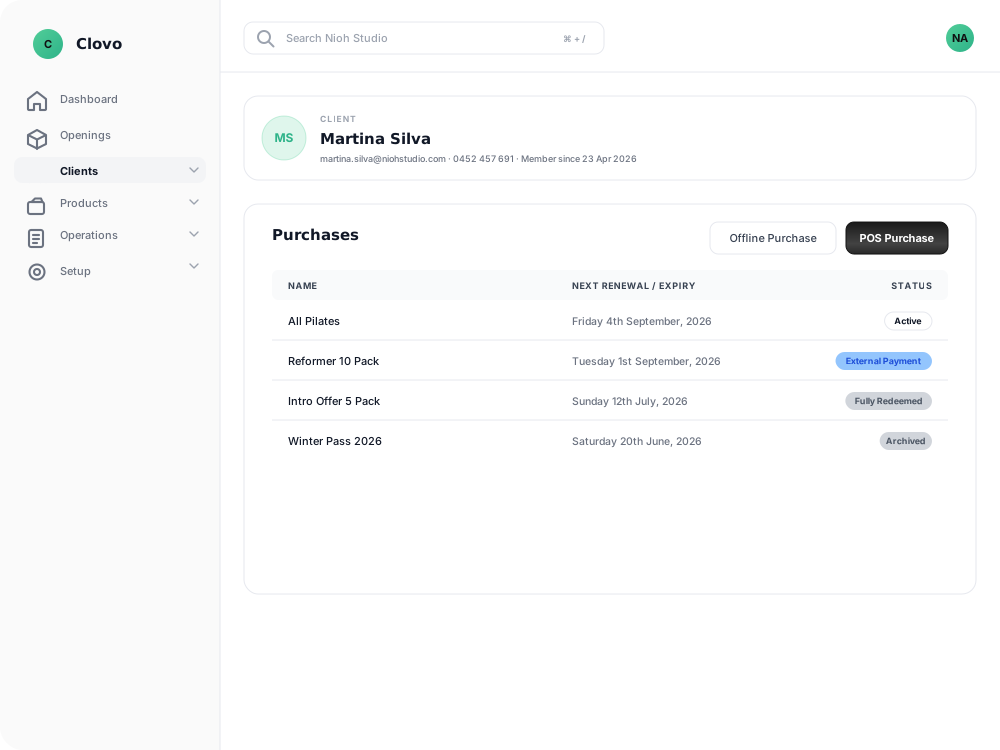
Use Offline Purchase to add a membership or credit pack after a client pays outside Clovo. The purchase is marked External Payment on their profile. This does not collect money through Stripe or set up automatic renewal payments.
Before you start
- You can record more than one External Payment for a client.
- Set an Expiry date no more than three months from today. This replaces the product’s usual expiry for this purchase, and access lasts through the selected day in your studio’s timezone.
- Offline Purchase offers active memberships and credit packs. It does not offer trials or shop products.
- If the plan has a contract, the client must agree to it. A contract requiring a signature also needs the client to sign in person.
Record the external payment
- Open the client’s profile and find Purchases.
- Select Offline Purchase beside POS Purchase.

- Choose the Plan and check the Client.
- Complete any contract acceptance and signature fields that appear.
- Set the Expiry date for the access the client has paid for.
- Select Add Membership.
The membership or pack is available according to its inclusions until that expiry. Clovo does not take or reconcile the external payment through Stripe, and it does not automatically bill the client when this access ends.
Take a payment through Clovo instead
Use POS Purchase when the client is paying by card at the studio. For ongoing automatic renewals, use the normal membership purchase flow.
Related articles
Change when a membership renews
Move a member's renewal date, or bill them now and restart the cycle — and see exactly what Clovo will charge before you commit to it.
Automatically pause a membership after a set number of billing periods
Set a membership plan to pause its memberships on their own after a set number of paid billing periods, for a fixed number of weeks or indefinitely.
Change a client’s membership plan
Move a client to another recurring plan at their next renewal, and know when the new price and allowance begin.
Change a membership start date
Move a membership start date back so classes a client took before their purchase went through count against the period they attended.