
Run a free popup class

Tobias Gundry
Updated
To run a free popup class, create a one-off opening, then add each attendee as a complimentary booking. Complimentary bookings give clients a place without charging them or using their membership allowance or pack credits.
Creating a popup does not automatically make bookings free. Your team needs to select Complimentary? for each person you book into the event.
Create the popup class
Have your class type, location and instructors set up in Clovo before you begin.
- In Clovo Dashboard, go to Openings and choose Add Pop-up.
- Choose the Date and Time for your event.
- Select the Class and Location, and choose a room or facility in Room if needed.
- Select the Instructors taking the class.
- Click Create.
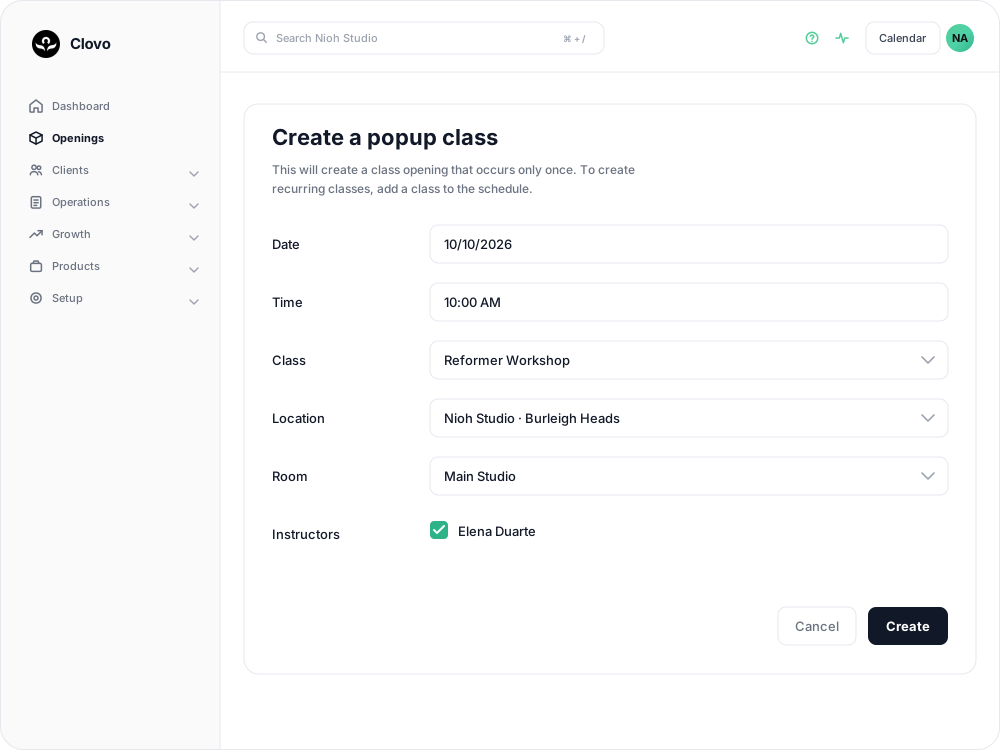
The popup is a single opening on your chosen date. For more about one-off classes, see Offer popup classes.
Add each attendee as a complimentary booking
- In Openings, find your popup class and click Manage.
- Choose Add Booking to open Book Client.
- Search for the client and select the person attending. If you are booking a linked profile, choose that profile rather than the account owner.
- Click Continue.
- In the Payment card, turn on Complimentary?. The card will say This class will be free of charge.

Click Book to confirm their place. Repeat these steps for every attendee, selecting Complimentary? each time. They do not need a paid membership or pack for a complimentary booking.
Leave Force booking? off for a normal booking. It overrides restrictions such as class capacity; it is not needed to make the booking free.
For more help choosing a client or profile, see Book a client into a class from the studio dashboard.
Related articles
Exempt a schedule from the booking cutoff
Keep bookings open until class starts for selected schedules while the rest of your timetable follows your studio booking cutoff.
Cancel upcoming classes that have already been scheduled
Cancelling an opening cancels every booking on it and returns credits automatically, but direct purchases are not refunded for you.
Change the date and time of existing openings
Move a single class opening to a new date or time. Clovo keeps the bookings, tells the clients who hold them, and leaves the schedule the class came from unchanged.
Close the studio for a date range
Record a closure so Clovo stops opening classes at that location, then cancel the openings already on the timetable and extend or pause the memberships the closed days run through.