
Create an appointment calendar for an instructor

Tobias Gundry
Updated
Create a person calendar when clients are booking time with a particular instructor, such as a private Pilates session or consultation. Each booking reserves that instructor at the selected location.
Before you start
Turn on Enable appointments in Setup > Appointments and add the appointment types and prices you want to offer.
The instructor needs a linked staff account to be selectable. Follow linking instructor profiles to staff accounts if their name shows no staff account linked.
Create the calendar
- Open Appointments. Choose New calendar from All calendars, or the + beside Calendars.
- Under Calendar type, select Person.
- Choose Flexible times or Fixed appointments, then Staff approval or Immediate confirmation.
- Enter a recognisable Calendar name, choose a colour and select the Location.
- Select the Instructor. Choose a Room if each appointment also needs exclusive use of that room.
- Select any Additional managers who should manage bookings and receive updates, then select Create calendar.
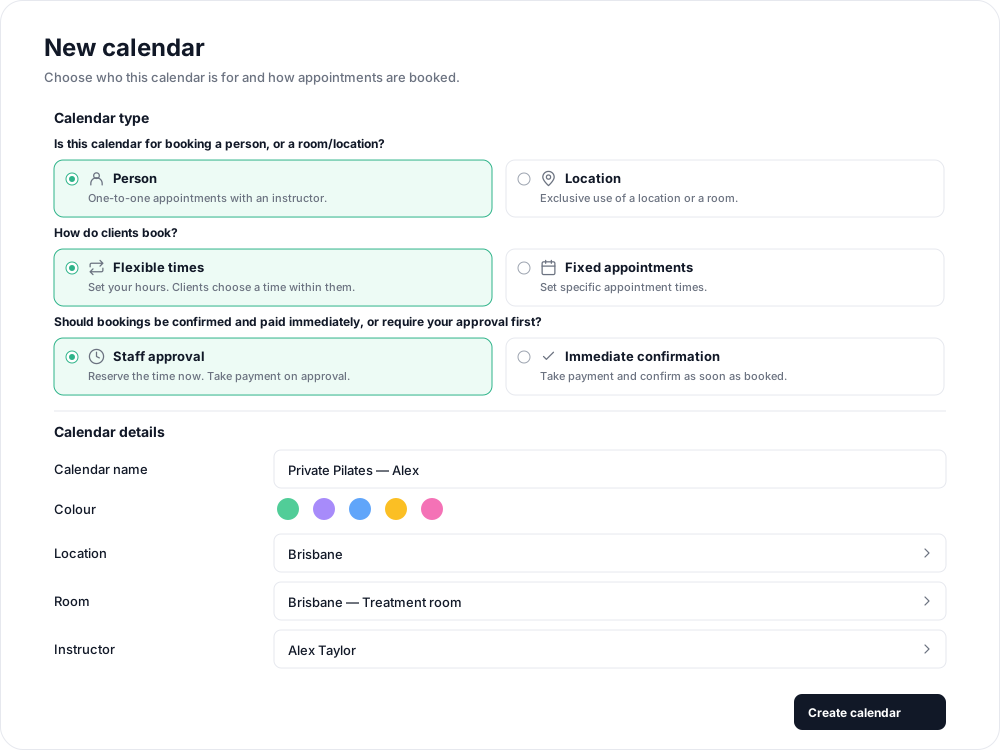
The resource, location, instructor, room, booking style and confirmation choice are fixed when the calendar is created. Review them before saving. To use a different combination later, create another calendar.
Add times clients can book
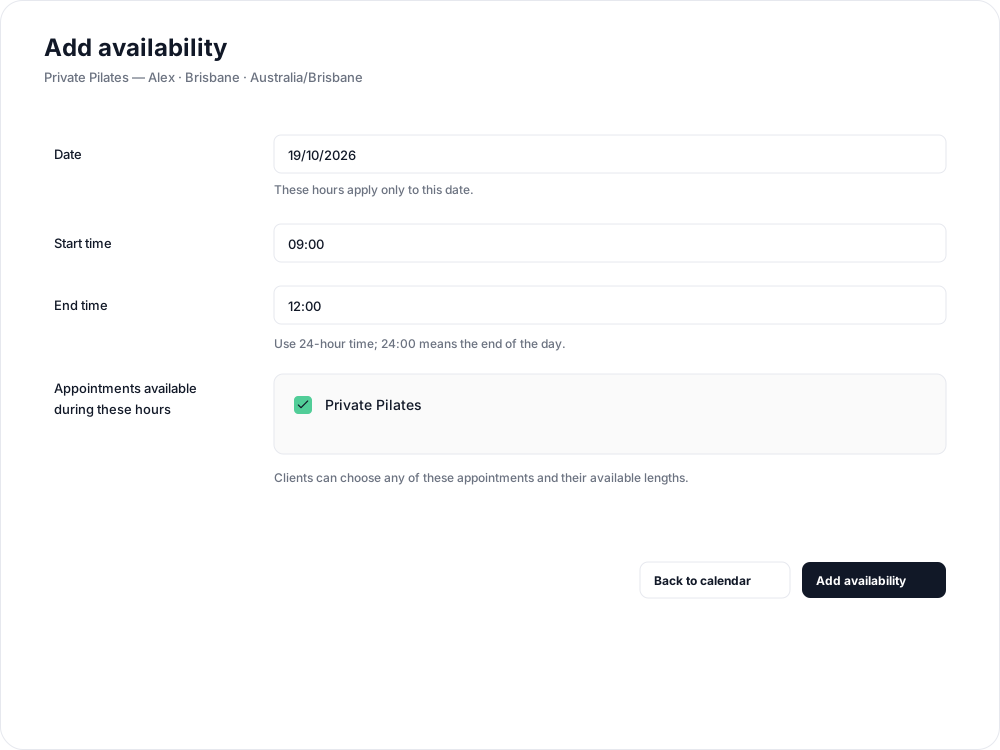
For Flexible times, drag over a date's hours in the calendar grid. Set the start and end times, select Appointments available during these hours, then select Add availability. The appointment types you select supply the lengths clients can choose.
For Fixed appointments, select a time in the grid, choose the date, Start time and Appointment and length, then select Add appointment time.
The instructor's scheduled classes and reservations on their other calendars block conflicting time. If you selected a room, the room must also be available. Without a room, other instructors can work at the same location alongside them.
Hours belong to individual dates. Use Repeat Schedule to make future weeks available. For flexible calendars, open Calendar settings to adjust start intervals, time between appointments and advance notice.
Related articles
Appointments in Clovo
Bring private sessions, room bookings and wellness appointments into Clovo, with flexible availability, staff approval and payments.
Book an appointment on behalf of a client
Choose a client, select an available appointment and take payment or submit it for staff approval.
Create an appointment calendar for a facility
Make an infrared sauna, massage chair or similar facility bookable through a room/location calendar.
Create an appointment calendar for a room or location
Let clients reserve a room or an entire location, and assign staff to manage its appointments.