
Run a class for part of the year

Tobias Gundry
Updated
Use a Schedule date range to run a weekly class for a term, a season or another limited period. You can prepare the schedule ahead of time and set when the class finishes without returning to delete it later.
Set the first and last dates
- Go to Setup → Schedule and choose Schedule a class in the List view. If this is your first entry, choose Create schedule.
- Set the day of week, time, class, location, room or facility if needed, and instructors.
- Turn on Schedule date range.
- Set Start date and End date. The end date must be after the start date.
- Choose Create.
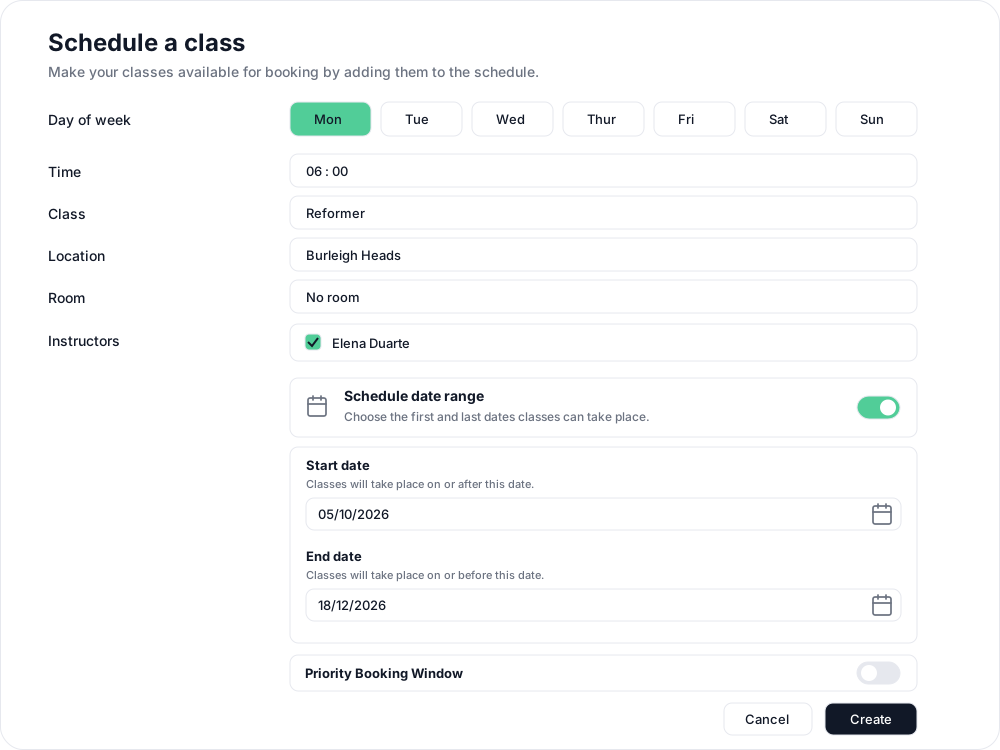
Both dates are included: classes can take place on or after the start date and on or before the end date, on the weekday you selected. For example, a Monday class running from 5 October to 18 December 2026 has its first class on Monday 5 October and its last on Monday 14 December.

You can also set only an End date to finish an ongoing class, or only a Start date to start a new class later. Leave the other field blank. Turn off Schedule date range if the schedule should have no date limits.
The date range does not open the whole term for booking at once. Classes become bookable within your studio's Open schedule window. See choose when new classes are released for booking.
See the season alongside the rest of your timetable
In Setup → Schedule, select Timeline. Choose a Starting month, set Show to 6, 12 or 24 months, then select Apply. Use Previous, This month or Next to move through the calendar.
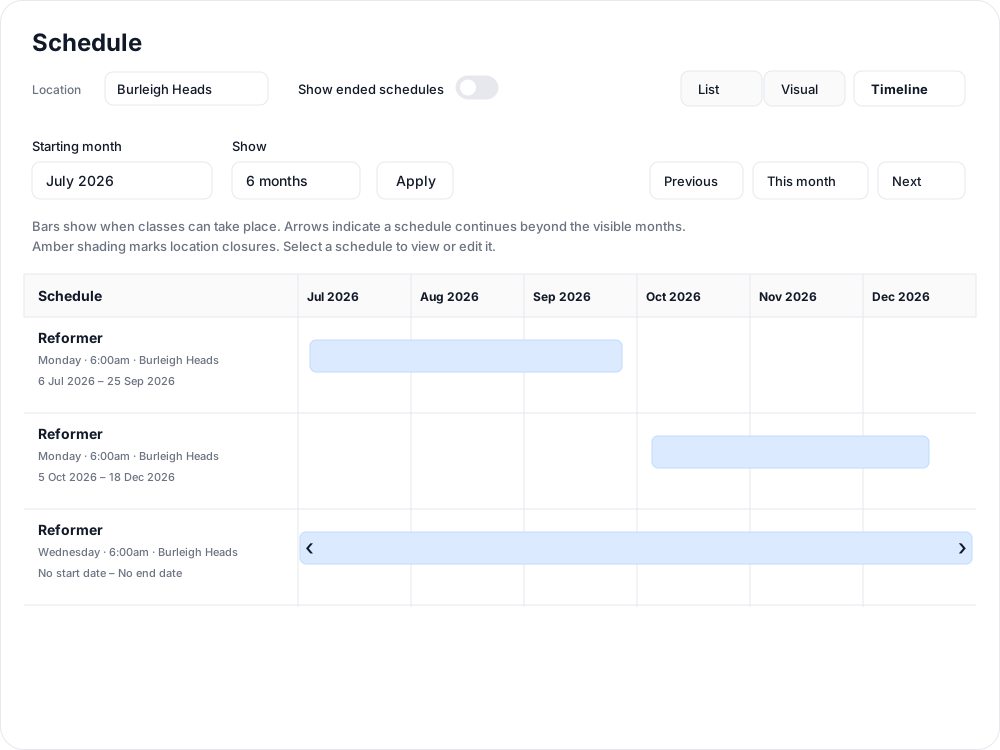
Each row shows the class, weekday, time, location and date limits. The bar shows when that schedule allows classes to take place. Use it to spot a gap or overlap between an ending class and its replacement. Arrows mean the schedule continues beyond the months in view; amber shading marks location closures.
Select a schedule name or bar to open its details. If you are looking back at a finished term, turn on Show ended schedules to include entries whose end date has passed.
Change dates for an existing class
Open the schedule and choose Change schedule. Adjust Schedule date range, Start date or End date, then choose Change and review the dates before saving.
Existing openings are kept unless you choose to cancel them during the review. If you bring an end date forward, check for openings after the new end date and select any that should no longer run. The same applies to openings before a later start date. See changing class schedules with existing openings for the cancellation choices and how booked clients are notified.
For a break in the middle of an ongoing timetable, such as a holiday closure, use studio closures.
Related articles
Exempt a schedule from the booking cutoff
Keep bookings open until class starts for selected schedules while the rest of your timetable follows your studio booking cutoff.
Cancel upcoming classes that have already been scheduled
Cancelling an opening cancels every booking on it and returns credits automatically, but direct purchases are not refunded for you.
Change the date and time of existing openings
Move a single class opening to a new date or time. Clovo keeps the bookings, tells the clients who hold them, and leaves the schedule the class came from unchanged.
Close the studio for a date range
Record a closure so Clovo stops opening classes at that location, then cancel the openings already on the timetable and extend or pause the memberships the closed days run through.