
How clients enter a promo code

Tobias Gundry
Updated
Clients enter promo codes themselves. Use this article when telling clients where to type a code, or when helping someone who cannot find the field.
During sign-up
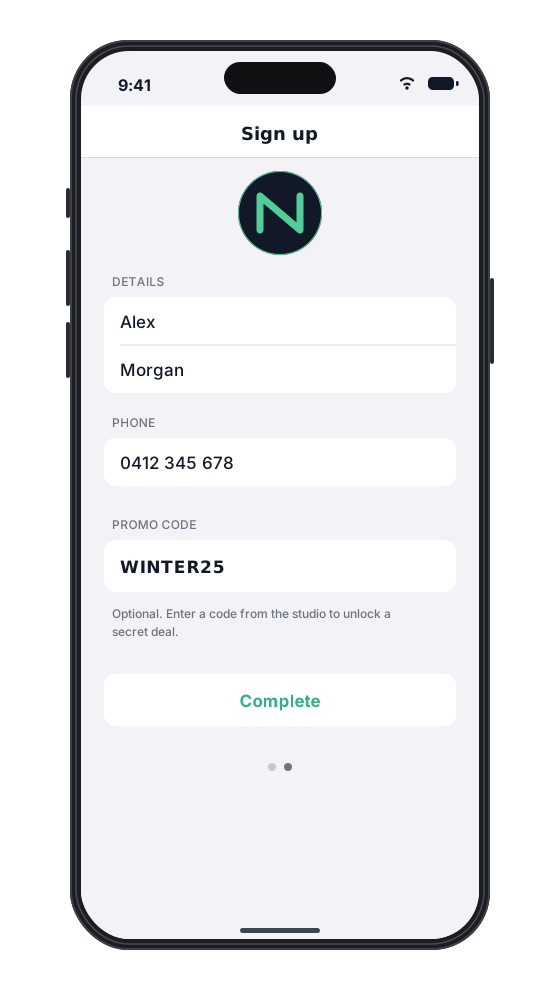
The sign-up form in the Clovo app and on your landing page has an optional Promo code field. It only appears while your studio has a code clients can use.
From their account in the Clovo app
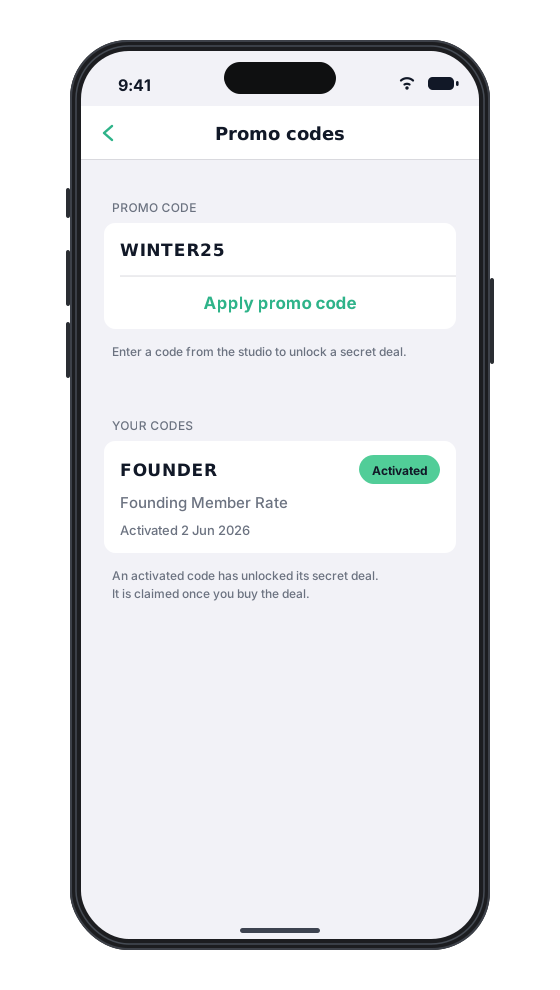
- Open You.
- Tap the … button to open Account settings.
- Select Promo codes.
- Enter the code and tap Apply promo code.
When paying for a single class on your landing page
The payment step has a Promo code field. The client enters the code and selects Apply code. The code must cover direct class purchases — see Discount Member Shop orders and class purchases with a promo code.
If the code is not accepted
If the code is mistyped, has ended or has been archived, the client sees "That promo code is invalid or no longer available." Case does not matter, so winter25 works the same as WINTER25.
A client whose account is older than a new-clients-only code sees "This promo code is only available to members who joined after it was created." Offer a promo code to new clients or existing members explains that setting.
One code at a time
Each client has one saved code. Saving a different code replaces the one they had, as long as they have not used it yet. A code that has been replaced cannot be saved to the same account again, so it is worth checking with clients before they swap codes.
- A saved discount code applies to the client's next eligible purchase automatically, while the code is still active. They do not need to type it again.
- A saved secret-deal code unlocks the plan or pack under Secret deals in the app. If the client replaces the code before buying the deal, the deal is hidden from them again.
A client cannot combine two codes on one purchase.
Related
Related articles
Archive or delete a promo code
Stop a promo code from working, what happens to clients who saved it, and why most codes are archived rather than deleted.
Create a dollar-amount-off promo code
Take a fixed amount, such as $10.00, off memberships, packs, Member Shop orders or single classes for each client who enters your code.
Create a percentage-off promo code
Take a percentage, such as 20%, off memberships, packs, Member Shop orders or single classes for each client who enters your code.
Create a promo code that unlocks a secret deal
Let clients unlock a private membership or pack themselves by entering a code, instead of granting access one profile at a time.