
Move an existing client booking

Tobias Gundry
Updated
There will be times when you need to move a client’s existing booking to another opening — perhaps the client asked to switch to a different time, or you need to rebalance attendance across classes.
Moving is especially useful when the client paid for the class through Direct Purchase. Their payment stays with the booking, so you can move them without cancelling the booking, issuing a refund, and asking them to purchase again.
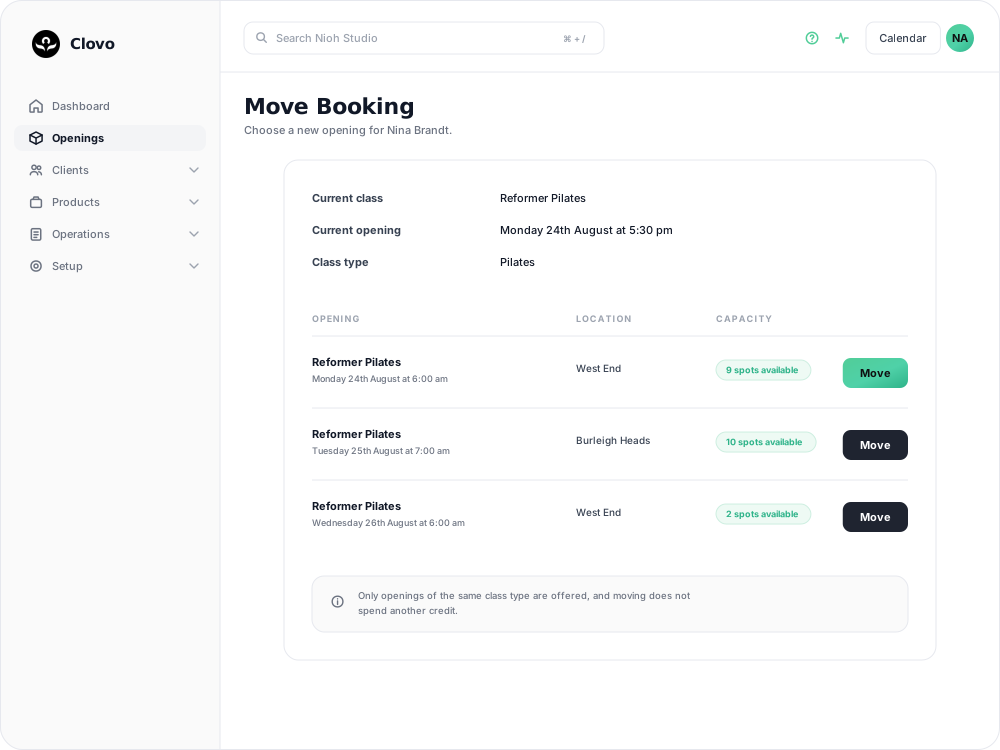
How to move a booking
- Log in to Clovo Dashboard on the desktop.
- Navigate to the Openings page and find the class the client is currently booked into.
- Click Manage on the opening to view the list of bookings.
- Click Manage on the client’s booking row.
- Click Move booking.
- Pick the destination from the list and click Move. The client will be notified of the change.
What the list will and won’t offer you
The destination list is not every opening in your timetable. Clovo only offers openings of the same class, so a Reformer Pilates booking moves to another Reformer Pilates opening — at a different time or a different location, but not into a different class. If the slot the client asked for isn’t listed, that is usually why.
Each row shows its remaining capacity, so you can see at a glance whether the move fits before you commit to it.
Things to keep in mind
- Only future bookings can be moved, and only to a future opening that hasn’t been cancelled. Once a class has started, the booking is fixed — use Add a missing booking if the attendance record is what needs correcting.
- A cancelled booking can’t be moved. You’d be rebooking it, not moving it.
- A full destination can still be selected. If the opening you pick has no places left, Clovo asks you to confirm the overbooking before continuing.
- Moving does not use an additional credit. The existing credit follows the booking across, and is re-counted against whichever allowance covers the destination.
- Moving is not the same as cancelling and rebooking. No cancellation is recorded, so late cancellation penalties don’t come into it. For a Direct Purchase booking, this also means the original payment can stay in place instead of being refunded.
- The client will receive a notification about their updated booking details.
- You can also move bookings from the Clovo iOS app if you’re managing your studio on the go.
If the client no longer wants a place, cancel their individual booking.
Related articles
Book a client into a class from the studio dashboard
Book a client into a class from Clovo Dashboard when they call, walk in, or ask your team to make the booking for them.
Set up late cancellation and no-show penalties
Set late cancellation and no-show rules, choose credit forfeiture or membership-only fees, and check the penalties applied to bookings.
Use a waitlist to fill a cancelled place
Turn a waitlist on for a class, choose how it processes, give members priority, and read the queue when a place comes free.
What does the customer journey look like?
See the customer journey in the Clovo app: finding your studio, exploring, signing up, purchasing a pack, booking a class, and receiving confirmation and reminders.