
Cancel a client membership

Tobias Gundry
Updated
Staff cancel a membership from the client’s profile. When access actually ends depends on what the client bought: a recurring membership runs to the end of the period they have already paid for, while a credit pack, a trial, or a membership paid for outside Clovo ends straight away.
If the client wants a cheaper plan rather than to leave, Change Plan on the same screen is usually the better option.
Cancel the membership
-
Open the client’s profile and open the membership you want to stop.
-
Select Cancel Plan. On a credit pack, a trial, or a membership paid for outside Clovo the button reads Cancel.

-
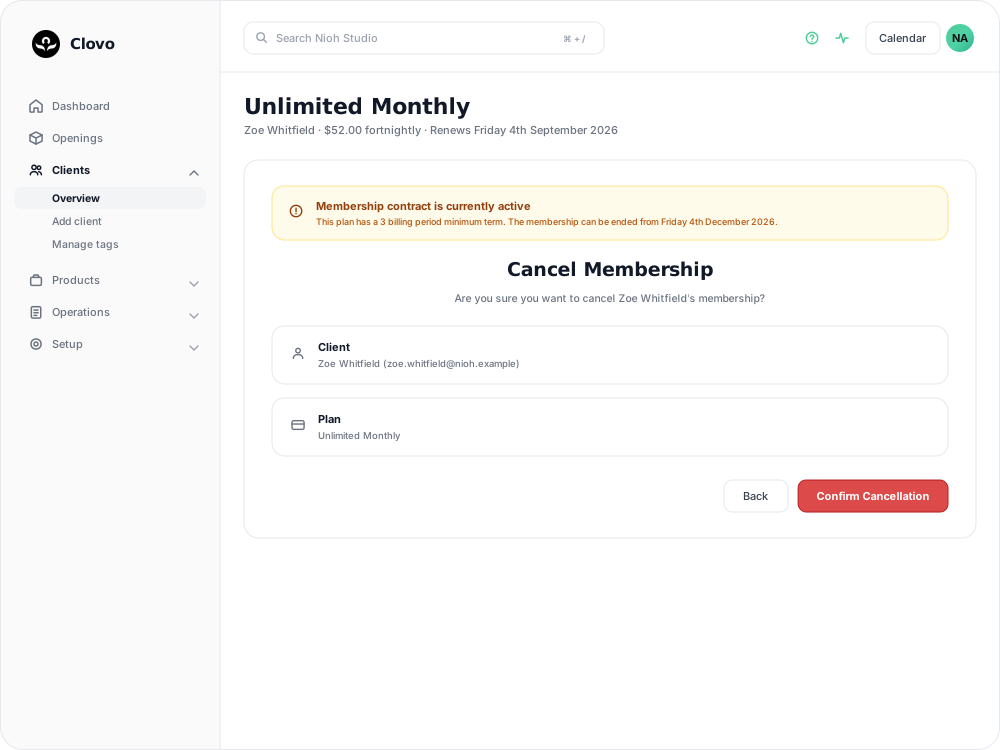
Read the notices at the top of the cancellation screen. A pack or trial shows a Notice that cancelling forfeits any remaining credits. A plan under contract shows Membership contract is currently active, with how much of the minimum term is left and the reminder that staff can still end the membership manually.
-
Check the Client and Plan cards show the intended person and plan — on a pack or trial the second card is headed Pack. This screen does not show an end date.
-
For a recurring membership, choose Reason for cancelling. If you choose Other, enter the client’s reason in 10–1,000 characters. Confirm Cancellation becomes available once the reason is complete. Packs and trials do not ask for a reason.
-
Select Confirm Cancellation.
A recurring membership paid for outside Clovo uses the same cancellation form and asks for a reason. Confirming ends the membership straight away.
These buttons are shown to owners and to staff who also hold the Finance role. If you cannot see them, ask an owner to cancel or to add the role.
What each type of membership does next
- Recurring membership. The status changes to Cancelling. No further renewals are billed, and the client keeps their access and allowance until the end of the period they have paid for.
- Credit pack or trial. It ends as soon as you confirm, and any credits the client had left are forfeited. There is no paid-through period to run out. If the client should keep those credits, consider extending the pack instead.
- Externally paid membership. It ends as soon as you confirm.
Clovo emails and sends a push notification to the client when a recurring or externally paid membership is cancelled, telling them either that the membership has ended or that they can keep using it until the end of their current billing period. Cancelling a pack or trial does not notify them, so let the client know separately.
Confirm the end date afterwards
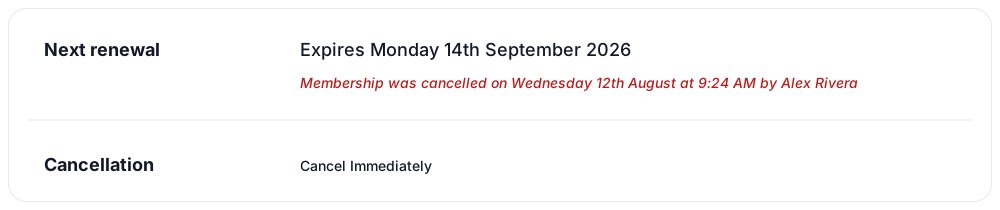
The end date is not shown while you are cancelling — it appears on the membership once the cancellation is confirmed. The Next renewal row is struck through and now reads Expires with the date, followed by a note of who cancelled the membership and when. Check that date against what you agreed with the client.
There is no way to reverse a cancellation. If the client changes their mind, they need to start a new membership.
End a cancelling membership today
Once a recurring membership is cancelling, a Cancellation row appears in the membership details with a Cancel Immediately link. It ends the membership on the spot instead of at the end of the paid period, which is what you need for an early exit you have agreed with the client.
Three things to weigh up before you use it:
- It does not refund the part of the period the client has already paid for. Handle any refund separately.
- Bookings the client already holds for the days you are removing stay in the timetable. Cancel those from the class if the places should go back.
- The client is not notified, so tell them their membership has ended.
Bookings after the end date
When a recurring membership is cancelled, any classes the client has booked for dates after the end date are cancelled with it. Those places were being held on the expectation that the membership would renew, so they go back to the timetable. Bookings on or before the end date are unaffected, and the client cannot make new bookings for dates past it.
The client receives a notification listing the bookings that were cancelled and the date the membership is valid until, and so do owners and staff with the Finance role. See Offer recurring memberships by creating a membership plan for how these credit bookings work.
Memberships under contract
A membership plan can carry a minimum contract term and a cancellation notice period. Those terms govern what the client can do in the app: they cannot cancel until their final committed period has begun, and any notice period is added to their end date.
Staff are not blocked by either setting. The contract banner names the restriction and states that staff can still end the membership manually. A staff cancellation ends the membership at the end of the current billing period and does not add the notice period — so if the notice should still apply, agree an end date with the client, or ask them to cancel from their own account. See Set a minimum membership term and cancellation notice period.
When clients cancel in the app
On iOS and Android, the final Cancel membership? step asks for Reason for cancelling. The client chooses a reason, or selects Other and enters 10–1,000 characters, then taps Confirm. The button stays unavailable until the reason is complete.
Staff can view the cancellation reason on the client’s membership.
Related articles
Track the usage of memberships and packs
Read the usage panel on a client’s membership or credit pack, see what each credit was spent on, and correct a balance when it needs fixing.
Change a client’s membership plan
Move a client to another recurring plan at their next renewal, and know when the new price and allowance begin.
Offer recurring memberships by creating a membership plan
Fill in the membership plan form — inclusions, price, billing period and contract — and know what changes for current members when you edit a plan later.
Set a minimum membership term and cancellation notice period
Write a membership contract, set a minimum term and cancellation notice period, and understand when a membership can end.