We know your day is packed with sessions, client check-ins, and all things health and wellness. Staying on top of notifications is crucial, but sometimes, you need a little peace and quiet. Here’s how you can easily toggle your notifications on and off to keep your workflow smooth and your sanity intact.
Step-by-Step Guide to Toggle Notifications
Log In to Your Studio Account:
Grab your favorite device and log in to your studio account. It’s the first step to notification bliss.
Go to your admin profile:
Once you’re in, navigate to your own user profile under the ‘Admins’ section of the Clovo Studio navigation sidebar.
Navigate to Notifications:
At the bottom of your profile, look for the “Notifications” card. This is your control centre for all things alert-related.
Toggle Notifications On/Off:
You’ll see a list of different types of notifications you can receive. Each type has a toggle switch next to it. Want to turn off new booking alerts but keep cancellation notices? Simply switch them on or off according to your preference.
Save Your Preferences:
Don’t forget to hit “Save” after making your changes. This ensures your new settings are locked in.
You’re All Set!:
That’s it! You’ve now customized your notifications to fit your busy lifestyle. Enjoy the perfect balance of staying informed without being overwhelmed.
Quick Tips
Test It Out: Toggle a notification off and on to make sure it’s working as you expect.
Stay Flexible: Adjust your settings as your needs change. You can always come back and tweak things.
Stay Informed: Critical alerts like cancellations or payment failures might be best kept on, just so you’re always in the know.
By following these steps, you can make sure you’re getting the right information at the right time. Now, go forth and conquer your day with the perfect notification setup!
If you need any more help, feel free to reach out to our support team. We’re here to keep you moving forward.
If your clients are having trouble accessing their accounts, you can help them reset their passwords directly from Clovo Studio. This is quicker than asking the client to navigate the password reset process on their own.
How to send a password reset
Log in to Clovo Studio.
Navigate to Clients and find the client who needs a password reset.
Open their client profile.
Click the option to send a password reset.
The client will receive an email with a link to create a new password.
Things to know
The reset link is sent to the email address on file for that client — make sure their email is correct before sending
Reset links expire after a set period for security — if the client doesn’t use it in time, you can send another one
Clients can also initiate a password reset themselves from the login screen of the Clovo app
If a client repeatedly has trouble logging in, check that they’re using the correct email address — sometimes clients create multiple accounts with different emails
Clovo makes it possible to offer introductory deals to new clients. Introductory offers are a great way to bring new clients through the door — either as a free short-term trial or a discounted first purchase that lets them experience your studio before committing to a full membership or credit pack.
What is an introductory offer?
An introductory offer is a special product that is only available to clients who haven’t purchased from your studio before. Once a client has made any purchase, introductory offers are no longer visible to them. This ensures the deal is genuinely reserved for newcomers.
Creating an introductory offer
In Clovo Studio, go to Products.
Create a new credit pack or membership plan as you normally would.
Enable the Introductory offer option. This marks the product as available only to new clients.
Set your pricing — you might offer a discounted rate, a limited number of credits, or even a free trial period.
Save the product.
Tips for effective introductory offers
Keep the barrier low — a free or heavily discounted first visit removes the risk for new clients
Set a short expiry — encourage new clients to try your classes quickly rather than sitting on the offer
Limit the credits — 1-3 classes is usually enough for a new client to decide if your studio is right for them
Have a follow-up plan — make sure you’re ready to convert trial clients into paying members
Understanding how your clients use their memberships and credit packs helps you make smarter decisions about pricing, class capacity, and which products to promote. Clovo gives both you and your clients real-time visibility into usage and expiry.
What your clients see
Your clients can always view the current status of their memberships, credit packs, and trials directly in the Clovo app. This includes how many credits remain, when their next billing date is, and when their pack expires.
Tracking usage as a studio owner
As a studio owner, you can track usage in Clovo Studio by navigating to an individual client’s profile. From there you can see all of their active and past products, including credits remaining, expiry dates, billing status, and booking history.
Why tracking usage matters
Keeping an eye on usage patterns helps you understand which products are popular and when it might be time to reach out to a client who hasn’t booked in a while. If you notice a client’s credit pack is about to expire with unused credits, that could be a good opportunity to check in and encourage them to book.
When credit packs are purchased by a client they have an expiry date that starts from the moment of purchase. For example, if you have a credit pack with a 30-day expiry and a client purchases it on the 1st of January, it will expire on the 31st of January.
Why extend a credit pack?
There are plenty of good reasons to extend a client’s credit pack — perhaps they were injured, travelling, or dealing with personal circumstances that prevented them from using their credits. Extending a pack is a gesture of goodwill that can go a long way in retaining a client.
How to extend a credit pack
In Clovo Studio, navigate to the client’s profile.
Find the credit pack you want to extend under their active products.
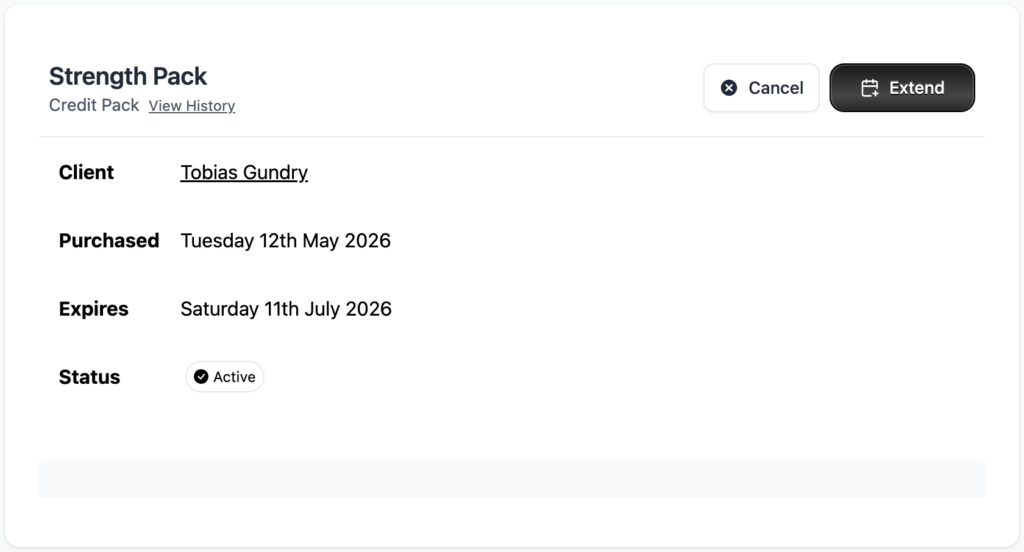
Click into the credit pack details.
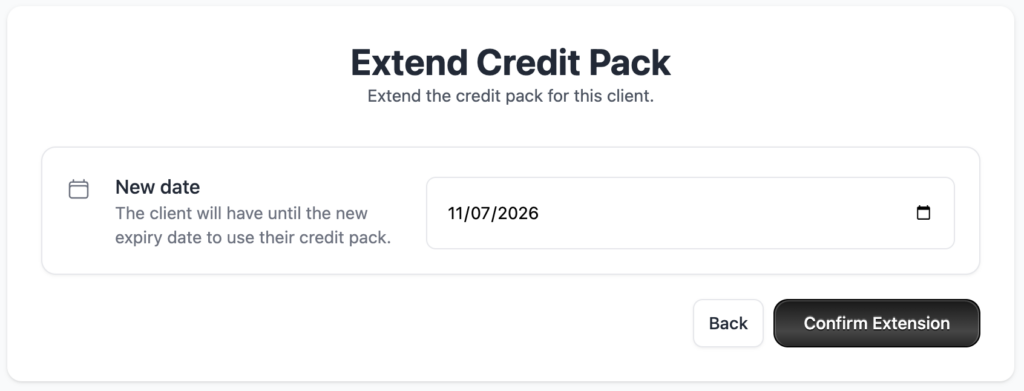
Update the expiry date to the new date you’d like the pack to expire.
Save your changes.
The client will immediately have access to their remaining credits until the new expiry date. There is no limit to how far you can extend a pack.
Things to keep in mind
Extending a pack does not add additional credits — it only changes the expiry date
You can extend a pack that has already expired, which will reactivate the remaining credits
Consider setting a studio policy on extensions so your team handles them consistently
We’d love it if it never happened. But inevitably the time will come when a member needs to leave. In this article we’ll cover all aspects of membership cancellation.
Cancelling as a client
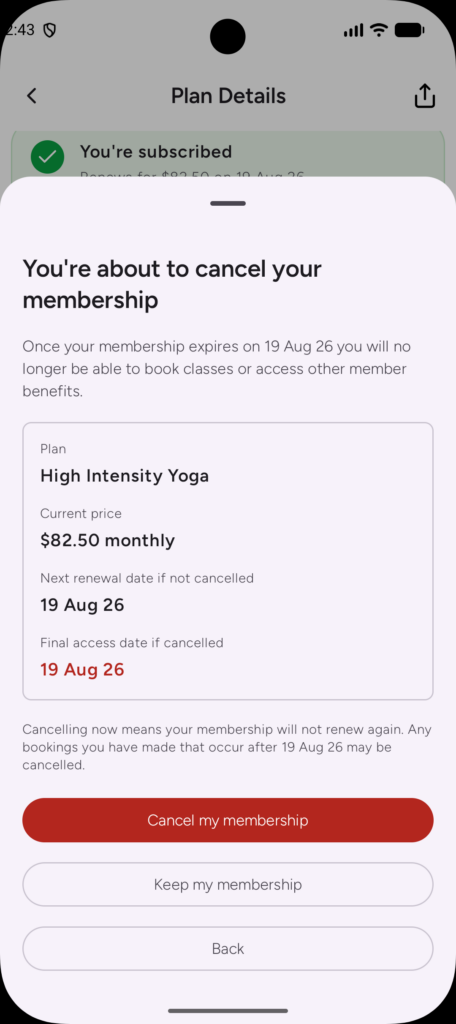
Your clients can easily cancel their membership from within the Clovo app at any time. When this happens, the membership will remain active until the end of the current billing period and no longer renew.
When a client cancels their membership in the application you will receive a notification according to your notification preferences and the membership will show as ‘Active, won’t renew’ in Clovo.
Cancelling as an owner or staff
Sometimes you will need to cancel a client’s membership yourself:
Cancel from Clovo Studio
To cancel from Clovo Studio, login with your staff account and then:
Find the Client whose membership needs cancelling
From the client’s profile screen, find the membership under the ‘Plans’ tab
Click ‘Cancel’
Confirm the cancellation on the screen that appears
That’s it, your clients membership will be cancelled at the end of their current billing period.
Cancelling Immediately
Ordinarily when a membership is cancelled in Clovo, the membership remains active until the end of the current billing period.
However, you can if needed for your own business purposes, bring forward the cancellation date and make the cancellation effective immediately.
To do this, a membership will already have to be cancelled following the standard procedure. You can then view the membership in Clovo, where the cancellation details will show including the effective cancellation date. There is an option to ‘Cancel Immediately’.
Note the Clovo will not create prorations or make refunds when you choose to cancel immediately.
What happens to existing bookings when a membership is cancelled?
When a membership is cancelled, any bookings that were made prior to cancelling remain so long as they fall within the existing billing period.
Bookings that were made outside of the current billing period are considered credit bookings. That is, they are booked on the assumption that the membership will be renewed by the time the booking date arrives.
When a membership is cancelled, that assumption is no longer valid, and those bookings that fall outside of the current billing period are immediately cancelled, freeing them up for remaining members.
Notes on booking post-cancellation
Clients can continue to book within their current booking period and within the bounds of their membership plan following a cancellation in order to allow them to fully utilise their purchased plan.
However clients will no longer be able to book past the end of their current billing period following a cancellation or if their membership has been cancelled with immediate effect (which disregards any remaining period).
Schedules are created in Clovo Studio and represent the typical week of class offerings at your studio. Your schedule is the foundation of how Clovo manages your timetable — once you set it up, Clovo automatically generates bookable class openings for your clients on an ongoing basis.
What is a schedule?
A schedule is a recurring weekly pattern of classes at your studio. When you create a schedule entry, you define a class that is offered at a specific time on a specific day of the week. For example, you might have a Beginner Reformer Pilates class every Monday at 4pm and Advanced Reformer Pilates classes at 6am every Monday, Wednesday and Friday.
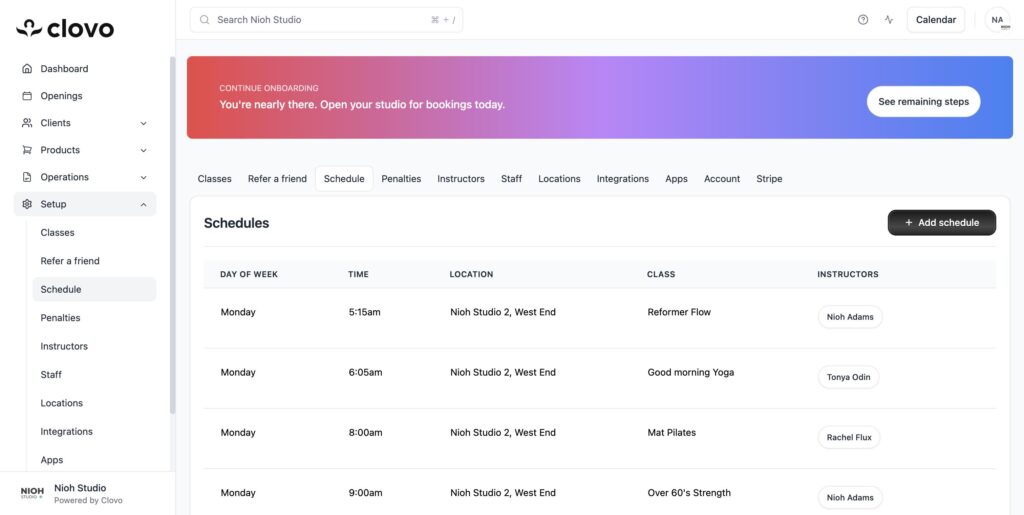
Each schedule entry includes the following details:
Day of week — which day the class runs (Monday through Sunday)
Time — the start time of the class
Class — which class type is being offered (e.g. Reformer Flow, Cardio Sculpt, Yogalates)
Location — the studio or room where the class takes place
Instructors — which instructor or instructors are assigned to teach the class
How schedules generate openings
Clovo takes your schedule combined with the ‘scheduled days ahead’ setting for your studio (defaults to 14 days) and generates a series of ‘openings’ for your classes.
Openings are the individual, bookable instances of your scheduled classes. Clovo will create new openings using your schedule every single day so that you always have exactly the number of ‘scheduled days ahead’ that you specify — for example, 14 days of classes available for booking at any given time.
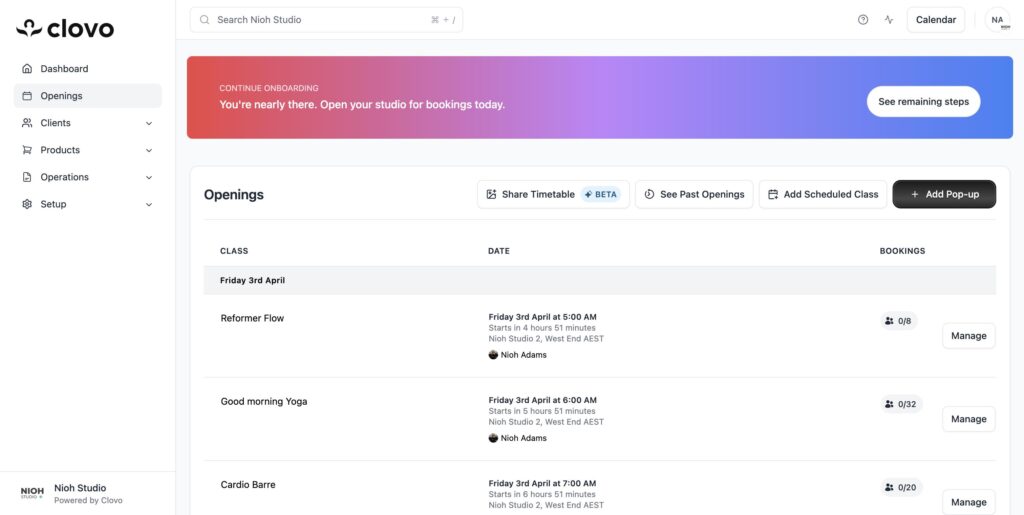
Openings can be booked by your clients according to the capacity of the class and the allowances on their membership or credit pack. You can view all upcoming openings from the Openings page in Clovo Studio, where each opening shows the class name, date and time, location, assigned instructor, and current booking count (e.g. 3/20).
Creating a new schedule entry
To add a recurring class to your schedule:
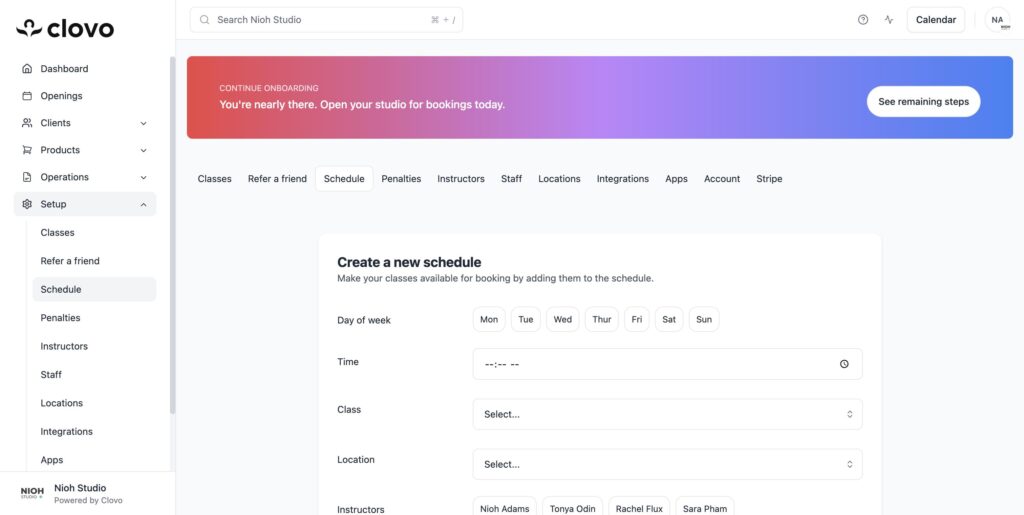
In Clovo Studio, go to Setup > Schedule.
Click the + Add schedule button in the top right corner.
Select the day of the week the class will run on.
Set the time the class starts.
Choose the class from your list of class types.
Select the location where the class will be held.
Choose one or more instructors to assign to the class.
Click Create to save the schedule entry.
Clovo will immediately begin generating openings based on your new schedule entry.
Editing and deleting schedule entries
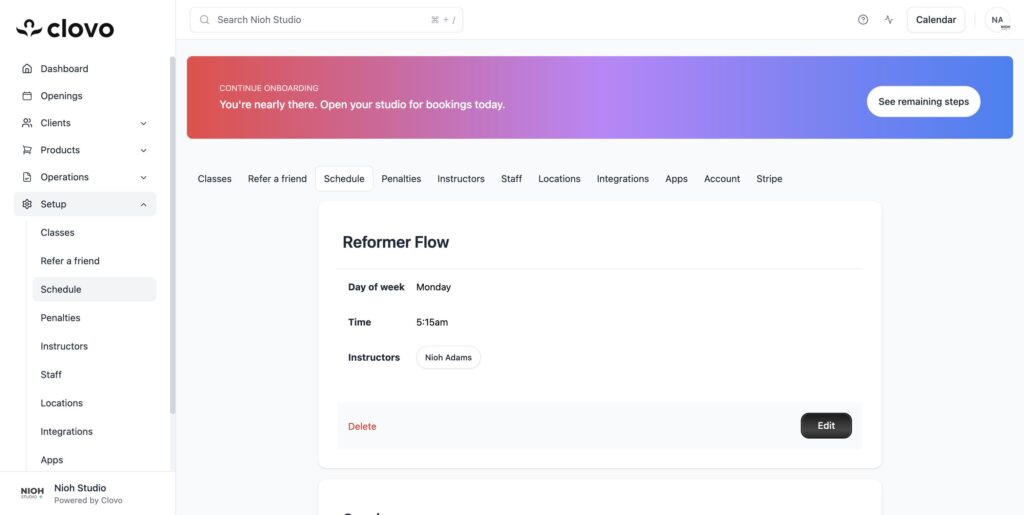
You can view and manage all of your schedule entries from Setup > Schedule. The schedule list shows every entry organised by day of the week, with the time, location, class, and assigned instructors displayed in columns.
Click on any schedule entry to view its details. From the detail view you can click Edit to change the day, time, class, location, or instructors, or click Delete to remove the entry from your schedule. Note that deleting a schedule entry will not remove openings that have already been created — see our article on changing class schedules with existing openings for more details.
Pop-up classes
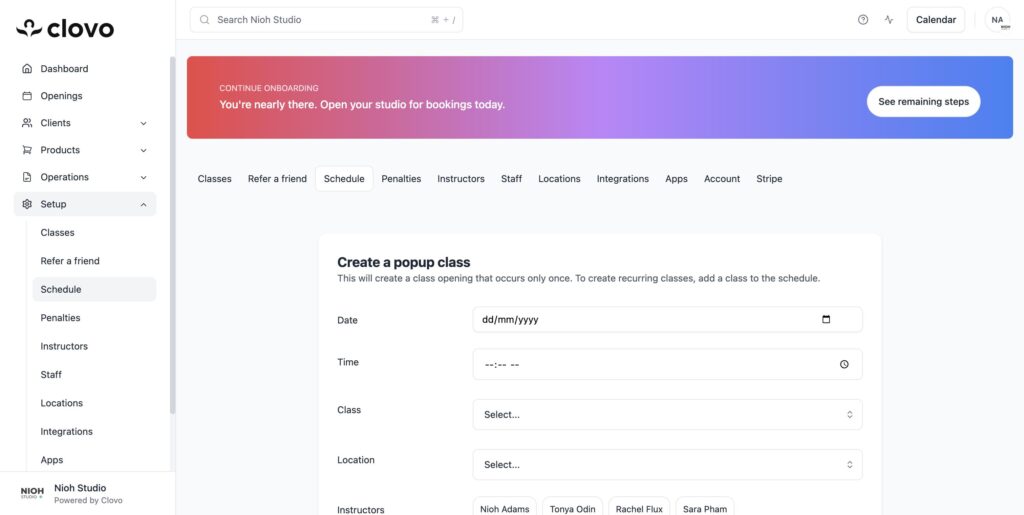
In addition to recurring scheduled classes, Clovo also supports pop-up classes — one-off class openings that occur only once. Pop-up classes are perfect for special events, workshops, substitute classes, or any class that doesn’t repeat on a weekly basis.
To create a pop-up class, go to the Openings page and click + Add Pop-up. You will need to provide a specific date (rather than a day of the week), along with a time, class type, location, and instructor. For more information, see our article on offering pop-up classes.
Managing openings
Once openings have been generated from your schedule, you can manage them from the Openings page. Each opening has a Manage button that lets you view bookings, add missing bookings manually, and see the assigned instructor. You can also view past openings by clicking See Past Openings, and if you need to cancel an upcoming class, see our article on cancelling upcoming classes.
Tips for setting up your schedule
Make sure you have already added your classes, instructors, and locations in Setup before creating your schedule — you will need to select from these when adding schedule entries.
You can assign the same class to multiple days and times to create a full weekly timetable.
Use pop-up classes for one-off events rather than adding and then deleting schedule entries.
If you need to temporarily close your studio (for holidays, maintenance, etc.), use the Closures feature under Operations rather than deleting your schedule.
Clovo is unique in the fitness booking platform world in that at no time do we hold your money or control your payouts. Instead, Clovo guides you through setting up a standard Stripe account that is directly owned and operated by you. This means your payments go directly from your clients to your bank account via Stripe.
Why Stripe?
Stripe is one of the world’s most trusted payment processors, used by millions of businesses. By connecting directly to Stripe, you get:
Direct payouts — money goes straight to your bank account, not through Clovo
Full control — you own your Stripe account and can access your dashboard, reports, and payout settings at any time
Secure payments — Stripe handles all PCI compliance and card security
Transparent fees — standard Stripe processing fees apply with no hidden costs from Clovo
How to connect Stripe
In Clovo Studio, go to Setup > Stripe (or click Connect Stripe on the dashboard).
Click Connect with Stripe. You’ll be redirected to Stripe’s onboarding flow.
Follow the prompts to create a new Stripe account or connect an existing one. You’ll need your business details and bank account information.
Once complete, you’ll be redirected back to Clovo Studio and payments will be enabled.
After connecting
Once Stripe is connected, your clients can make purchases in the Clovo app and on your landing page. Payments are processed by Stripe in real time, and you can monitor all transactions from your Stripe dashboard. Clovo takes a small percentage of each transaction — there are no monthly or setup fees.
Once you’ve setup your schedule and set your ‘schedule days ahead’ setting in Clovo Studio, Clovo will continuously open classes for booking according to that schedule and the number of days ahead you have specified.
For example, if you have a Beginner Reformer Pilates class every Monday, Wednesday and Friday at 6am and you’ve kept your ‘schedule days ahead’ setting at the default of 14 days, Clovo will make sure that there is an opening for each of those days at 6am available for your clients to book 14 days ahead from the current day.
You can change your schedule at any time by editing it in Clovo Studio. If you’re adding new class times then there’s nothing else to do. However if you are changing or removing existing classes, because there will be openings that have already been created in the future, you will need to decide what to do with them.
1. Do nothing
The original openings will stay in place, but won’t be regenerated if you removed them from the schedule, or will be generated on a new date and time if you changed them. For most studios this will likely be the ideal course of action as it will require no booking cancellations and will give you enough time to communicate the upcoming schedule change to your clients.
2. Cancel the existing openings
If you no longer wish to service the openings you’ve already generated, then simply cancel each of those openings in Clovo Studio.
To cancel the existing openings
Go to the ‘Upcoming Classes’ screen
Find the openings that correspond to the schedule change you’ve made
Click into the opening
Click ‘Cancel’
Click ‘Confirm’ on the confirmation screen that shows. If there are existing bookings, your clients will be notified of the cancellation and their credit pack or membership will be credited accordingly.