
Hide a class from your timetable with an unlisted schedule

Tobias Gundry
Updated
Some classes are meant for a set group of people: a rehab group, a closed six-week course, or a weekly session for a corporate client. Make the class's schedule unlisted to keep its sessions off your timetable. Your staff book clients in, regulars are booked automatically, and nobody else can book a place.
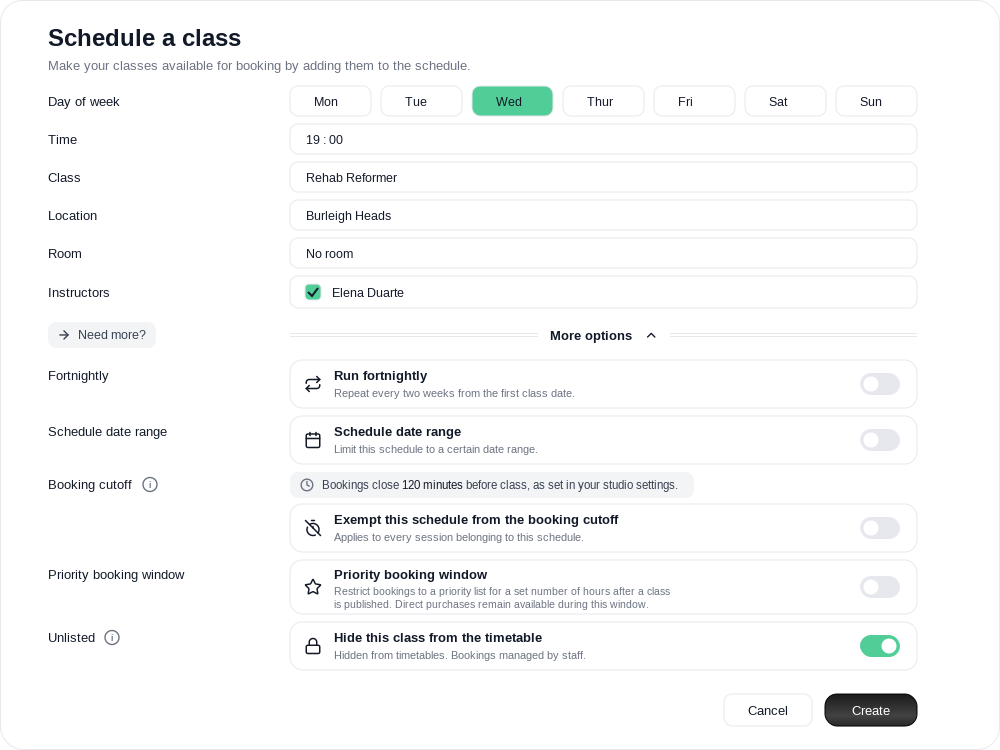
The setting belongs to the schedule, so it covers every session of that schedule. Your other schedules for the same class are not affected. For example, you can hide a Wednesday 7:00pm Rehab Reformer group while your Monday Rehab Reformer class stays open to everyone.
What clients see
Sessions from an unlisted schedule do not appear:
- in the timetable in your clients’ Clovo app, including the classes listed on an instructor’s profile
- on your landing page
- in the timetable on your website
- in timetable images you create
Clients cannot book an unlisted session themselves, join its waitlist, use super credits on it or pay for it with Direct Purchase. If they try to book from a link, they are asked to contact your studio.
Clients you have booked in see the class in their bookings as usual. They get their booking reminders, can check in, and can cancel under your usual cancellation rules.
Unlisted keeps a class off your timetables, but it does not hide the class from someone who already has a link to one of its sessions. They can still see the class name, time and location. If those details are confidential, keep the class name general.
Create an unlisted schedule
- Go to Setup → Schedule and choose Schedule a class in List view. In Visual view, you can select an empty time slot instead.
- Set the day of week, time, class, location, room if needed, and instructors.
- Select More options.
- Under Unlisted, turn on Hide this class from the timetable.

- Choose Create.
Popup classes have the same setting under More options, if you want a one-off session that only staff can book clients into.
Make an existing schedule unlisted
- Go to Setup → Schedule, open the schedule, and choose Change schedule.
- Select More options and turn on Hide this class from the timetable.
- Choose Change. In the review, Timetable listing is marked Changed and shows the schedule moving from listed to unlisted.

- If existing openings are listed, leave them unselected and choose Save changes without cancelling. If there are no open classes, choose Save changes.
The change applies to the schedule’s existing openings as well as future ones, and bookings already made are kept. Your website timetable can take up to a minute to catch up. Timetable images you have already shared are not changed.
For more on the review step, see Changing class schedules with existing openings.
If clients were waiting for a place
Unlisted sessions do not have waitlists. When you make a schedule unlisted, clients on a waitlist for one of its sessions are not moved into the class when a place opens. Clovo removes them from the waitlist and lets them know they could not be booked. If you would still like them in the class, book them in yourself.
If a client was paying for a single class
If a client was partway through paying for a session with Direct Purchase when you made the schedule unlisted, their payment can go through without a booking. Clovo does not refund it automatically. You will see it as a failed direct booking: book the client in, or refund the payment.
Book clients into an unlisted class
There are two ways to fill an unlisted class:
- Book clients yourself. Open the session from Openings or from the schedule, and choose Add booking. You can book a client’s family members and friends as well. See Book a client into a class from the studio dashboard. You can also move an existing booking into or out of an unlisted session.
- Add regulars to the schedule. Regulars are booked into each new opening automatically. They still need a membership or credits that cover the class, and the class needs a free place.
Add to waitlist is not shown on an unlisted session. When a place opens, book the next client in yourself.
When a client tells you they could not book, the attempt appears in failed bookings with the reason Class is unlisted.
Find your unlisted schedules
An Unlisted badge appears next to the class name:
- in List view on the Schedule screen
- on the schedule’s details page
- in the Openings list, for each session of an unlisted schedule

Visual and Timeline views do not show the badge, so use List view to check which schedules are unlisted.
An unlisted schedule stays unlisted when you duplicate it in Visual view. If you move one opening to a new date or time or change its class, that opening stays unlisted too.
List the class again
Open the schedule, choose Change schedule, and turn off Hide this class from the timetable under More options. Choose Change, check that Timetable listing now shows Listed on client timetables, then save through the same review step.
The schedule’s sessions, including existing openings, return to your timetables. Clients can book them and join waitlists as usual, and existing bookings are kept.
Other ways to control who books
- To keep a class on the timetable but give chosen clients first access, use a priority booking window.
- To keep a few places for particular clients in an otherwise open class, block or reserve spots.
- To sell a plan or pack only to people you share it with, see How to offer secret deals on your plans and packs.
Related articles
Exempt a schedule from the booking cutoff
Keep bookings open until class starts for selected schedules while the rest of your timetable follows your studio booking cutoff.
Changing class schedules with existing openings
Edit or delete a class schedule and decide what happens to the classes Clovo has already opened for booking.
Give chosen members first access to a class with a priority booking window
Hold a class open to a chosen list — named clients, membership plans or tags — for a set number of hours after it is published, before booking opens to everyone.
Refund a payment when a direct booking failed
In the rare case that a Direct Purchase payment succeeds but the booking does not, refund the payment from the client's record in Clovo.