Author: Tobi Gundry

How to sell a product at the point of sale using Shop Sale

The Shop Sale button on a client’s profile lets you quickly sell products from your Member Shop directly at the point of sale. It sits right next to the POS Purchase button, making it easy to process product sales during a client visit.

Where to find the Shop Sale button

Open a client’s profile in Clovo and look for the Shop Sale button — you’ll find it right next to the POS Purchase button. These two buttons sit together so you can quickly choose between selling a product or processing another type of purchase.

How to sell a product using Shop Sale

1. Open the client’s profile
Navigate to the client you’d like to sell a product to and open their profile.

2. Click the Shop Sale button
Find the Shop Sale button next to POS Purchase and click it. This will open the Membershop product catalogue.

3. Choose the product
Browse or search for the product you’d like to sell. You’ll see the available products from your Membershop along with their prices.

4. Select the quantity
Choose how many of the product the client would like to purchase.

5. Complete the sale
Confirm the sale and process the payment. The transaction will be recorded against the client’s profile, so you’ll have a full history of their purchases.

When to use Shop Sale vs POS Purchase

Use Shop Sale when you’re selling a physical or digital product from your Membershop — things like merchandise, skincare products, supplements, or any other retail item you stock.

Use POS Purchase for other types of transactions that aren’t product sales from your shop. Such as for Memberships and Credit Packs.

Tips

  • Make sure your products are set up in your Membershop before trying to sell them at the point of sale.
  • The sale will appear in the client’s purchase history, making it easy to track what they’ve bought.
  • If you need to process a refund, you can do so from the client’s transaction history.

Track your booked classes with Live Activities on iPhone

Clovo’s Live Activity feature for iPhone lets you keep track of your upcoming and in-progress classes right from your Lock Screen and Dynamic Island — no need to open the app.

What are Live Activities?

Live Activities are a feature on iPhone (iOS 16.1 and later) that display real-time information on your Lock Screen and in the Dynamic Island on iPhone 14 Pro and newer models. Clovo uses Live Activities to show you details about your booked classes as they approach and while they are in progress.

What does the Clovo Live Activity show?

When you have an upcoming booked class, the Clovo Live Activity will appear approximately one hour before the class starts. It displays the following information:

On the Lock Screen banner:

  • The studio name and location
  • Your class name (e.g. Reformer Pilates 45 Minute)
  • The instructor name(s)
  • Start and end times for the class
  • A countdown showing the time remaining until the class starts, or the time remaining in a class that is in progress
  • A progress bar showing how far through the class you are
  • The studio logo

In the Dynamic Island (iPhone 14 Pro and later):

  • The compact view shows the studio logo on the left and a live countdown timer on the right
  • Tap and hold the Dynamic Island to expand it and see full details including the studio name, class times, and a countdown

The Live Activity updates in real time and uses colour to indicate the current status of your class:

  • Green — Your class is coming up (countdown phase)
  • Orange — Your class is currently in progress
  • Grey — Your class has finished

After your class ends, the Live Activity will remain briefly before automatically dismissing.

How to turn Live Activities on or off

Live Activities are enabled by default in the Clovo app. There are two ways to control Live Activities:

Within the Clovo app

  1. Open the Clovo app on your iPhone
  2. Tap on your Account tab
  3. Tap Settings
  4. Find the Live Activities toggle
  5. Toggle it on or off according to your preference

When you disable Live Activities in the Clovo app settings, any currently active Live Activity will be ended immediately.

From iPhone Settings

You can also control whether Clovo is allowed to show Live Activities from your iPhone’s system settings:

  1. Open the Settings app on your iPhone
  2. Scroll down and tap Clovo
  3. Tap Live Activities
  4. Toggle Allow Live Activities on or off

If Live Activities are disabled at the system level, the Clovo app will not be able to display them regardless of the in-app setting.

Requirements

  • An iPhone running iOS 16.1 or later
  • The latest version of the Clovo app
  • An upcoming booked class
  • For Dynamic Island display: iPhone 14 Pro or later

Frequently Asked Questions

When does the Live Activity appear?
The Live Activity will appear approximately one hour before your booked class starts.

Can I see the Live Activity if I have multiple bookings?
The Live Activity shows one class at a time, prioritising the class that is currently most relevant based on timing.

Why don’t I see a Live Activity for my booked class?
Make sure Live Activities are enabled in both the Clovo app settings and your iPhone’s system settings. Also ensure you are running iOS 16.1 or later and have the latest version of the Clovo app installed.

Does the Live Activity use a lot of battery?
No. Live Activities are designed by Apple to be energy efficient and have minimal impact on battery life.

Configuring Member Shop settings

The Member Shop includes settings that let you control automations and operational defaults for your shop. This guide covers the available settings and how to configure them to match your studio’s workflow.

Accessing Shop Settings

Navigate to Products > Shop in your dashboard sidebar, then click the Shop Settings tab at the top of the page. This is where you can manage all automations related to your Member Shop.

Automatically create tasks

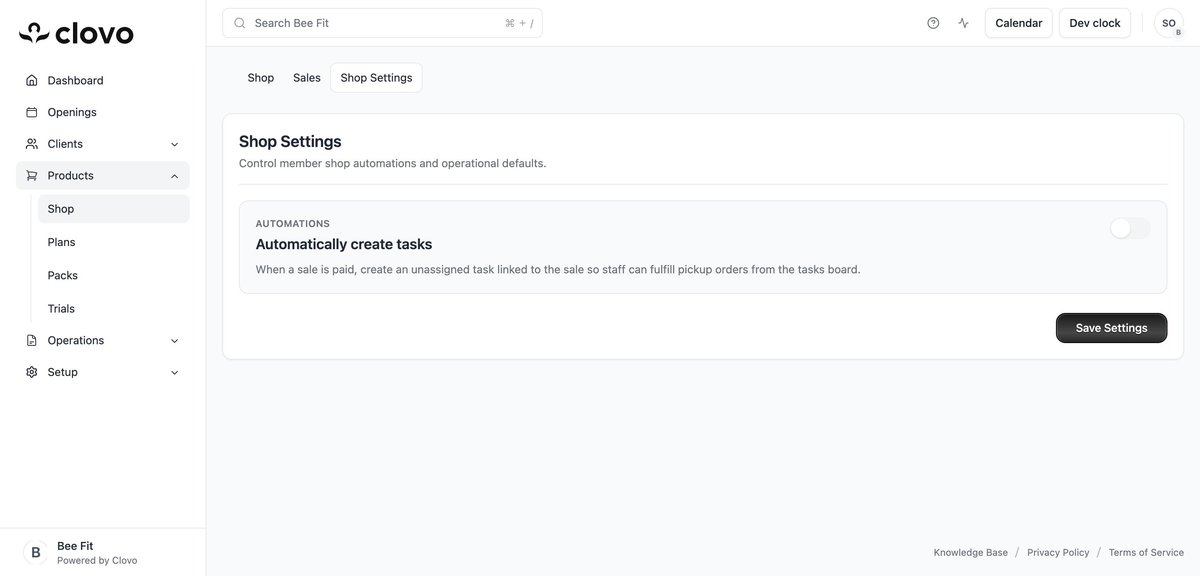
The main setting available in Shop Settings is the Automatically create tasks toggle. When you enable this automation:

Shop Settings page showing the Automatically create tasks toggle under the Automations section
  • Every time a Member Shop sale is paid, Clovo automatically creates an unassigned task linked to that sale
  • The task appears on your tasks board, where any staff member can pick it up
  • This ensures that no pickup order is missed, as staff can work through their task list to fulfill orders

This feature is especially useful for studios with multiple staff members, as it provides a clear workflow for handling physical product pickups without anyone having to manually monitor the Sales tab.

How to enable automatic task creation

  1. Go to Products > Shop > Shop Settings
  2. Find the Automatically create tasks toggle under the Automations section
  3. Click the toggle to turn it on
  4. Click Save Settings at the bottom of the page

Once enabled, any future paid sales will automatically generate a task. Previously completed sales will not have tasks created retroactively.

How to disable automatic task creation

If you prefer to manage order fulfillment manually through the Sales tab, you can turn off this feature at any time. Simply go back to Shop Settings, toggle the setting off, and click Save Settings. Future sales will no longer create tasks automatically.

When to use automatic tasks

Consider enabling automatic task creation if:

  • You have multiple staff members who need to know about pending pickups
  • You want a centralized place for staff to see and manage all fulfillment work
  • You already use the Clovo tasks board to manage other studio operations

You might prefer to keep it disabled if you are a solo operator who checks the Sales tab directly, or if you have a different workflow for managing product pickups.

Tracking and fulfilling Member Shop sales

When a member purchases a product from your Member Shop, the sale is recorded and can be tracked through the Sales tab. This guide explains how to view your sales, understand order details, and fulfill pickup orders.

Viewing your sales

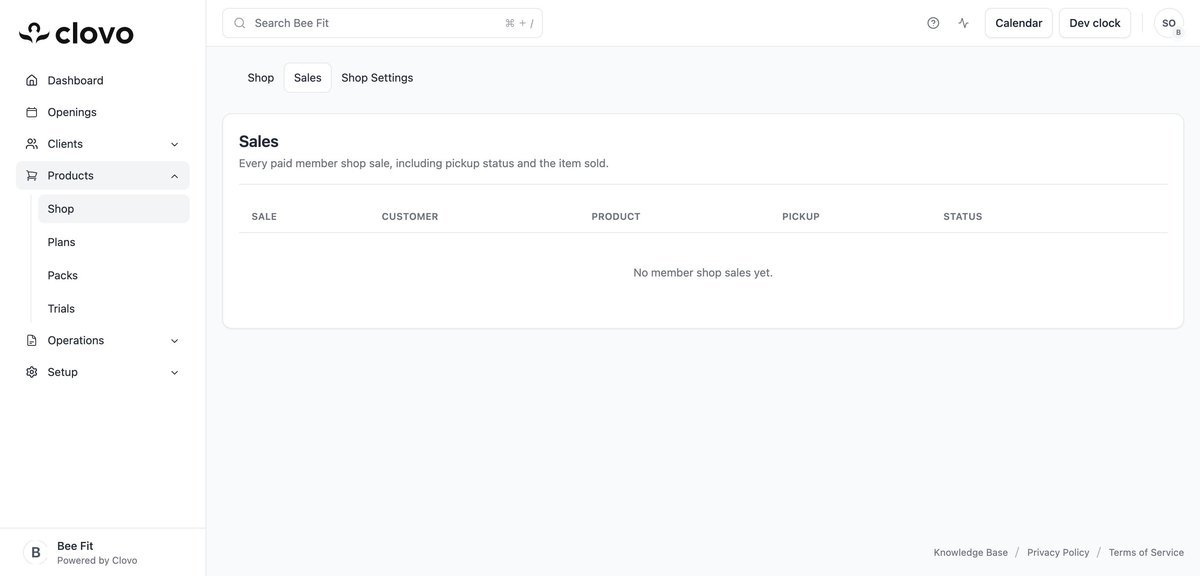
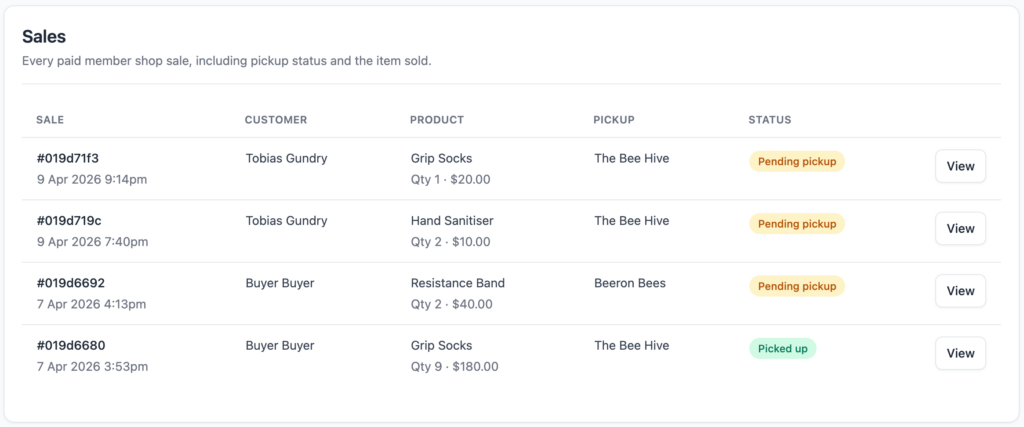
Navigate to Products > Shop and click the Sales tab at the top of the page. This shows every paid Member Shop sale in a table with the following columns:

  • Sale — A reference for the transaction
  • Customer — The member who made the purchase
  • Product — Which item was bought
  • Pickup — The studio location the member selected for pickup
  • Status — The current fulfillment status of the order

The Sales tab gives you a clear overview of all orders so you and your staff know exactly what needs to be picked up and where.

Sales tab showing columns for Sale, Customer, Product, Pickup, and Status

How the purchase flow works

Here is what happens when a member buys a product:

  1. The member browses your shop on your landing page or client app
  2. They select a product and choose a pickup location
  3. They complete the purchase through the app
  4. The sale appears in your Sales tab with the order details
  5. Stock is automatically reduced at the selected pickup location
  6. If automatic task creation is enabled, a task is created for your staff to fulfill the order

Fulfilling orders with automatic tasks

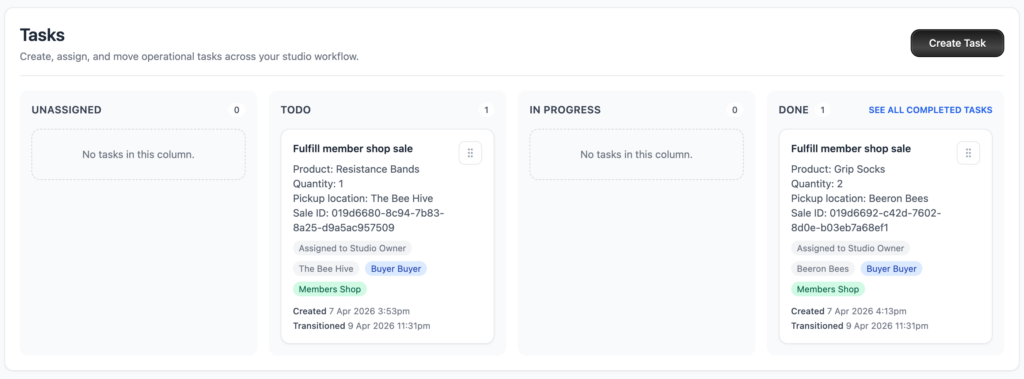
To streamline order fulfillment, you can enable automatic task creation in Shop Settings. When this is turned on, every time a sale is paid, Clovo automatically creates an unassigned task linked to the sale. Your staff can then pick up and manage these tasks from the tasks board.

This means your team does not need to constantly check the Sales tab — they can simply work through their task list to fulfill pickup orders as they come in. For details on enabling this feature, see our guide on Configuring Member Shop settings.

Stock and sales

When a sale is completed, the stock at the selected pickup location is automatically reduced. This change is recorded in the product’s stock ledger with the reason marked as “Sale” along with a reference to the transaction. This means your stock levels always reflect actual availability without any manual intervention.

If you need to reverse a stock change due to a cancellation or return, you can manually adjust the stock quantity on the product detail page. See our guide on Managing stock and inventory in the Member Shop for more details on stock adjustments.

Managing stock and inventory in the Member Shop

The Member Shop includes a complete stock management system that tracks inventory separately for each of your studio locations. Every stock change is recorded in a detailed ledger so you always have a clear history of what happened, when, and why.

Viewing your stock levels

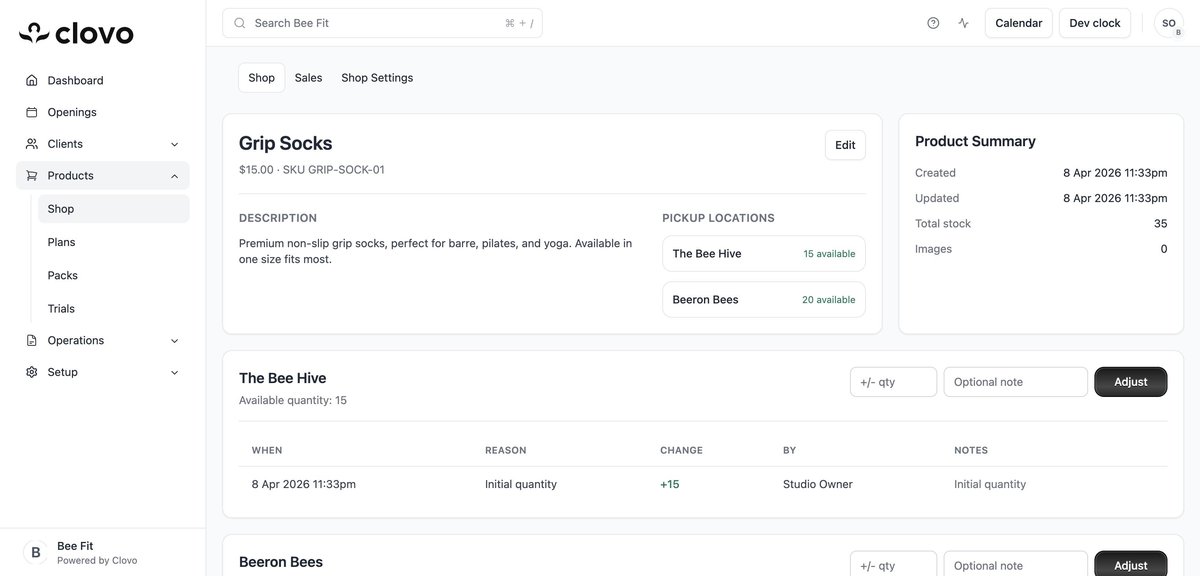
To check stock levels for a product, go to Products > Shop and click on the product. The product detail page shows the Pickup Locations section with the current available quantity at each location. The Product Summary sidebar on the right displays the total stock across all locations.

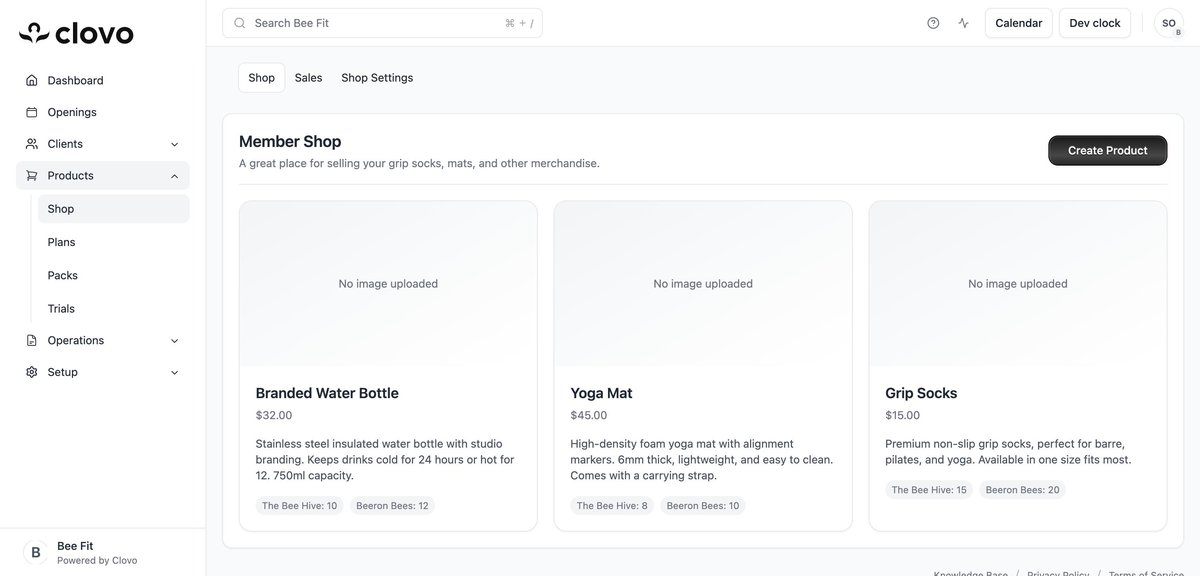
On the shop listing page, each product card also shows stock levels per location as small badges at the bottom of the card, giving you a quick overview without having to open each product.

Adjusting stock quantities

Below the product details on the product page, you will find a stock adjustment section for each pickup location. To adjust stock:

Product detail page showing pickup locations, stock levels, adjustment controls, and the stock ledger
  1. Find the location you want to adjust
  2. Enter the quantity change in the +/- qty field. Use a positive number to add stock (e.g. 10) or a negative number to remove stock (e.g. -5)
  3. Optionally add a note in the Optional note field to record why you are making the adjustment (e.g. “New shipment received” or “Damaged items removed”)
  4. Click the Adjust button to apply the change

The available quantity for that location will update immediately, and a new entry will be added to the stock ledger.

Understanding the stock ledger

Each pickup location has its own stock ledger that records every change to the quantity. The ledger displays the following columns:

  • When — The date and time the stock change occurred
  • Reason — The type of change, such as “Initial quantity” when the product was first created, “Manual adjustment” for stock corrections, or “Sale” when a member purchases the item
  • Change — The quantity that was added or removed (shown as +10 or -3 for example)
  • By — Who made the change, such as “Studio Owner” or a staff member’s name
  • Notes — Any notes that were added when the adjustment was made

The ledger provides a complete audit trail of your inventory, making it easy to trace when and why stock levels changed. When a product is first created with a starting quantity, the ledger automatically records an “Initial quantity” entry.

Setting initial stock for new locations

When you create a product, you can set the starting quantity for each selected pickup location. If you leave a location’s quantity blank or set it to 0, no initial stock ledger entry will be created for that location. You can always add stock later using the adjustment feature on the product detail page.

Tips for managing inventory

  • Always add a note when making manual stock adjustments so you can refer back to the reason later
  • Check your stock levels regularly, especially for popular items, to ensure you do not run out
  • Use the stock ledger to identify patterns in sales and plan restocking accordingly
  • Remember that stock is tracked per location — a product can be in stock at one location and out of stock at another

How to create a product in the Member Shop

Adding products to your Member Shop is quick and straightforward. Each product you create will be available for members to purchase through your landing page and client apps. This guide walks you through every field in the product creation form.

Navigate to the product form

Go to Products > Shop in your dashboard sidebar. If you have no products yet, you will see a Create Product button in the centre of the page. If you already have products, click the Create Product button in the top right corner of the shop listing.

Fill in the product details

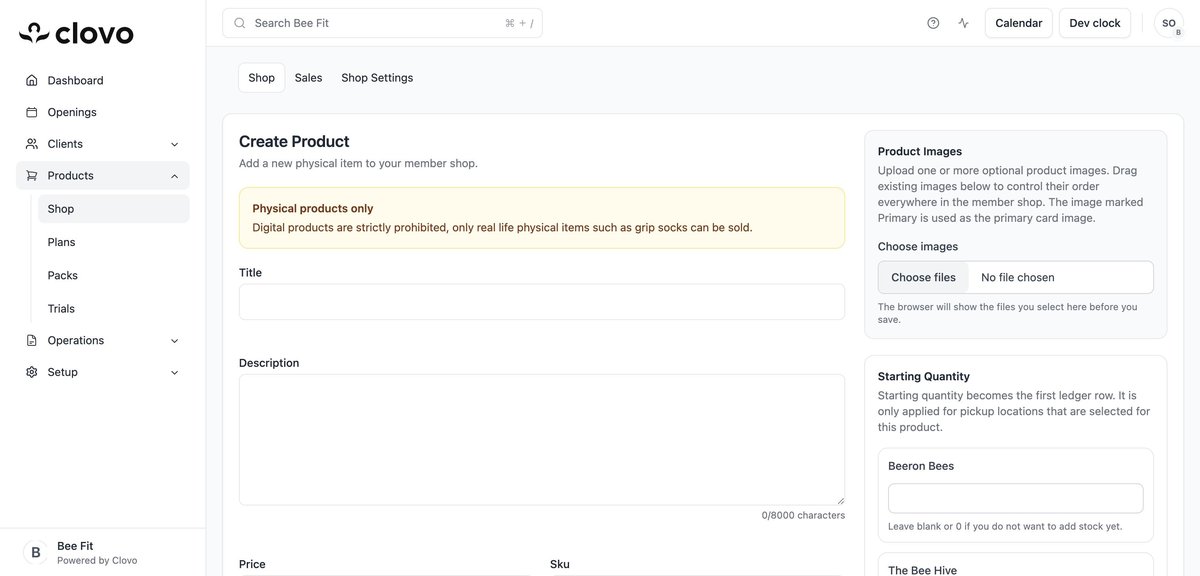
The product form includes the following fields:

Create Product form showing title, description, price, SKU, pickup locations, and product image fields

Title

Enter a clear, descriptive name for your product. This is what members will see when browsing your shop. For example: “Grip Socks”, “Yoga Mat”, or “Branded Water Bottle”.

Description

Add a detailed description of your product (up to 8,000 characters). Include useful information like materials, sizing, colours, or any other details that will help members make a purchase decision. This description appears on both the product card and the product detail view.

Price

Set the selling price for the product. Enter the amount in your studio’s currency. For example, enter 15.00 for a $15 product.

SKU

Optionally assign a SKU (Stock Keeping Unit) code for your own internal tracking and inventory management. For example: “GRIP-SOCK-01” or “BOTTLE-BLK”.

Pickup Locations

Select which of your studio locations will stock this product by ticking the checkbox next to each location name. You can select one or multiple locations. Only locations that are checked will appear as pickup options for members purchasing this product.

Starting Quantity

For each selected pickup location, enter the initial stock quantity. This becomes the first entry in the product’s stock ledger. Leave blank or enter 0 if you do not want to add stock yet.

Product Images

Upload one or more product images using the Choose images button on the right side of the form. You can drag images to reorder them after uploading. The first image (marked as Primary) will be used as the main image on product cards throughout the Member Shop and landing page.

Save your product

Once you have filled in all the details, click the Create Product button at the bottom of the form. You will be taken to the product detail page where you can review everything, see the stock ledger, and make further adjustments if needed.

Edit an existing product

To edit a product after creation, navigate to Products > Shop, click on the product card, and then click the Edit button on the product detail page. You can update the title, description, price, SKU, pickup locations, and images at any time.

Remember: the Member Shop only supports physical products. Digital products such as online courses or downloadable files are not permitted.

Getting started with the Member Shop

The Member Shop lets you sell physical items like grip socks, mats, water bottles, and other merchandise directly through your Clovo account. Your products will appear on your public landing page and in your client apps, making it easy for members to browse and purchase items for pickup at your studio.

What you can sell

The Member Shop is designed exclusively for physical products that members pick up at your studio location. This includes items like grip socks, yoga mats, water bottles, branded merchandise, resistance bands, and any other tangible items you stock at your studio. Digital products such as e-books, online courses, or downloadable content are not supported.

Where to find it

To access the Member Shop, navigate to Products > Shop in your studio dashboard sidebar. You will see three tabs at the top of the page:

  • Shop — View and manage all your products
  • Sales — Track every paid order including customer details, product sold, pickup location, and fulfillment status
  • Shop Settings — Configure automations like automatic task creation for order fulfillment
Member Shop product listing showing product cards with prices and stock levels

How members see your shop

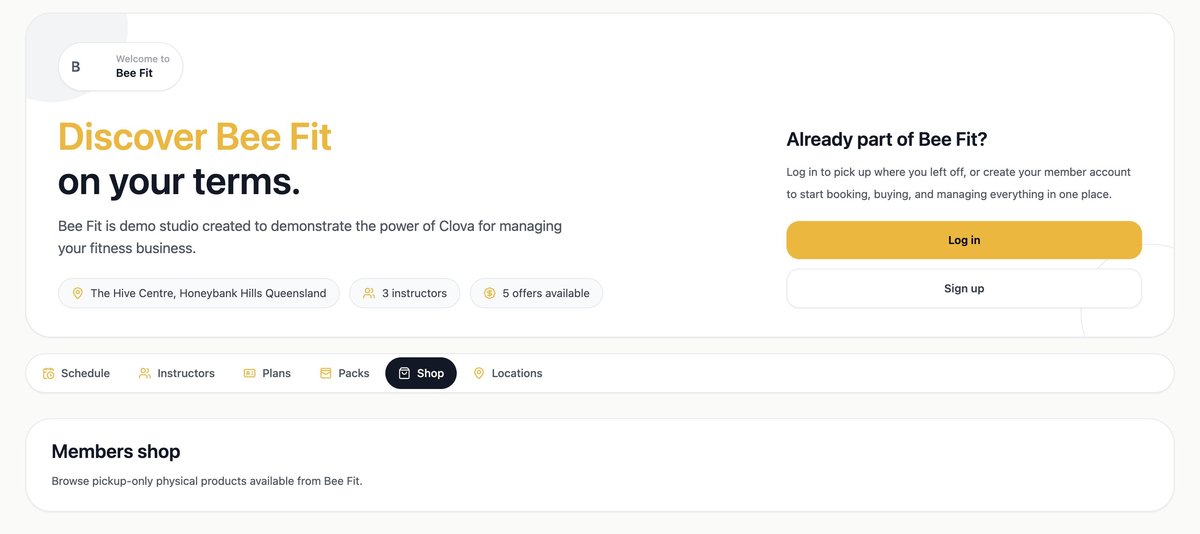
Once you have created products, a Shop tab will automatically appear on your public landing page alongside your existing Schedule, Plans, and Packs tabs. Members can also browse and purchase items through the Clovo client app. Each product displays its name, price, description, and an image if you have uploaded one.

Landing page showing the Shop tab where members can browse and purchase products

Key features at a glance

  • Multi-location stock tracking — Set and manage separate stock levels for each of your studio locations
  • Stock ledger — Every stock change is recorded with the date, reason, quantity change, who made it, and optional notes
  • Product images — Upload multiple images and set a primary image that appears on product cards
  • SKU support — Assign SKU codes to each product for your own internal tracking
  • Automatic task creation — Optionally create staff tasks when a sale is paid so your team can fulfill pickup orders from the tasks board
  • Sales tracking — View every sale with customer, product, pickup location, and status information

Next steps

Ready to get started? Head over to Products > Shop and click Create Product to add your first item. For a detailed walkthrough, see our guide on How to create a product in the Member Shop.

Share your timetable link with clients

Clovo includes a shareable timetable feature that gives your clients a direct link to browse your upcoming class schedule in a web browser — no app download required. This is a great way to let potential clients see what you offer before they commit.

How to access your shareable timetable

  1. In Clovo Studio, go to the Openings page.
  2. Click the Share Timetable button at the top of the page.
  3. Copy the link provided.

Where to share your timetable link

  • Social media bios — add it to your Instagram, Facebook, or TikTok link-in-bio
  • Your website — link to it from a “View Timetable” button on your homepage
  • Email signatures — include it in your studio’s email footer so every message promotes your schedule
  • Google Business Profile — add it as a link so people searching for your studio can see your schedule immediately
  • Direct messages — send it to anyone who asks about your class times

Timetable link vs. embedded timetable

The shareable timetable link opens a standalone page showing your schedule. If you want to embed your timetable directly into your own website as part of the page, see show your timetable on your website instead. Both options pull live data from Clovo, so they’re always up to date.

Creating timetable images for social media

If you’d prefer to share a visual timetable graphic (e.g. for an Instagram post or story), check out the social timetable image generator which creates shareable PNG images of your schedule.

Set up late cancellation and no-show penalties

Late cancellations and no-shows can be a real challenge for fitness studios, leaving empty spots that could have been filled by other clients. Clovo’s Penalties feature lets you define clear rules around cancellations so clients are encouraged to show up or cancel with enough notice.

What are penalties?

Penalties are rules that apply when a client cancels a booking too close to the class start time, or doesn’t show up at all. Depending on how you configure them, penalties can charge the client’s credit or simply flag the behaviour for your records.

Setting up penalties

  1. In Clovo Studio, go to Setup > Penalties.
  2. Define your cancellation window — the number of hours before a class starts that a client can cancel without penalty (e.g. 12 hours, 24 hours).
  3. Choose what happens when a client cancels within the penalty window or doesn’t show up — for example, their credit is still consumed.
  4. Save your penalty settings.

How penalties work in practice

  • Outside the window — if a client cancels with enough notice (e.g. more than 12 hours before), their credit is returned and no penalty applies
  • Inside the window — if a client cancels too late, the credit used to book the class may not be returned (depending on your settings)
  • No-shows — clients who don’t turn up and don’t cancel are treated the same as a late cancellation

Tips for penalty policies

  • Be clear with your clients — communicate your cancellation policy through your waiver, welcome message, and studio signage
  • Be fair but firm — penalties should encourage respect for your timetable without alienating clients
  • Consider your class type — a 12-hour window might be fine for large group classes but too strict for intimate 4-person reformer sessions that fill quickly
  • Pair with waitlists — penalties work best alongside waitlists, which help fill any spots that open up from late cancellations

Getting started with Clovo: your complete setup guide

Welcome to Clovo! This guide walks you through the essential steps to get your studio up and running. The Clovo Studio dashboard includes a setup checklist that tracks your progress — follow these steps in order and you’ll be accepting bookings in no time.

Step 1: Set up your studio profile

Start by completing your studio owner profile and verifying your email address. This is your admin identity in Clovo and is required before you can access most features.

Step 2: Add your instructors

Add the people who teach your classes. Each instructor gets a name, photo, and bio that clients can see when browsing your timetable. See add and manage your instructors for details.

Step 3: Add your classes

Define the types of classes you offer — for example, Reformer Pilates, Yoga Flow, or HIIT. Each class type has a name, description, duration, and capacity. See create and manage your class types.

Step 4: Create your schedule

Build your weekly timetable by assigning classes to specific days, times, locations, and instructors. Clovo will automatically generate bookable openings based on your schedule. See Schedules in Clovo.

Step 5: Add plans and packs

Create the products your clients will purchase — memberships for recurring access, credit packs for prepaid visits, or trials for newcomers. See creating a membership plan and Credit Packs in Clovo.

Step 6: Customise your branding

Upload your logo, set your brand colours, and write your studio description. These appear across the Clovo app, your landing page, and client emails. See change your branding.

Step 7: Add your waiver

Include your terms and liability waiver so clients agree to your studio policies when they sign up. See add a liability waiver.

Step 8: Connect Stripe

The final step is connecting your Stripe account to start accepting payments. Clovo never holds your money — payments go directly from your clients to your bank account via Stripe. See start accepting payment with Stripe.

What’s next?

Once you’ve completed all 8 steps, your studio will be publicly visible and ready for clients to discover. Share your landing page link on social media, update your Google Business Profile, and start spreading the word. You can manage everything on the go with the Clovo iOS app.

  • 1
  • 2